Partner Connect provisions the warehouse side before you sign up
Databricks creates the user, token and privileges for dbt Cloud or Fivetran, passes them over, and the partner only asks for an account name and password.
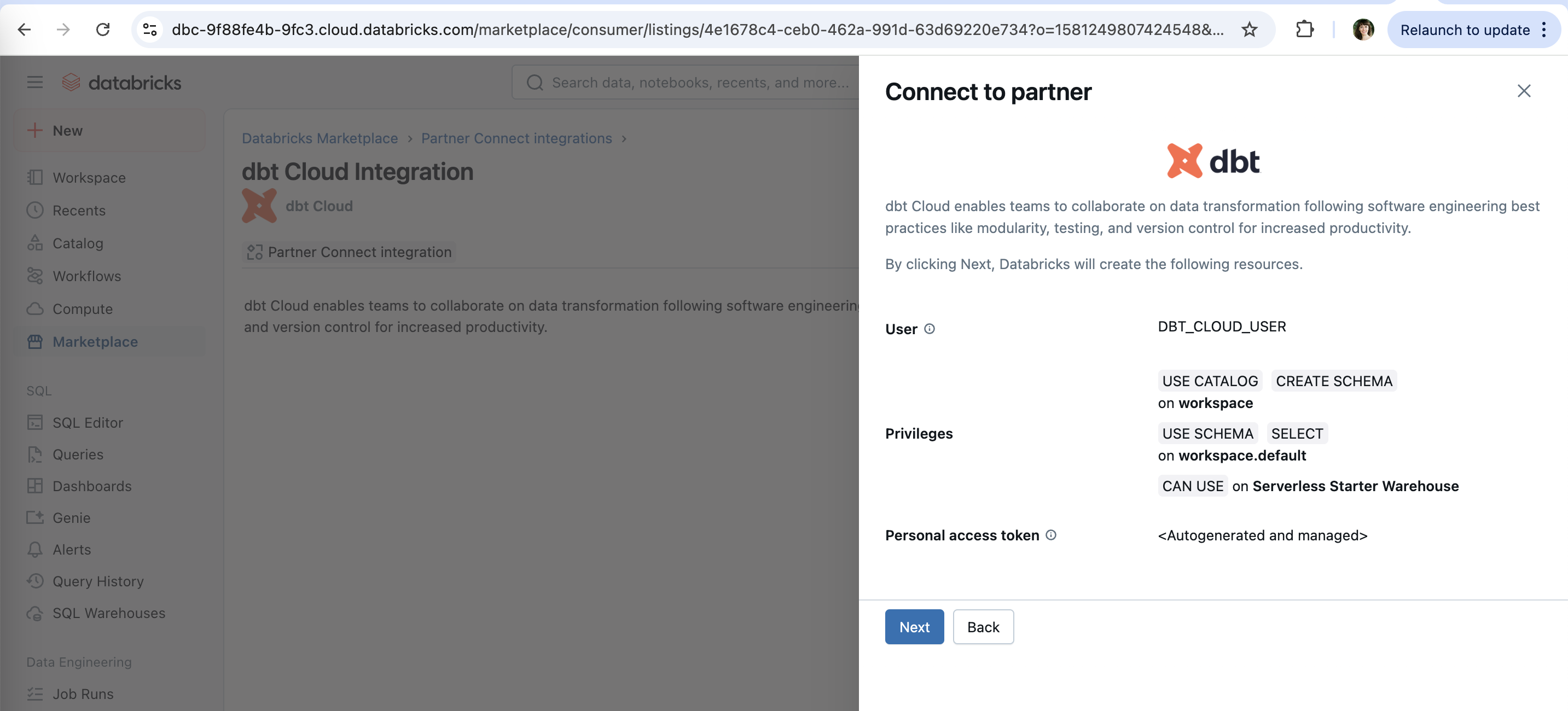
Connect to partner: what will be created
Before anything happens, the side panel lists the user, privileges and token Databricks will create for dbt Cloud.
-
1
Consequence stated first (working)
"By clicking Next, Databricks will create the following resources" says what Next does before you press it.
-
2
Exact privileges as chips (working)
USE CATALOG, CREATE SCHEMA, SELECT and CAN USE are scoped to named objects, so an admin can approve at a glance.
-
3
Token handled for you (working)
"<Autogenerated and managed>" removes the step where most people get stuck: creating and pasting a token.
-
4
Marketing blurb, twice (not working)
The same dbt Cloud description repeats on the page behind; the space could explain what you get after connecting.
Resources created, hand-off to dbt
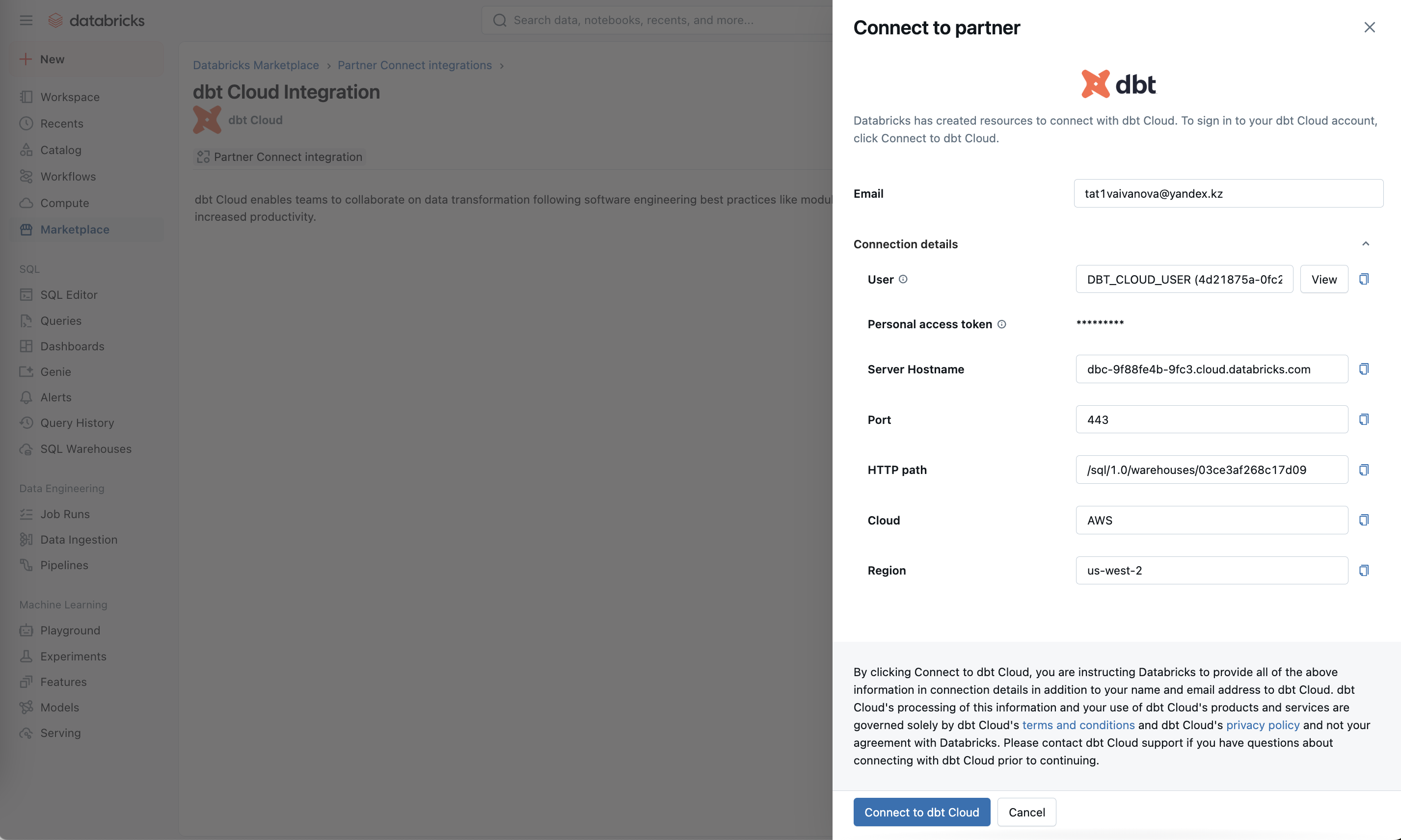
Databricks reports the resources are ready and shows every connection detail it will pass to dbt Cloud.
-
5
Done before you ask (working)
"Databricks has created resources" means the hard setup already happened on the warehouse side.
-
6
Email prefilled (working)
Your Databricks email carries over, so the partner account starts with known identity.
-
7
Details with copy buttons (working)
Hostname, port, HTTP path, cloud and region are visible and copyable for anyone who needs to set it up by hand later.
-
8
Six-line legal paragraph (not working)
The data-sharing consent is a dense block right above the CTA, so most people will scroll past it.
-
9
CTA names the destination (working)
"Connect to dbt Cloud" says where you go next, not just "Next".
Taking you to dbt Cloud
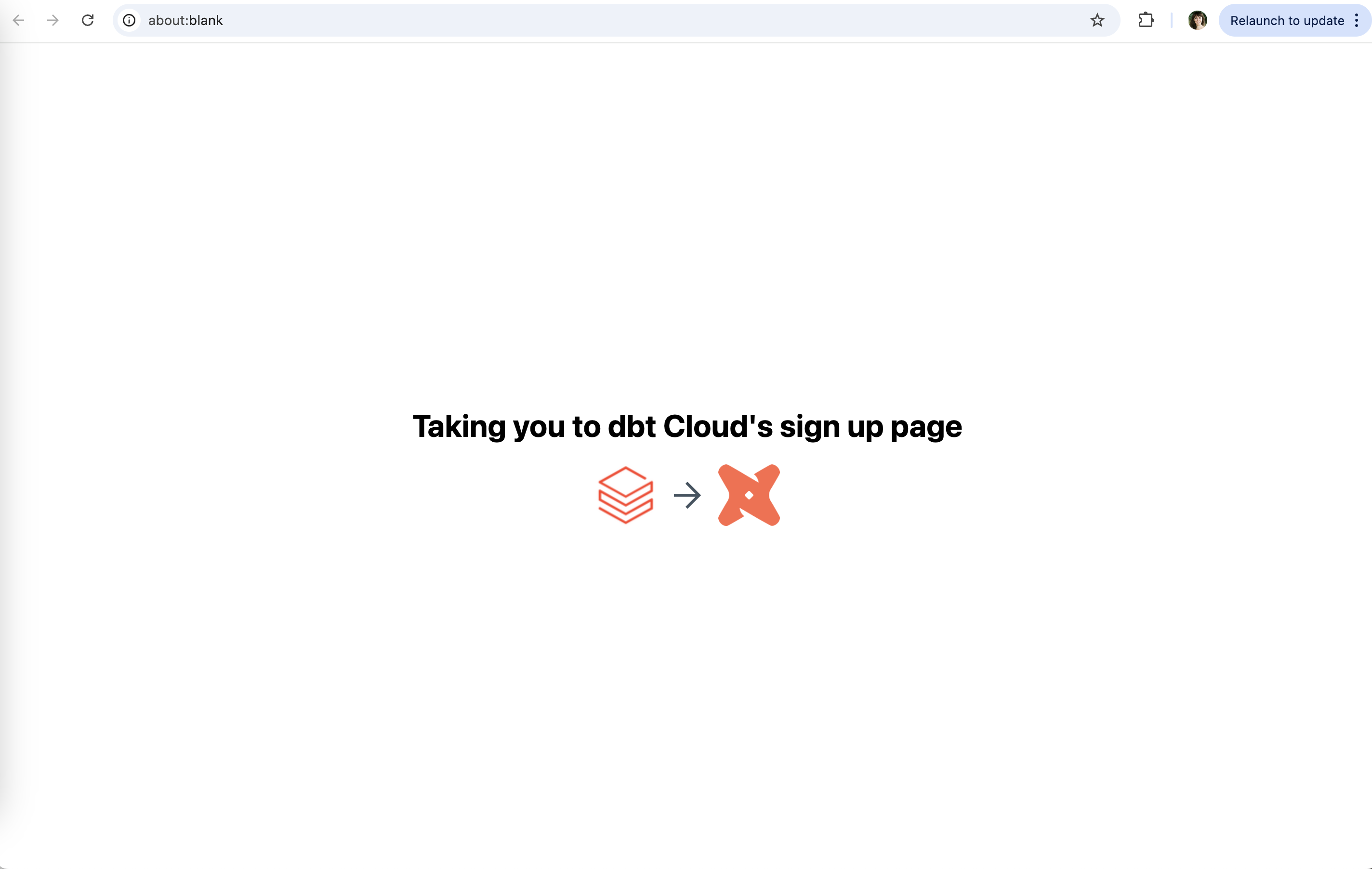
A redirect interstitial shows the Databricks to dbt hand-off with both logos.
-
10
Says what is happening (working)
"Taking you to dbt Cloud's sign up page" explains the context switch so the new tab is not a surprise.
-
11
Logo-to-logo arrow (working)
Databricks, arrow, dbt: the direction of the hand-off is readable without text.
-
12
about:blank in the URL bar (not working)
The page has no address while it loads, which looks odd on a flow that just shared credentials.
dbt Cloud: complete registration
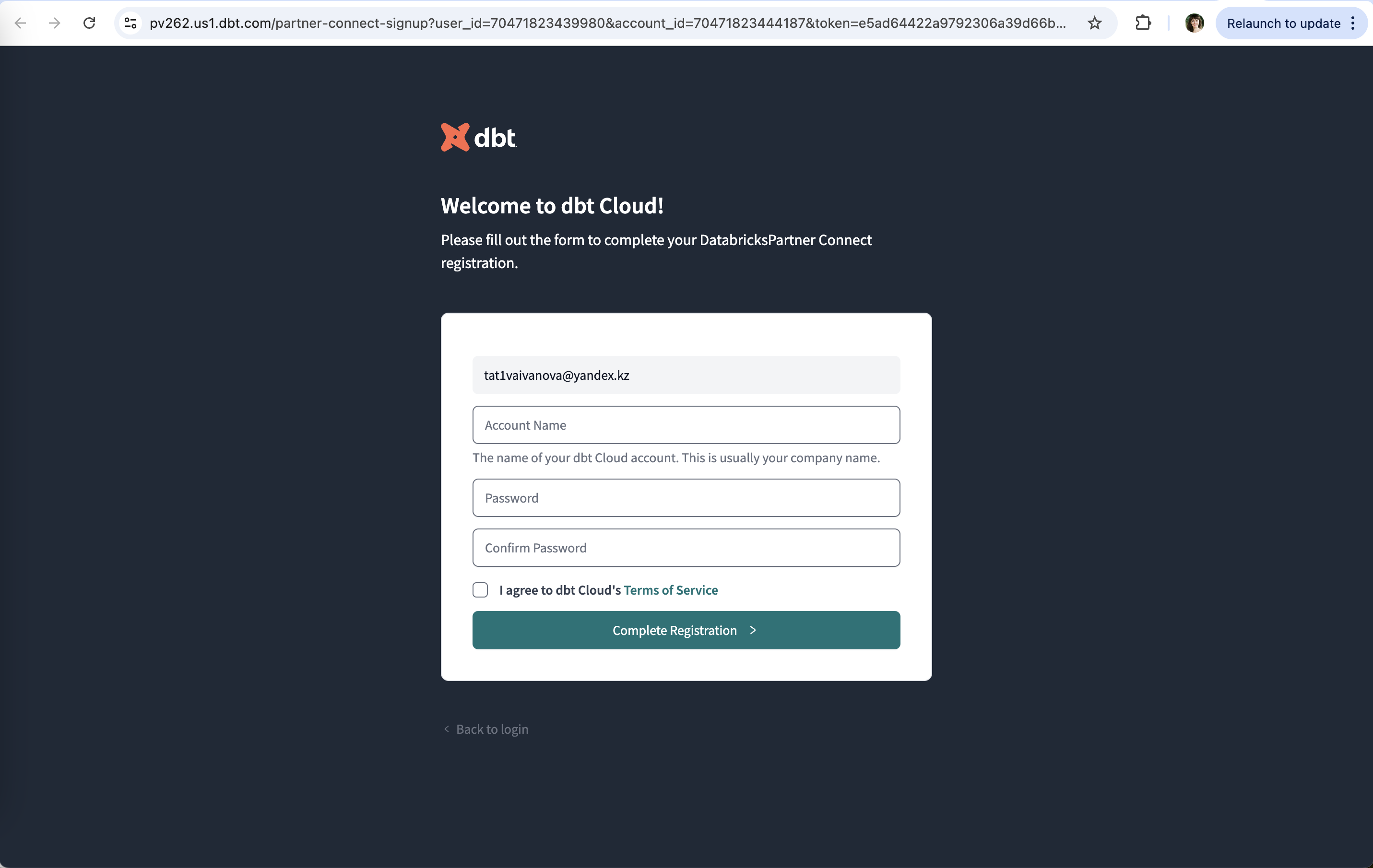
dbt Cloud only asks for an account name and a password; the email and Databricks link come in through the URL.
-
13
Email locked in (working)
The email is prefilled and greyed out, so one field is already done.
-
14
Helper under the field (working)
"This is usually your company name" answers the obvious question before it is asked.
-
15
Still a new password (not working)
After a token-based hand-off you still create and confirm a password; SSO from the partner would skip this.
-
16
Typo in the welcome (not working)
"DatabricksPartner Connect" is missing a space on the first screen of the partner product.
Connection succeeded, plus a survey
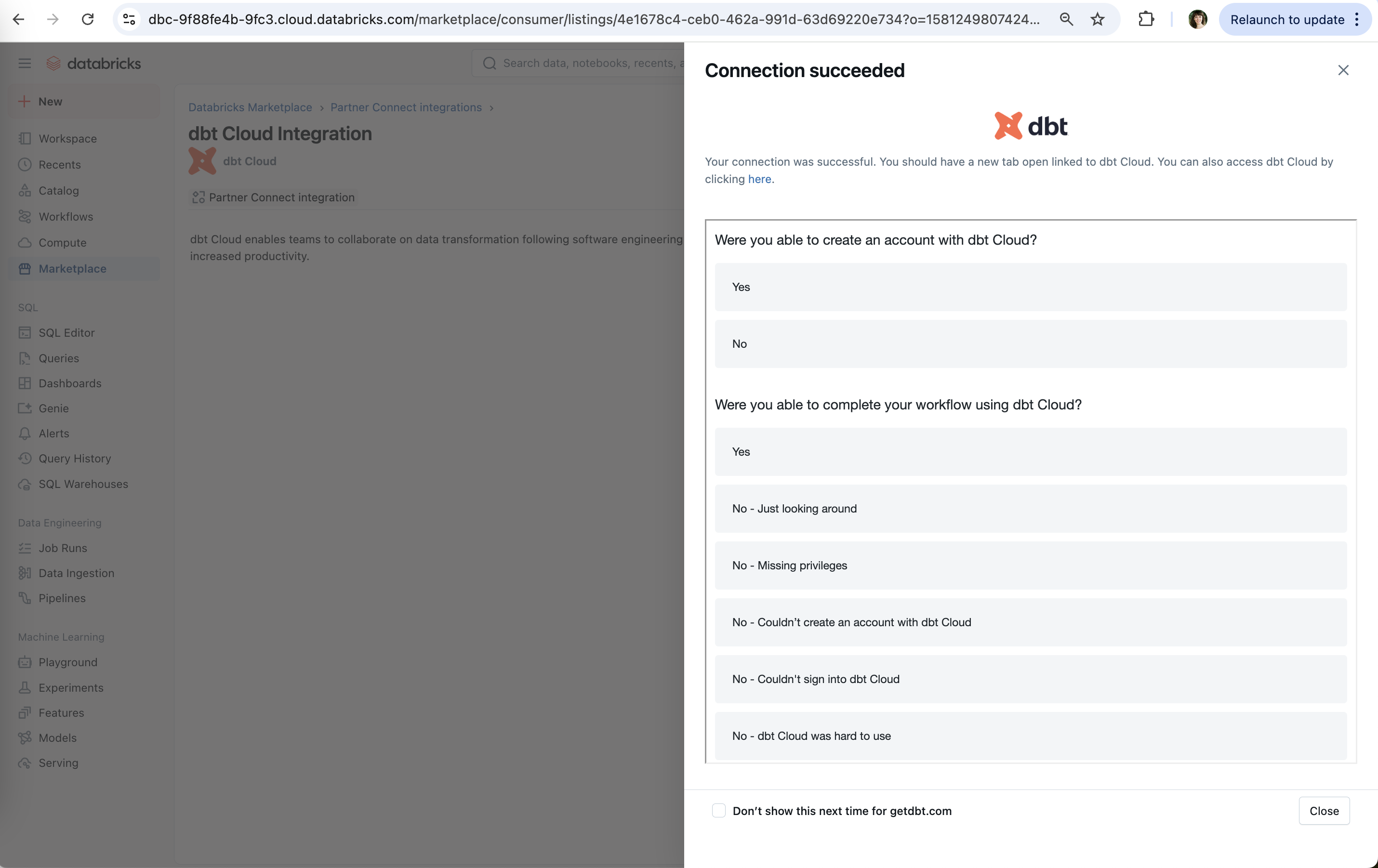
Back in Databricks, the success panel asks two questions about whether the hand-off worked.
-
17
Clear success state (working)
"Connection succeeded" closes the loop in the tab you started from.
-
18
"You should have a new tab" (not working)
Hedged copy admits the redirect may have failed; "here" is a weak fallback link.
-
19
Asks if signup worked (working)
Databricks measures the partner's funnel at the exact point it can break.
-
20
Asked too early (not working)
"Were you able to complete your workflow" comes seconds after connecting, before any workflow could run.
-
21
Specific failure reasons (working)
"Missing privileges", "Couldn't sign into dbt Cloud" turn a vague no into a fixable bug report.
-
22
Opt out of the survey (working)
"Don't show this next time" respects people who connect partners often.
Landing in a dbt Cloud trial
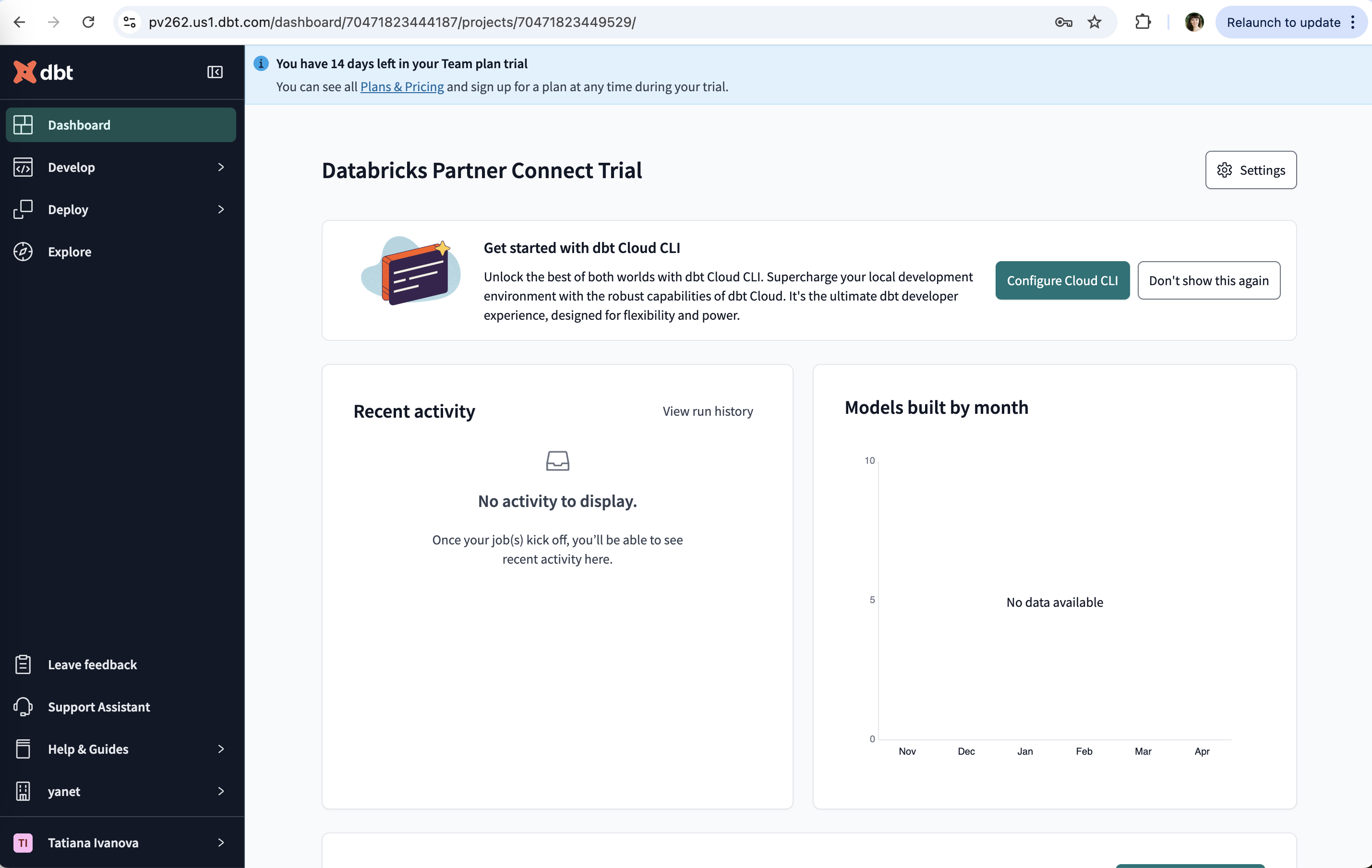
The new dbt Cloud account opens on a dashboard named after the Databricks trial, with a 14-day Team plan clock.
-
23
Trial clock and pricing (working)
"14 days left in your Team plan trial" with a Plans & Pricing link, without blocking anything.
-
24
Context carried over (working)
The project is called "Databricks Partner Connect Trial", so you know where it came from.
-
25
First nudge is the CLI (not working)
The hero card pushes Cloud CLI setup with "Supercharge" copy instead of running a first model on the Databricks data you just connected.
-
26
Empty chart, no next step (not working)
"No data available" on an empty axis takes space without telling you how to fill it.
Integration page after connecting
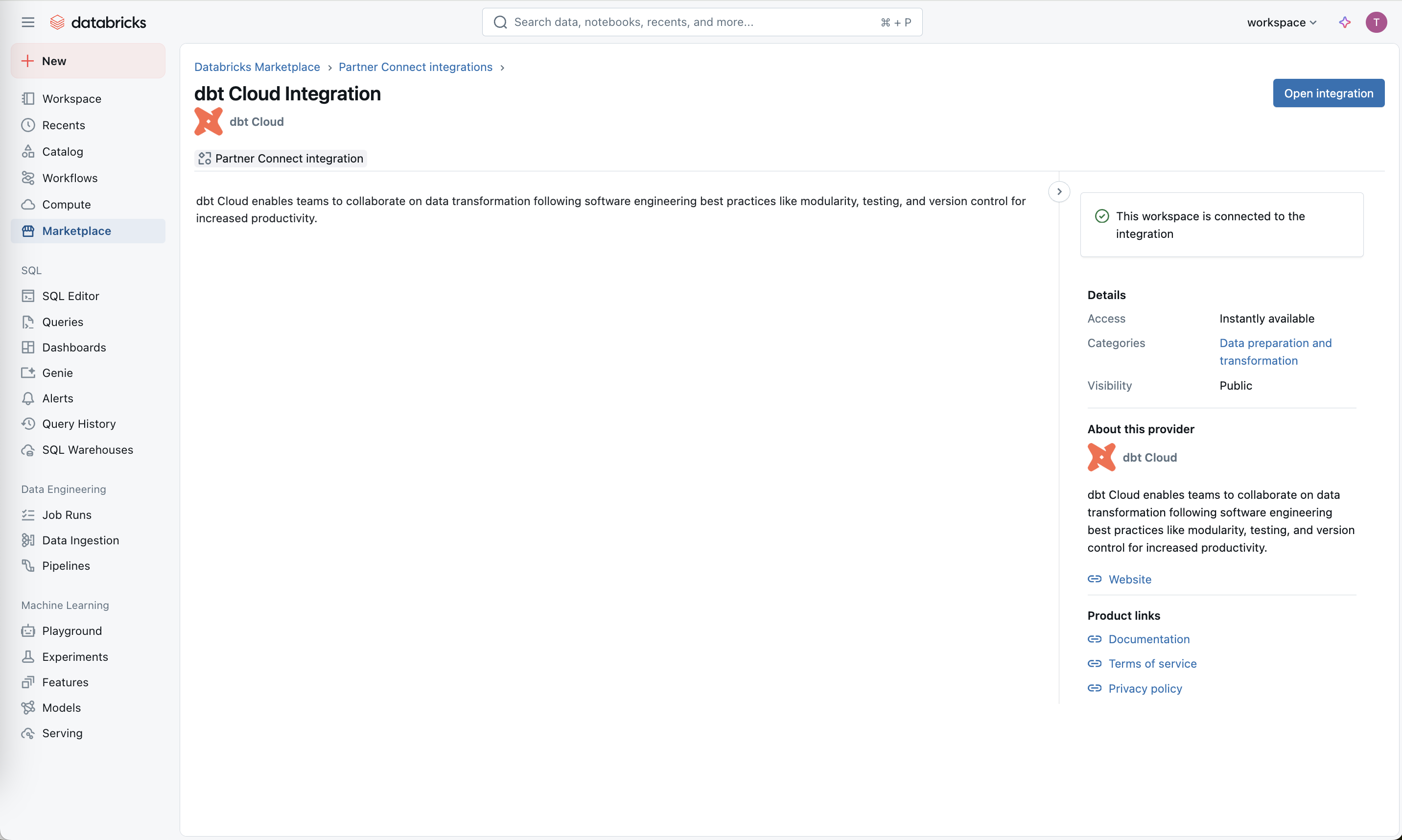
The marketplace listing now shows the workspace is connected and offers a way back in.
-
27
Connected badge (working)
"This workspace is connected to the integration" confirms state on return visits.
-
28
Open integration (working)
The primary button changes from connect to open, so the page becomes a launcher.
-
29
Nothing about your setup (not working)
The main column repeats the blurb; it never shows which user, warehouse or token was created.
Add data hub
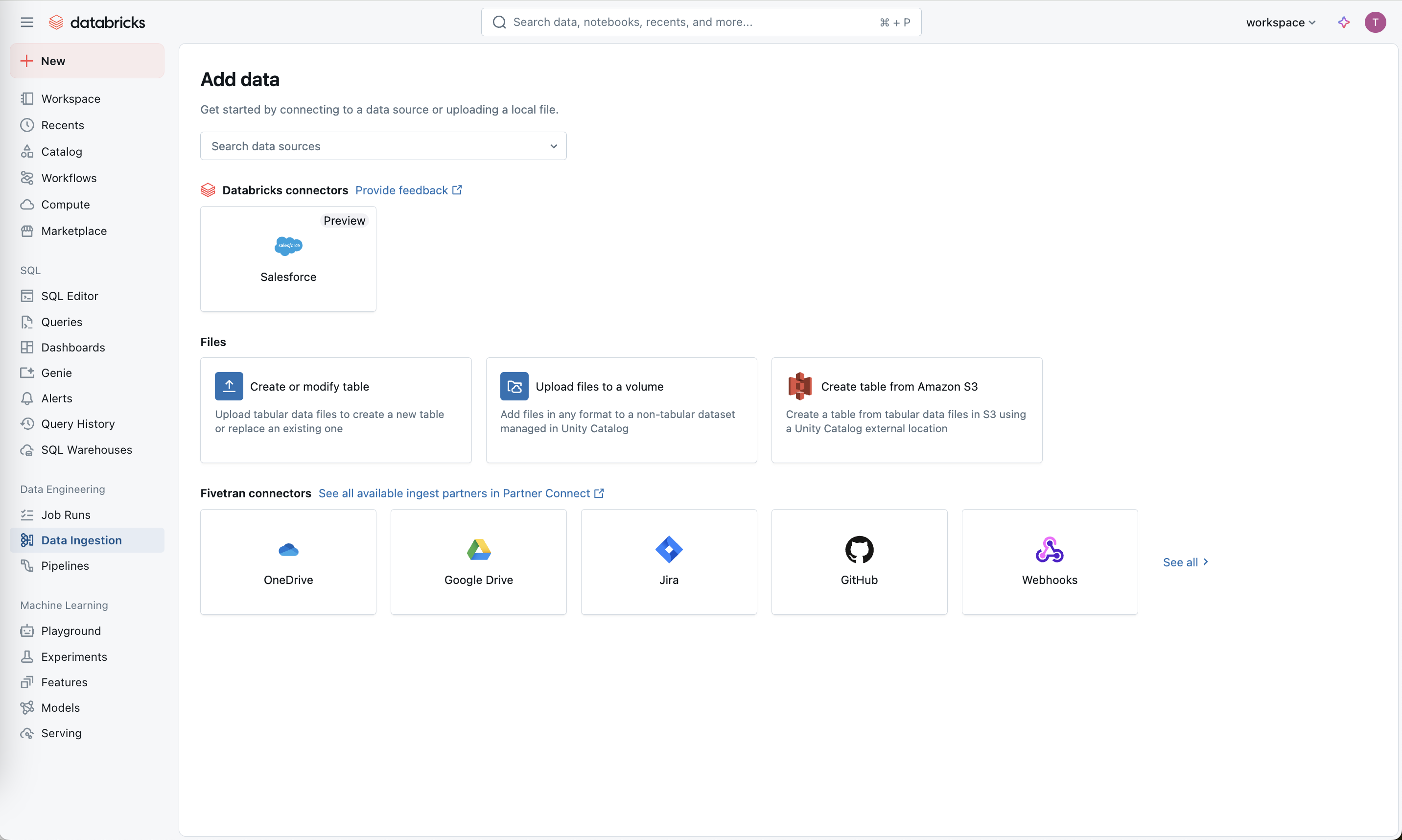
The Add data page groups native connectors, file uploads and Fivetran partner connectors on one screen.
-
30
Search first (working)
"Search data sources" sits above the tiles for people who already know what they need.
-
31
One lonely native tile (not working)
Databricks' own connector section has a single Salesforce tile marked Preview, which makes the native catalog look thin.
-
32
Files as the easy path (working)
Upload and S3 tiles each have a one-line description of what they create.
-
33
Partner connectors by logo (working)
OneDrive, Google Drive, Jira, GitHub and Webhooks via Fivetran, with "See all" for the long tail.
Connect data source via partner
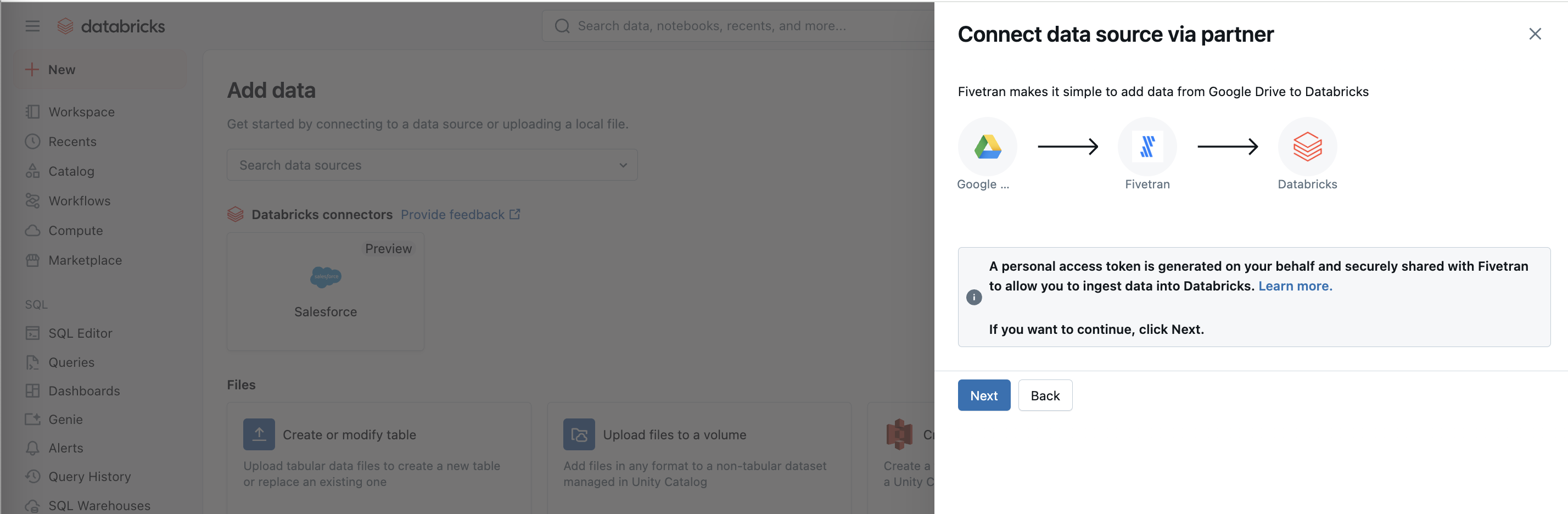
Picking Google Drive opens the same partner panel, now showing the data path through Fivetran.
-
34
Data path as a diagram (working)
Google Drive, Fivetran, Databricks with arrows shows the middleman before you agree to it; the source label truncates to "Google ...".
-
35
Token disclosure (working)
"A personal access token is generated on your behalf and securely shared with Fivetran" says what will happen to your credentials.
-
36
Generic Next (not working)
"If you want to continue, click Next" restates the button instead of naming the action.
Hand-off to Fivetran
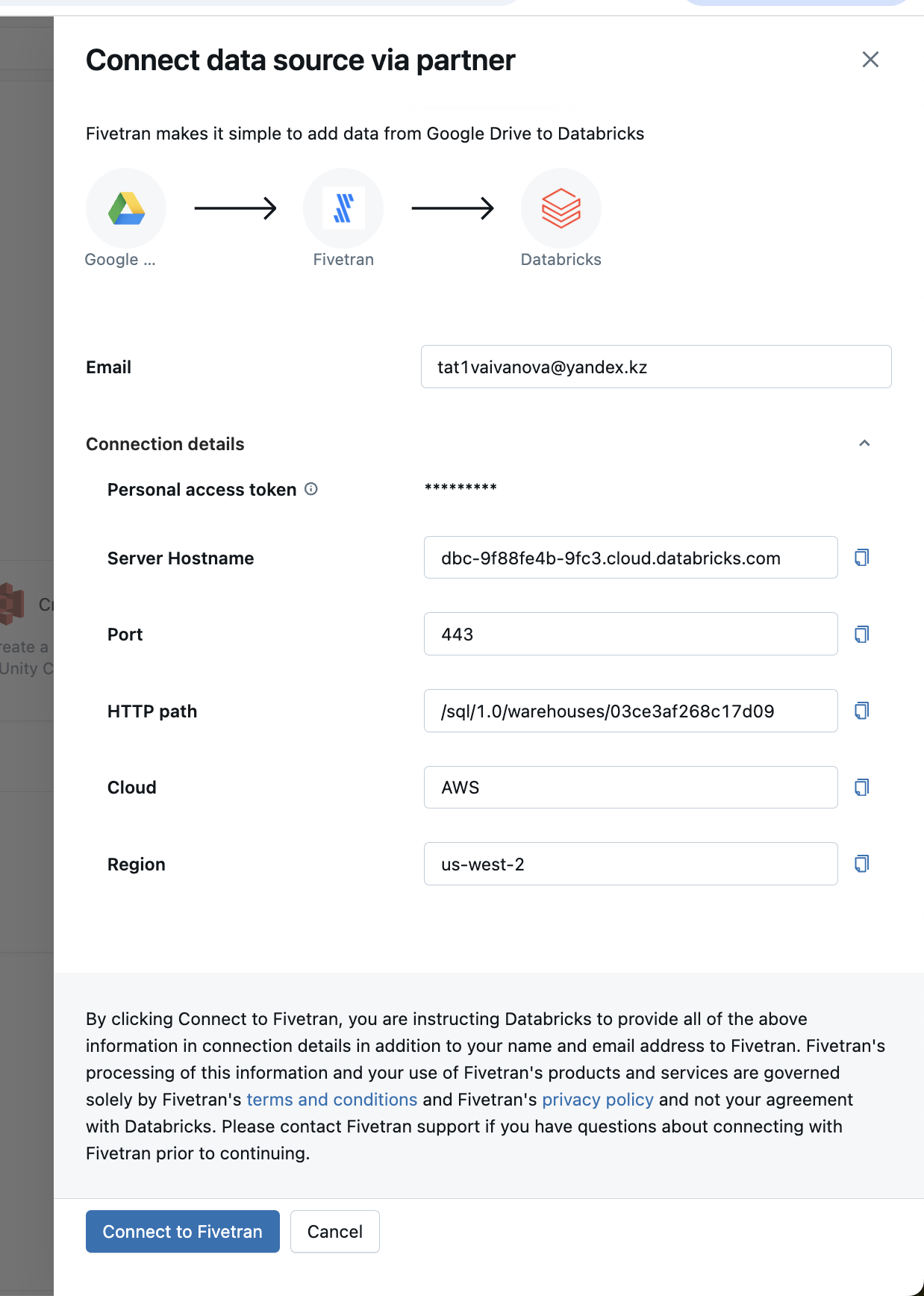
The confirmation step reuses the dbt template: email, connection details, legal text and a named CTA.
-
37
Email prefilled (working)
Same as the dbt flow, the Fivetran account starts from your Databricks identity.
-
38
One template for all partners (working)
Token, hostname, port, HTTP path, cloud and region in the same layout as dbt, so the second connection feels familiar.
-
39
Legal wall again (not working)
Six lines of liability text sit between the details and the button.
-
40
"Connect to Fivetran" (working)
The CTA names the partner you are about to leave for.
Takeaways from Databricks
- If you own one side of an integration, create the user, token and privileges yourself and pass them over, so the partner signup is two fields.
- List the exact permissions you will grant before the click, as scoped chips an admin can read in seconds.
- Ask whether the hand-off worked with specific failure reasons, but only ask about the workflow once the user has had time to run one.