Usability heuristic

Consistency and standards

Make the same thing look, read and behave the same way everywhere, and follow the conventions people already know from other products.

Consistency and standards A pricing page and a checkout shown twice. On the left the pricing page says Pro at 12 dollars a month but the checkout says Premium at 14.99, so the user wonders if it is the same plan. On the right both screens say Pro at 12 dollars a month. Two screens, two names Pricing page Pro $12 / month Upgrade Checkout Premium $14.99 / month Pay “Is Premium the same as Pro?” Same plan, same words Pricing page Pro $12 / month Upgrade Checkout Pro $12 / month Pay Same name, same price One name and one price per plan, on every screen A mismatch reads as careless, or as hiding something, right before payment
When the pricing page says Pro and the checkout says Premium at another price, people stop to wonder; one name and price on both screens removes the doubt.

Consistency and standards is Nielsen's fourth heuristic: users should not have to wonder whether different words, situations or actions mean the same thing. It has two halves. Internal consistency means one pattern per job inside your product, so a lesson learned on one screen carries to the next. External consistency means following platform and industry conventions, because people arrive with habits formed elsewhere (Jakob's Law).

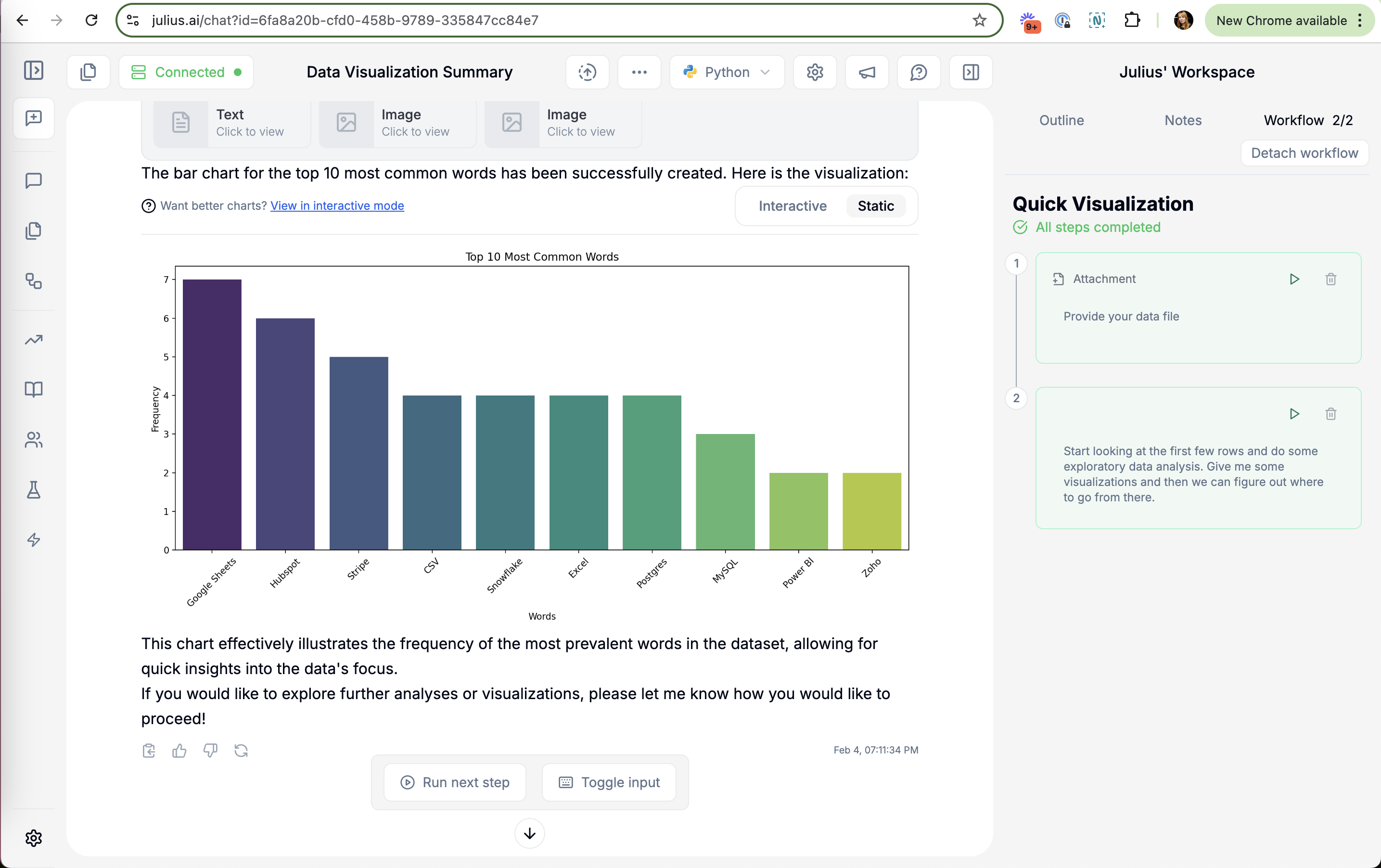
On this site it shows up as good when an icon in onboarding matches the button on the home screen, or when every connector form uses the same layout. It shows up as bad when a setting defaults to on in one place and off in another, when copy refers to a plan name that does not exist, or when a "Run next step" button stays visible after all steps are done.

In paywalls and upsells, inconsistency costs trust directly. If the plan names, prices or feature lists on two screens do not match, people assume the product is careless or that something is being hidden, and they stop before paying.

How to use it

  • Use one name for each plan, feature and action across onboarding, pricing, emails and the app; check them side by side before launch.
  • Reuse the same form layout, button order and default values for similar tasks, so the second one feels familiar.
  • Follow platform conventions for navigation, close buttons and system dialogs instead of inventing new ones.

Watch out

  • Copying a convention that does not fit the task, just because competitors use it, can mislead people about what a control does.
  • Imitating the look of a system dialog or another app's UI to borrow its trust is deceptive and can get an app rejected.
Related

Consistency and standards in real products 7 working · 10 not

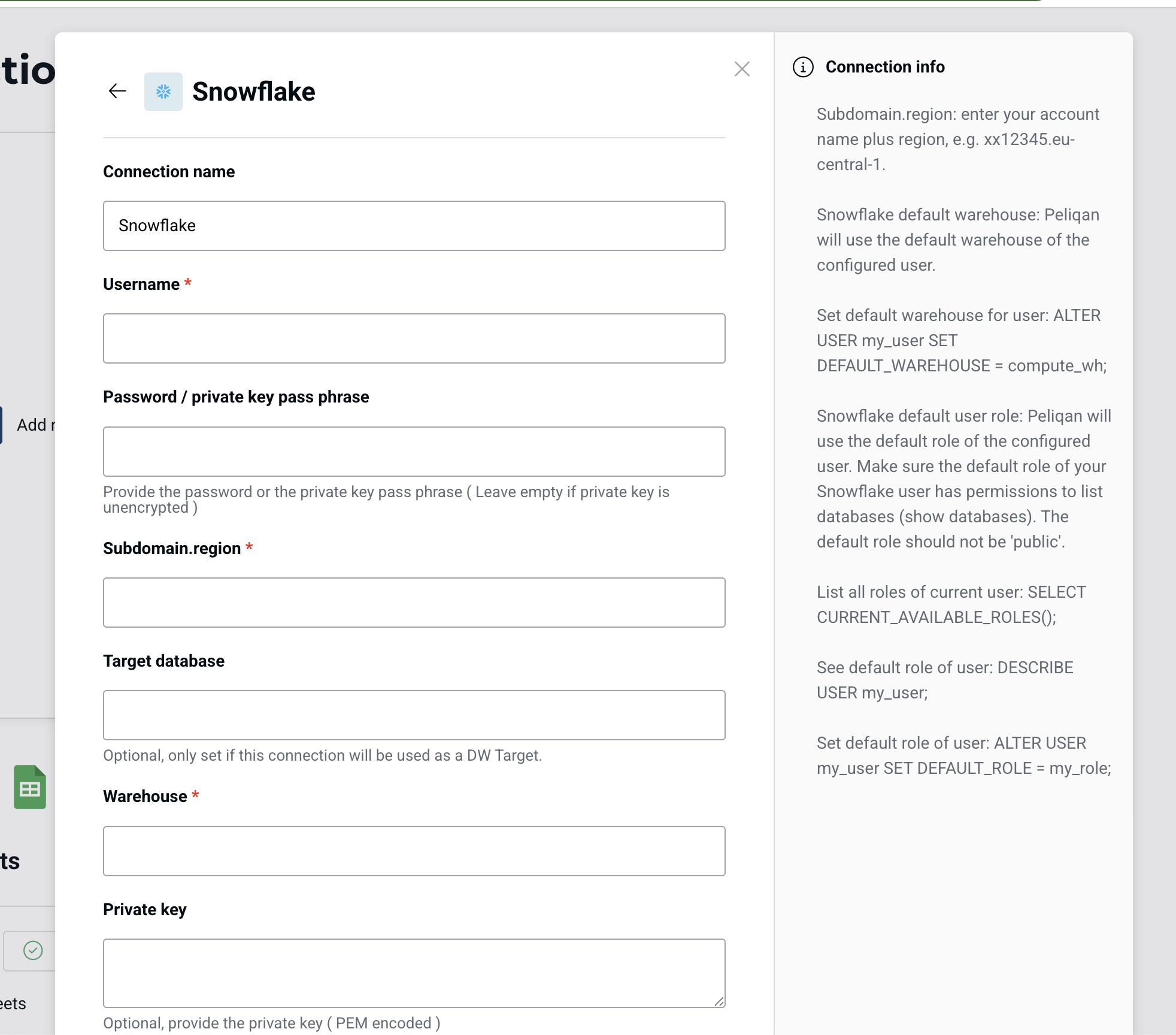
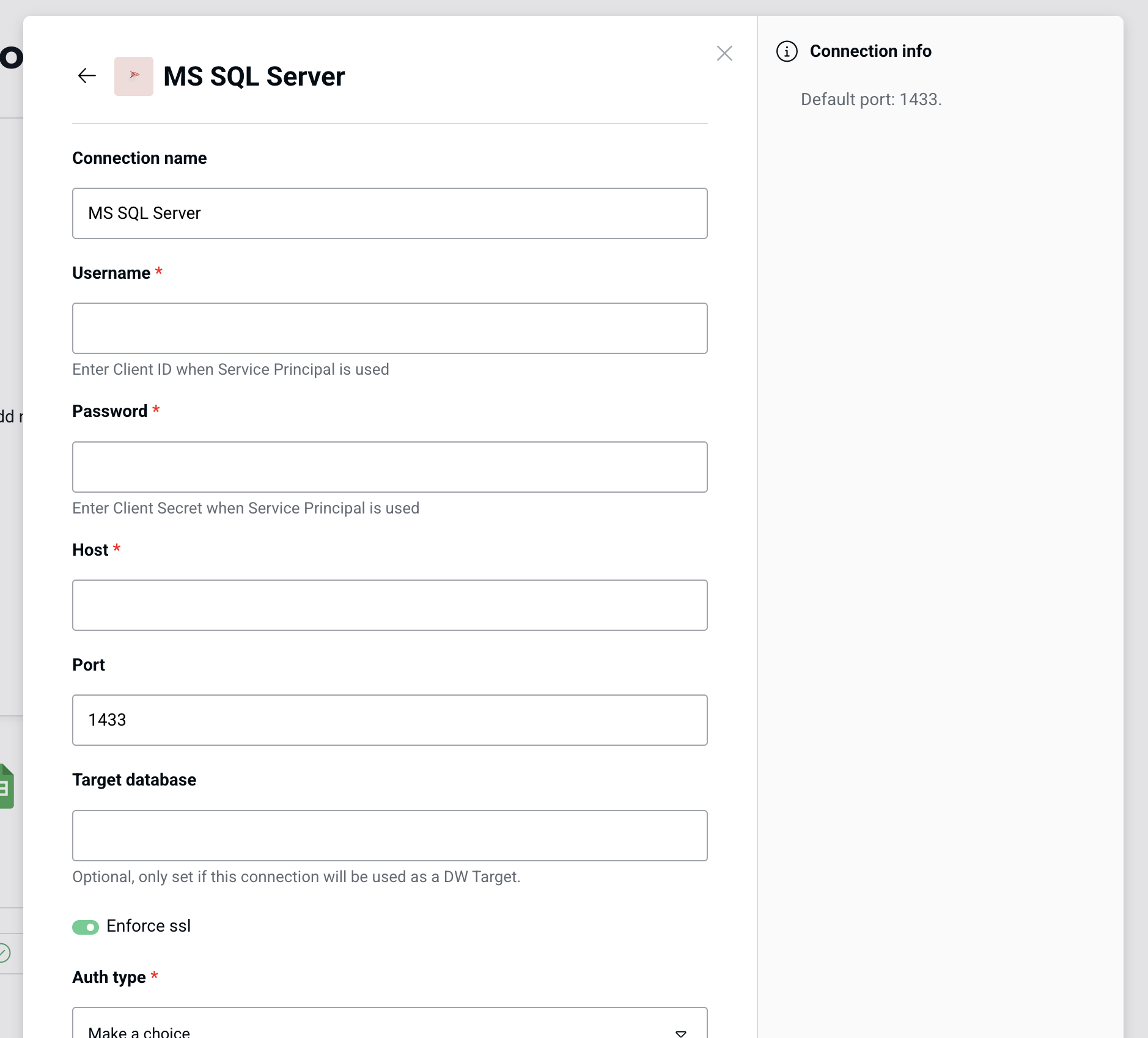
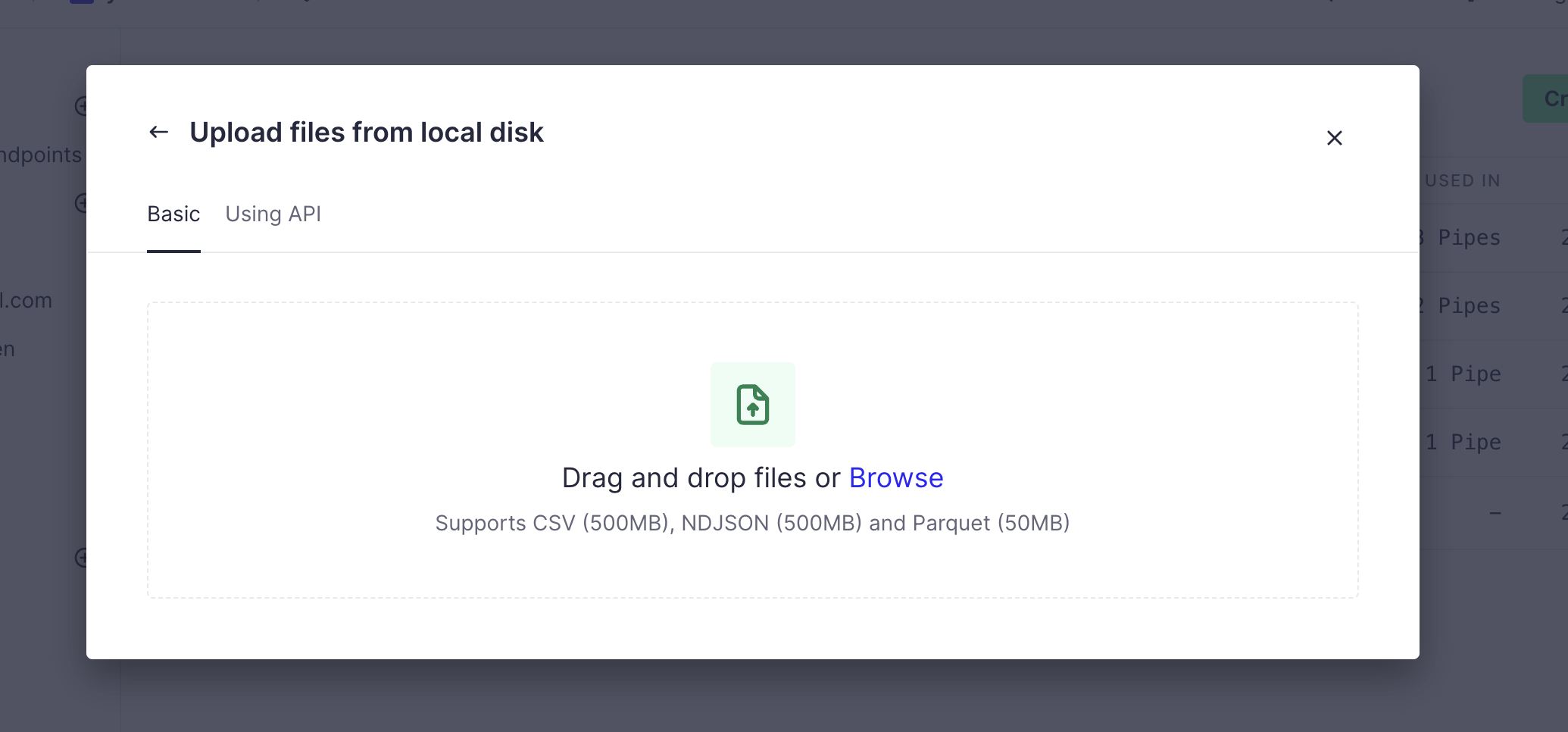
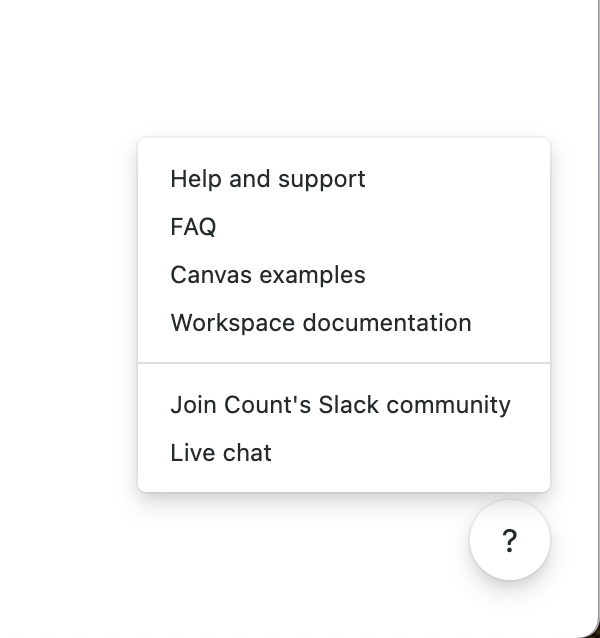
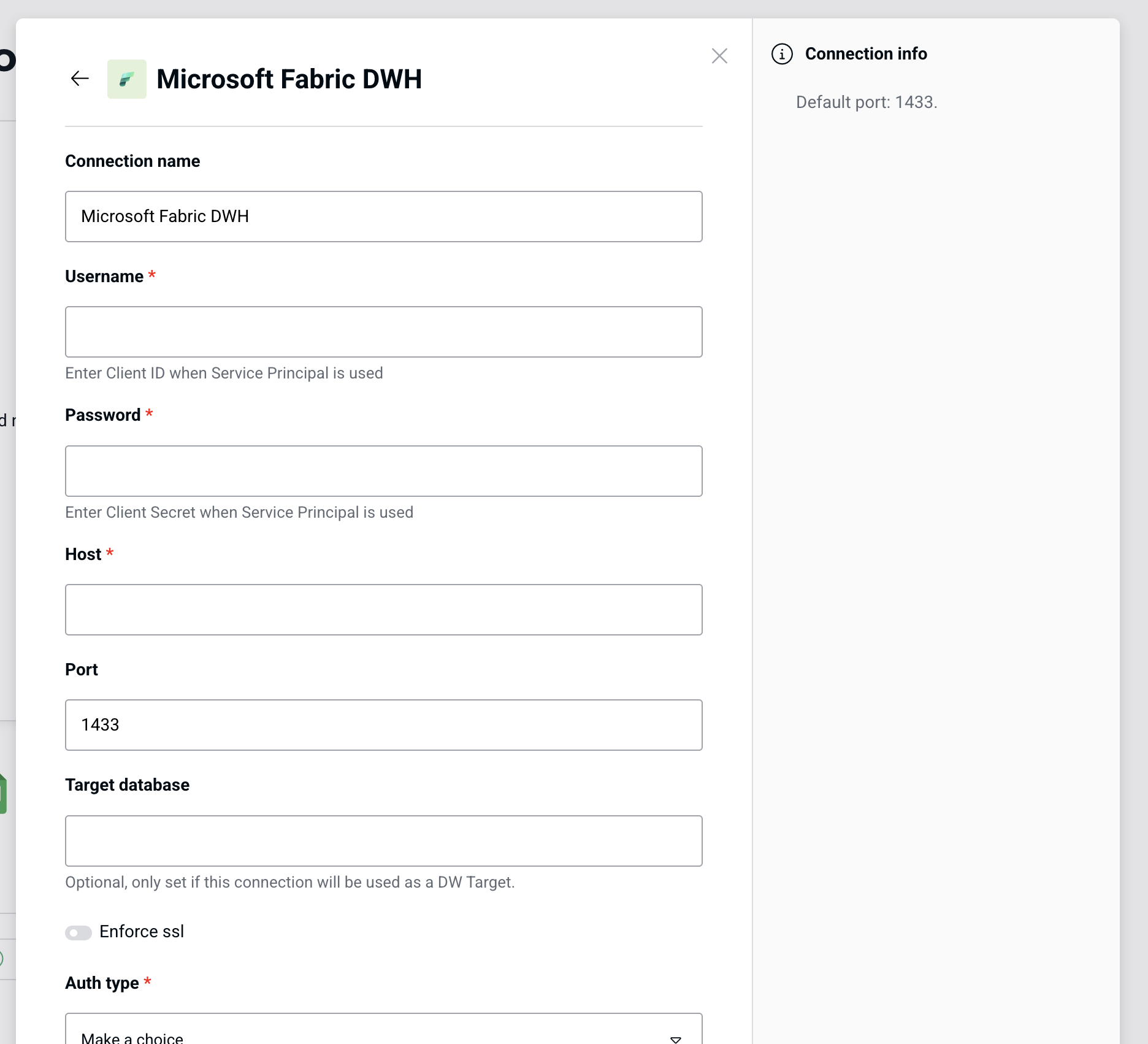
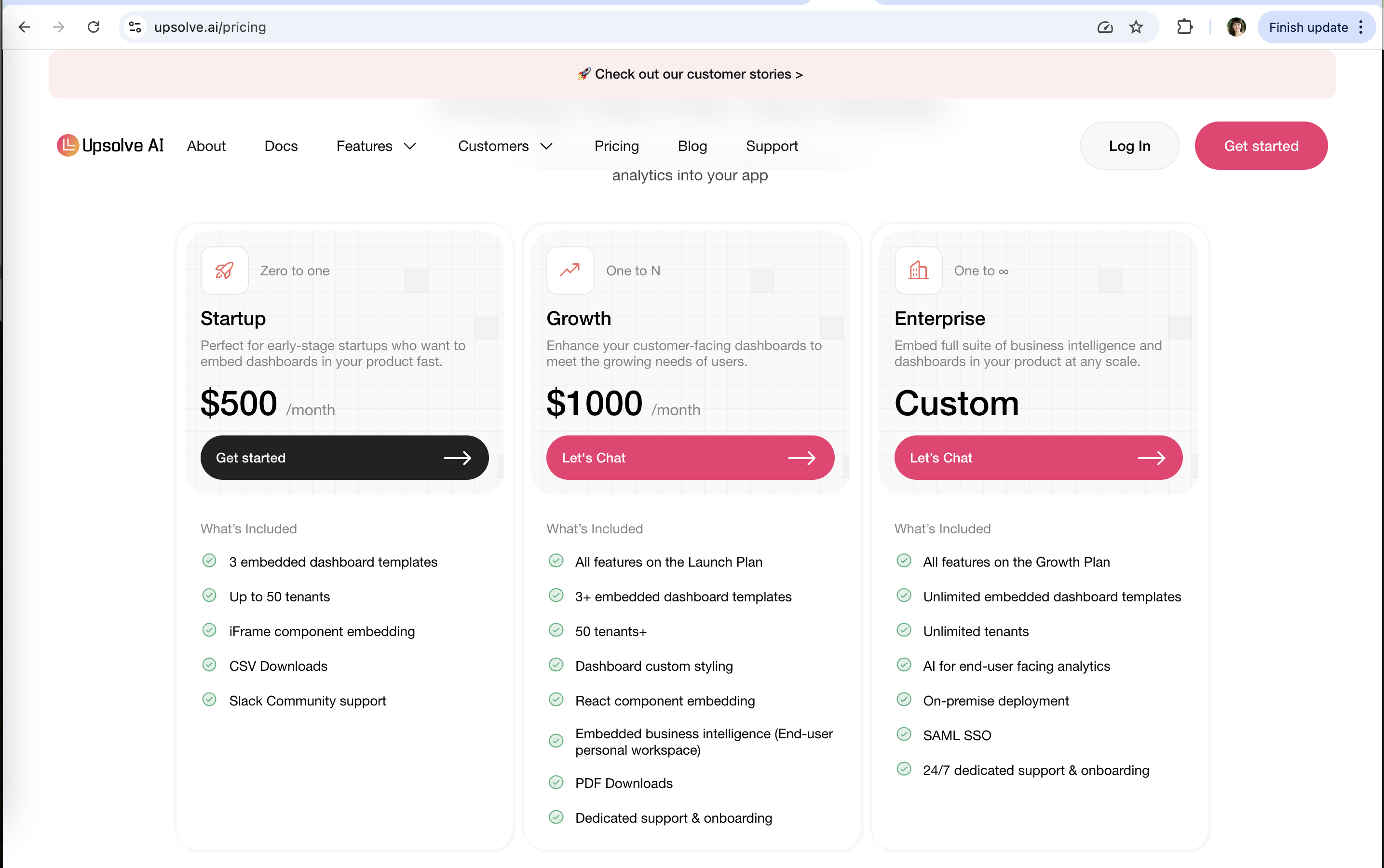
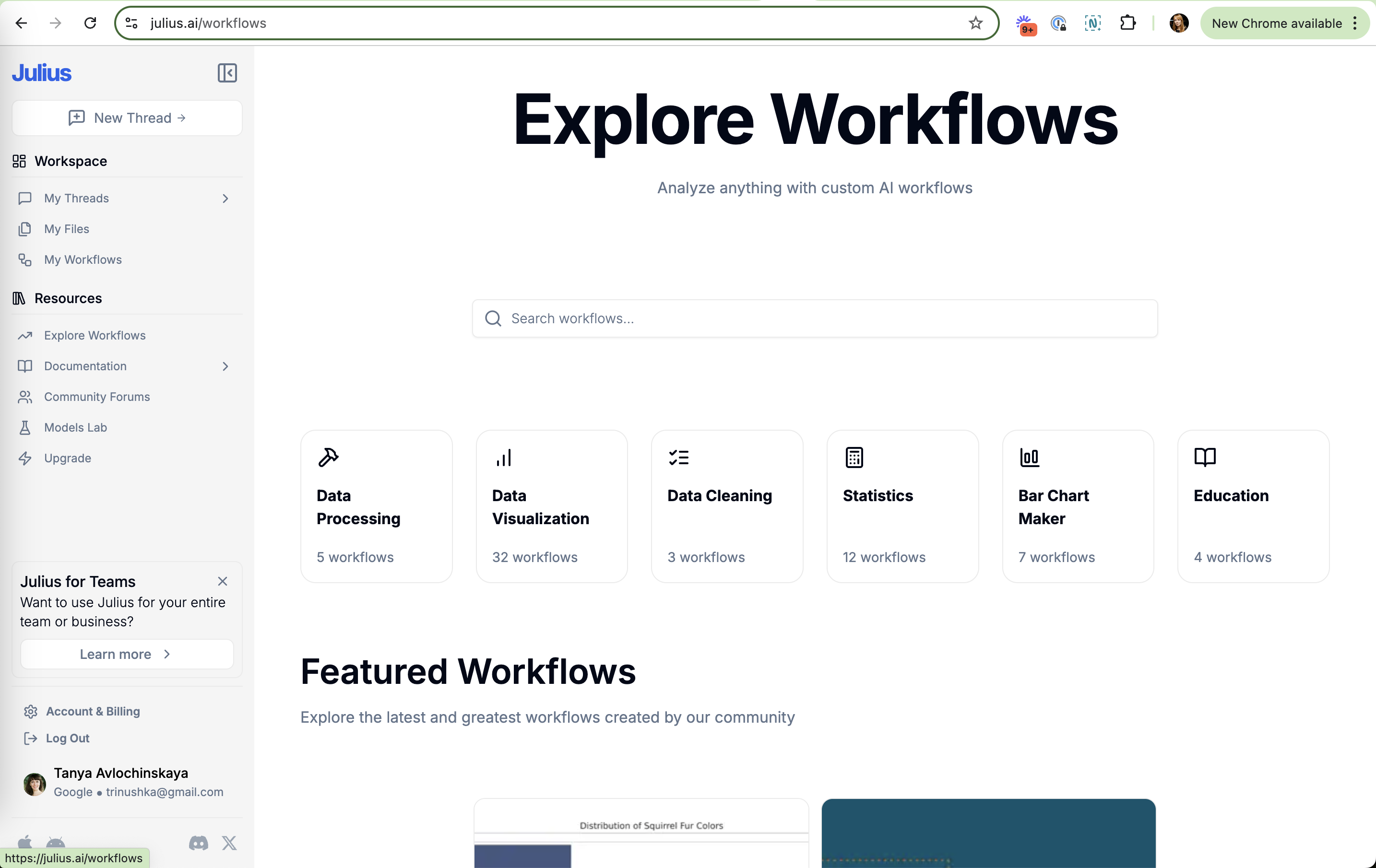
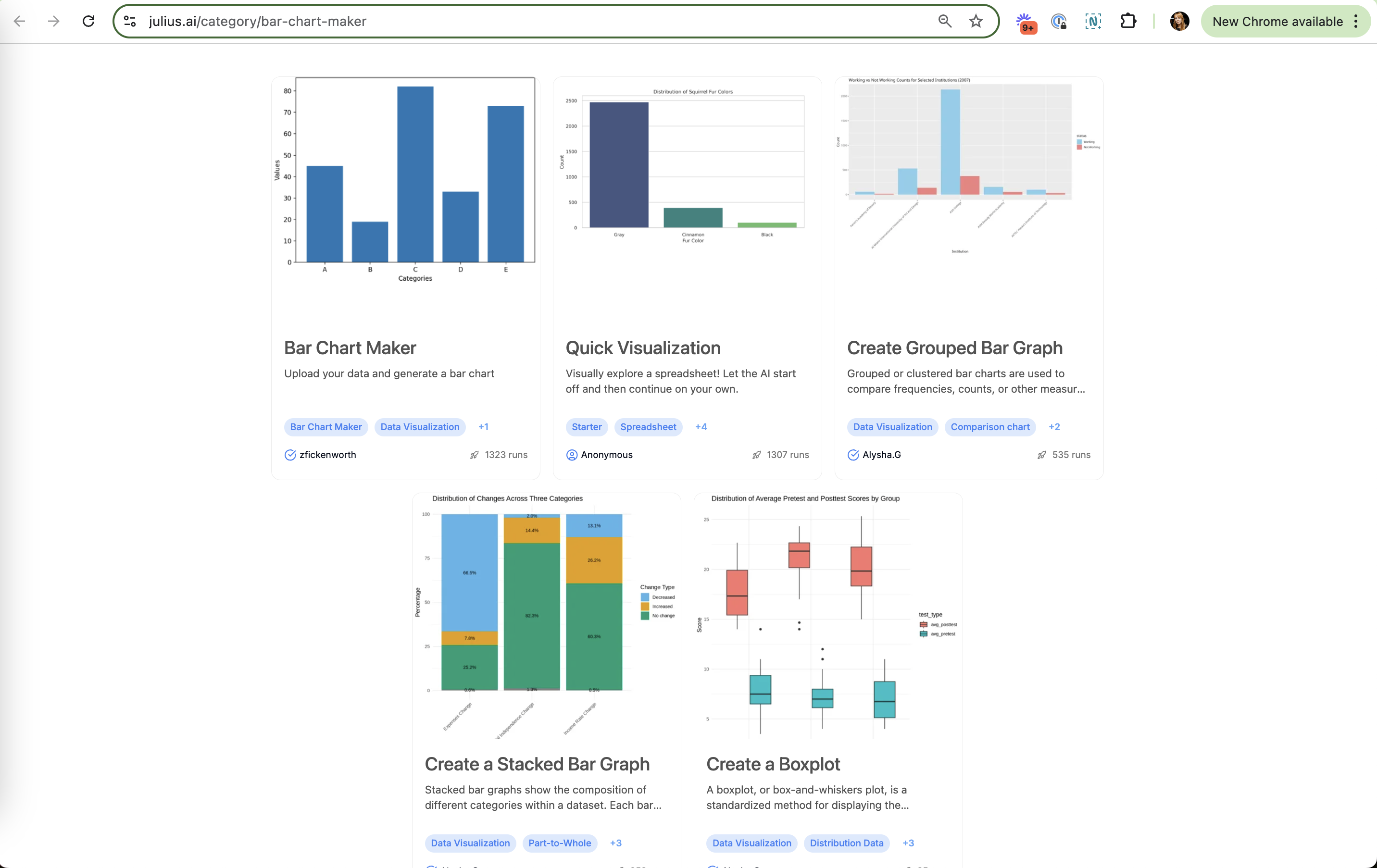
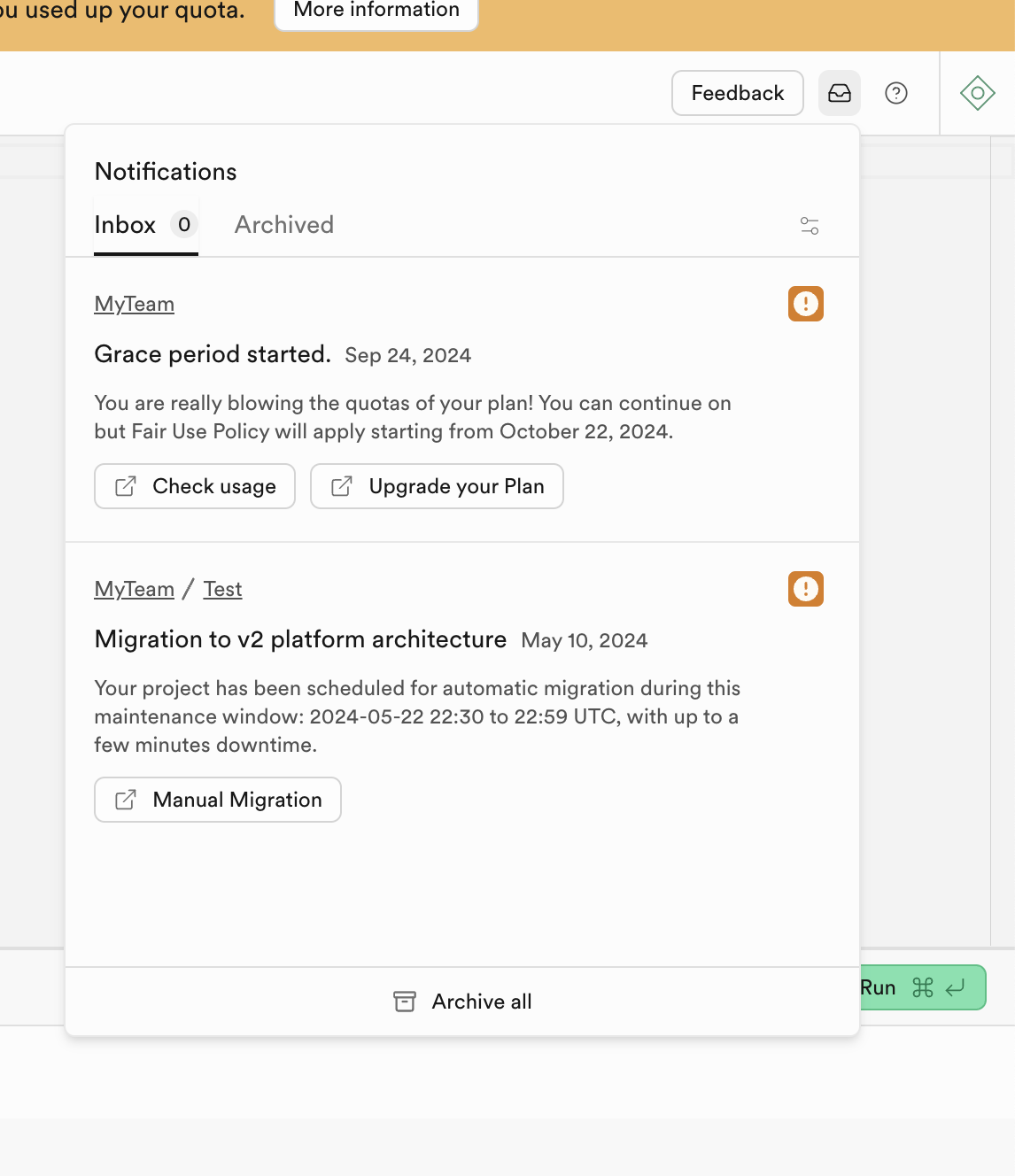
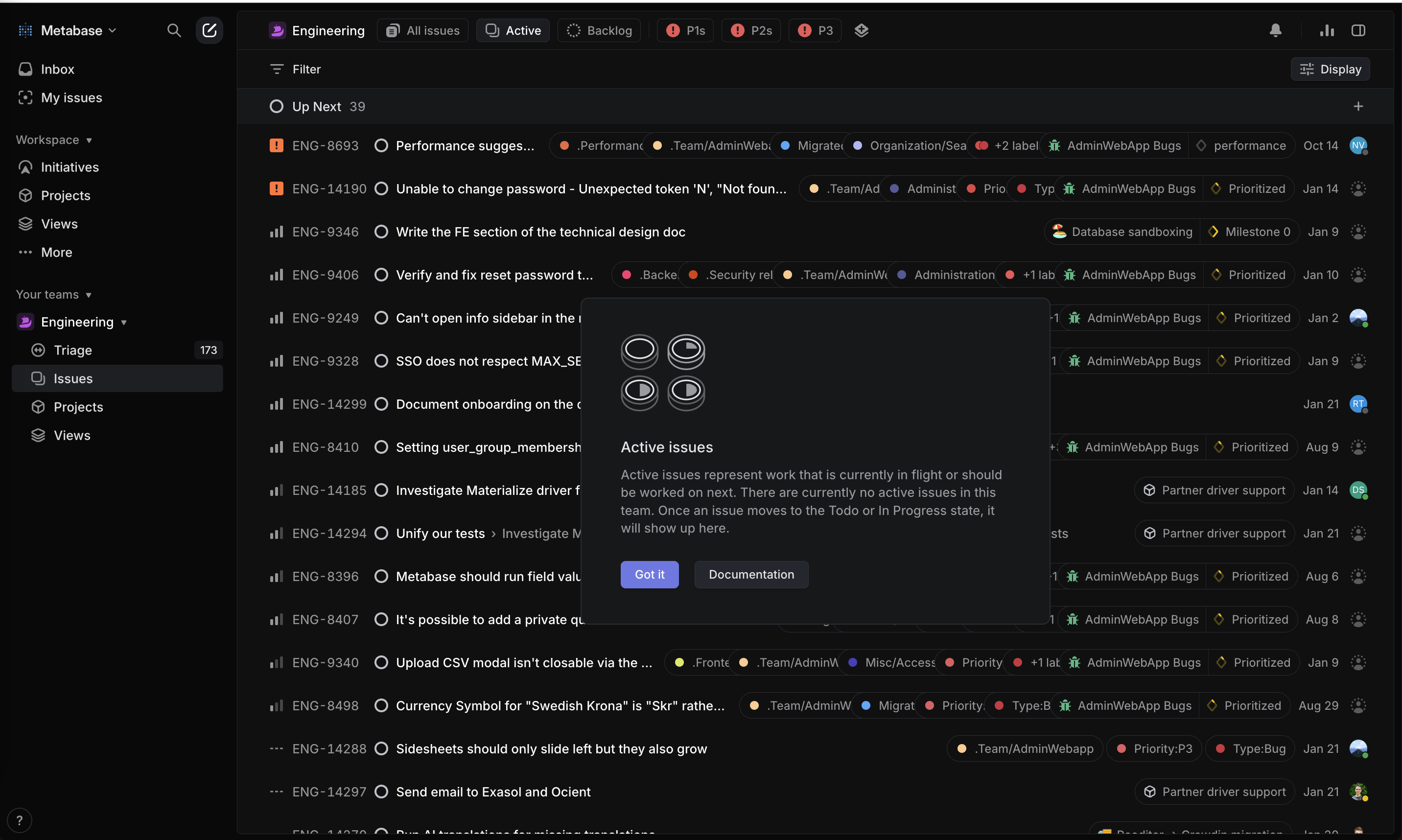
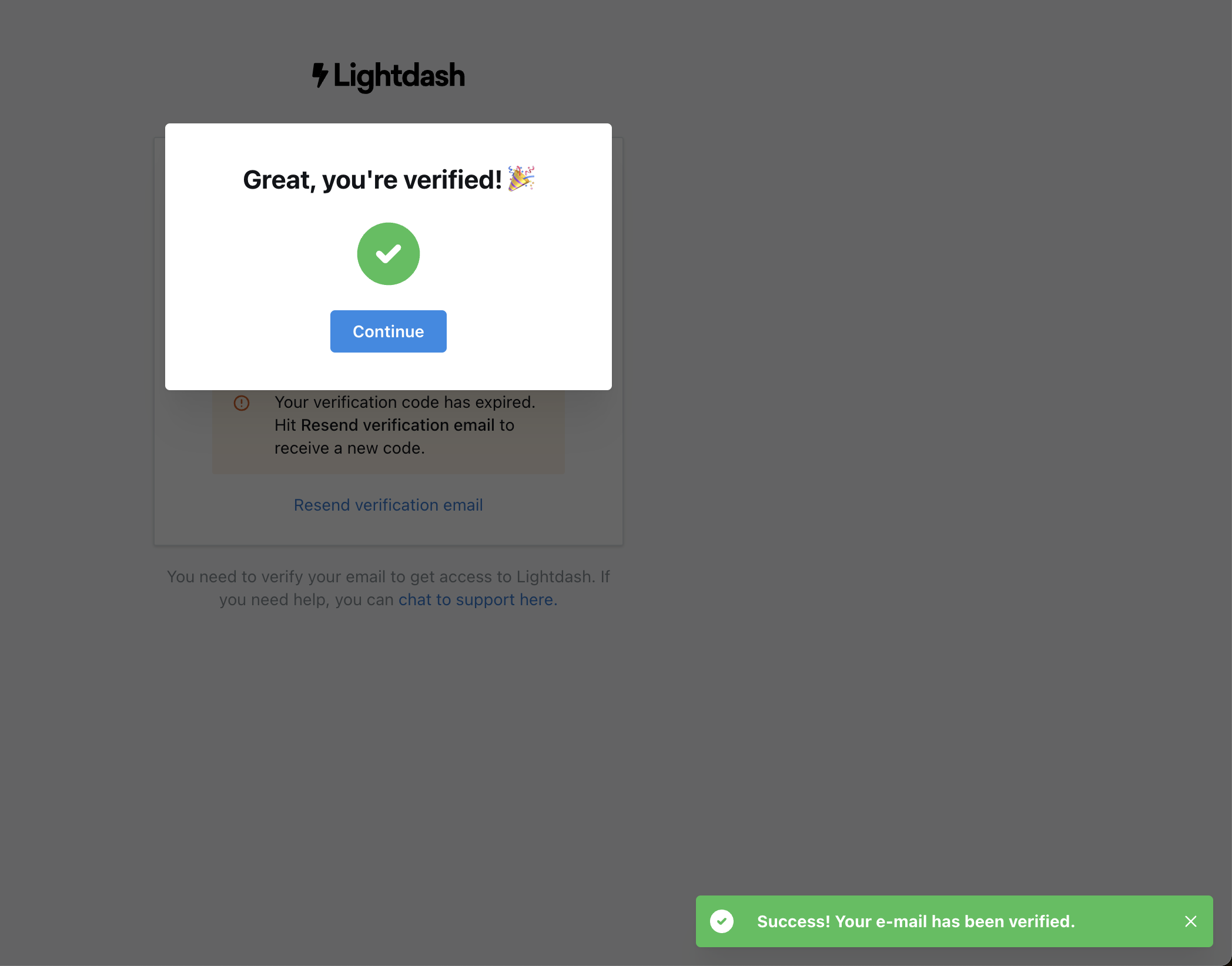
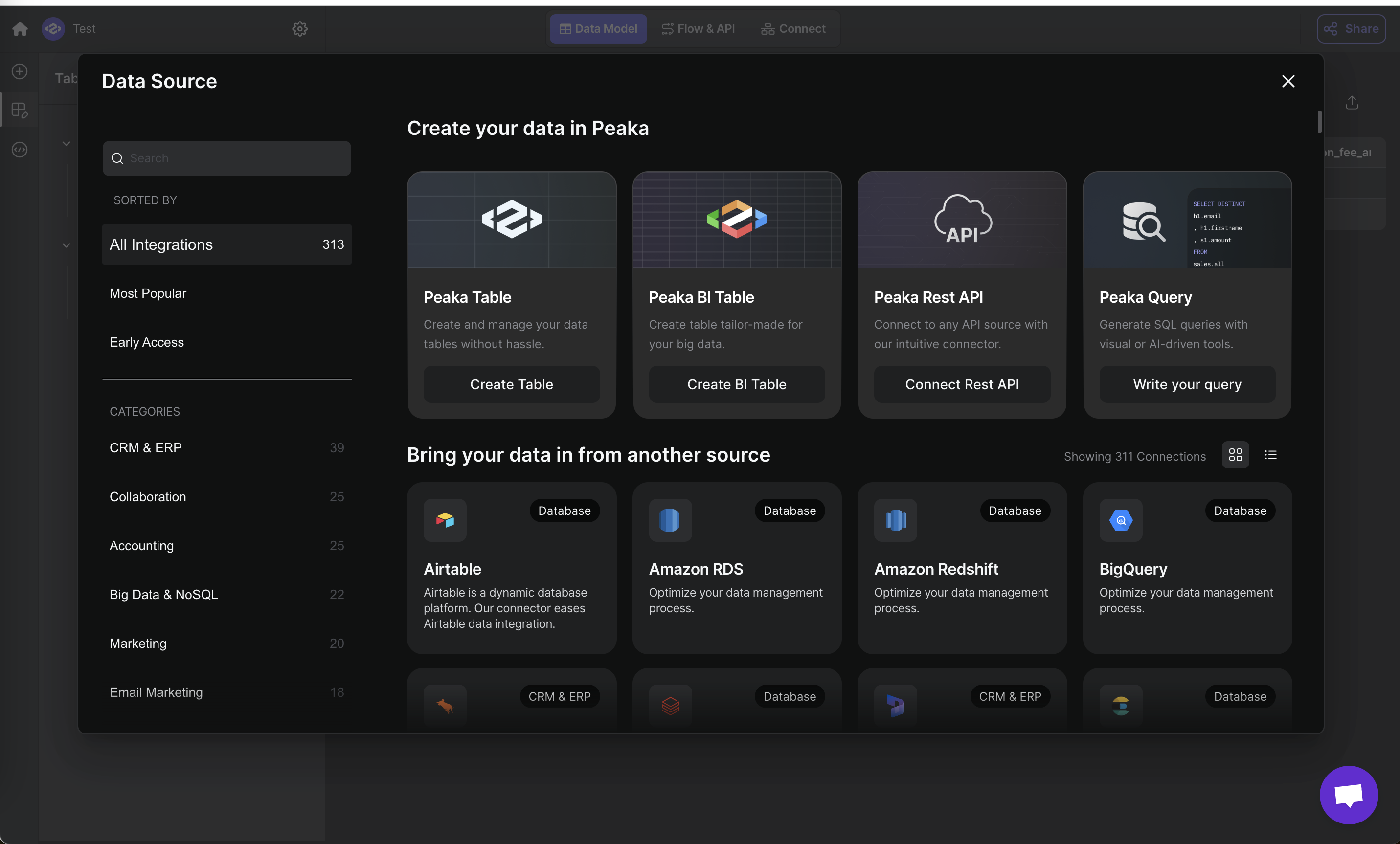
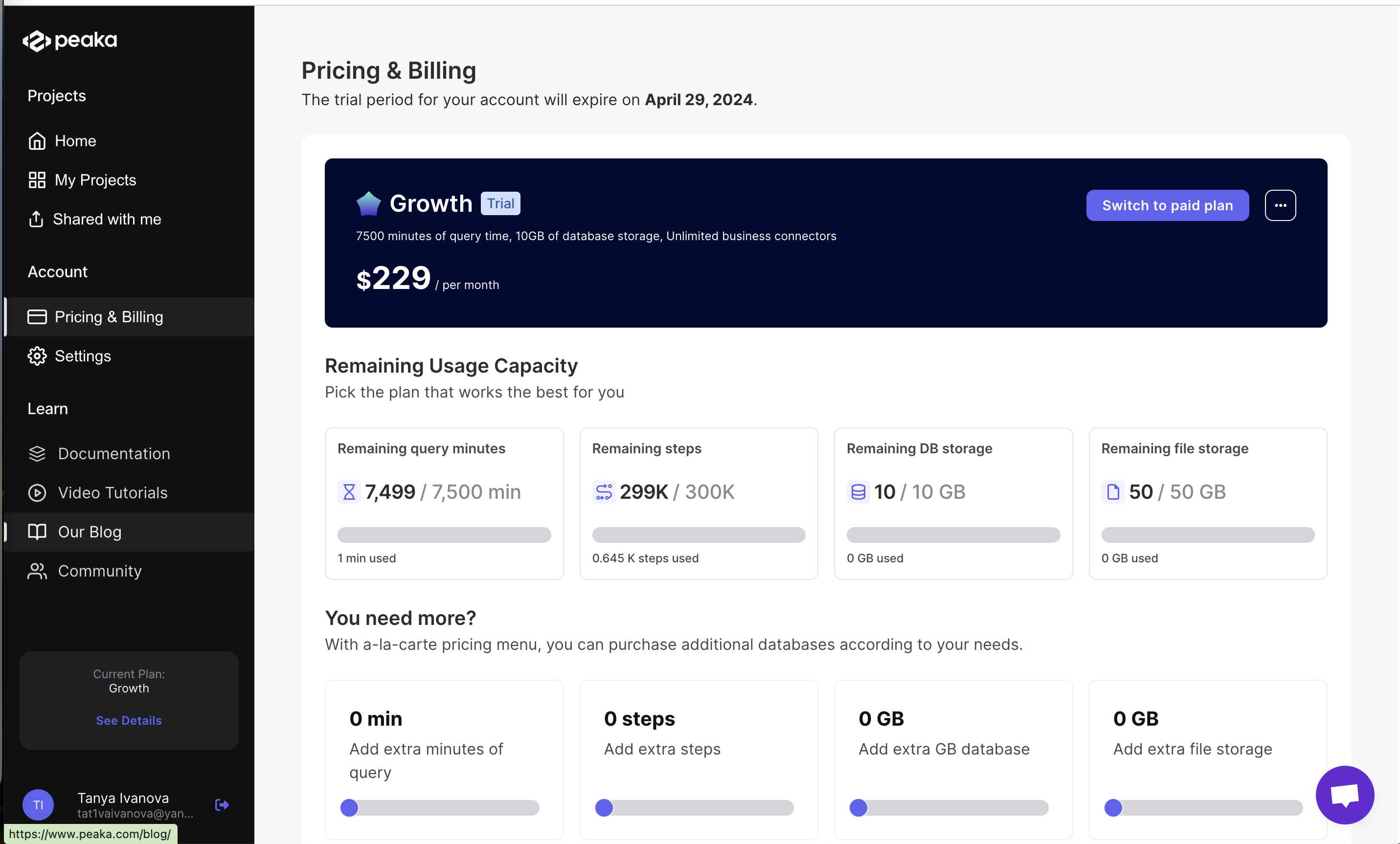
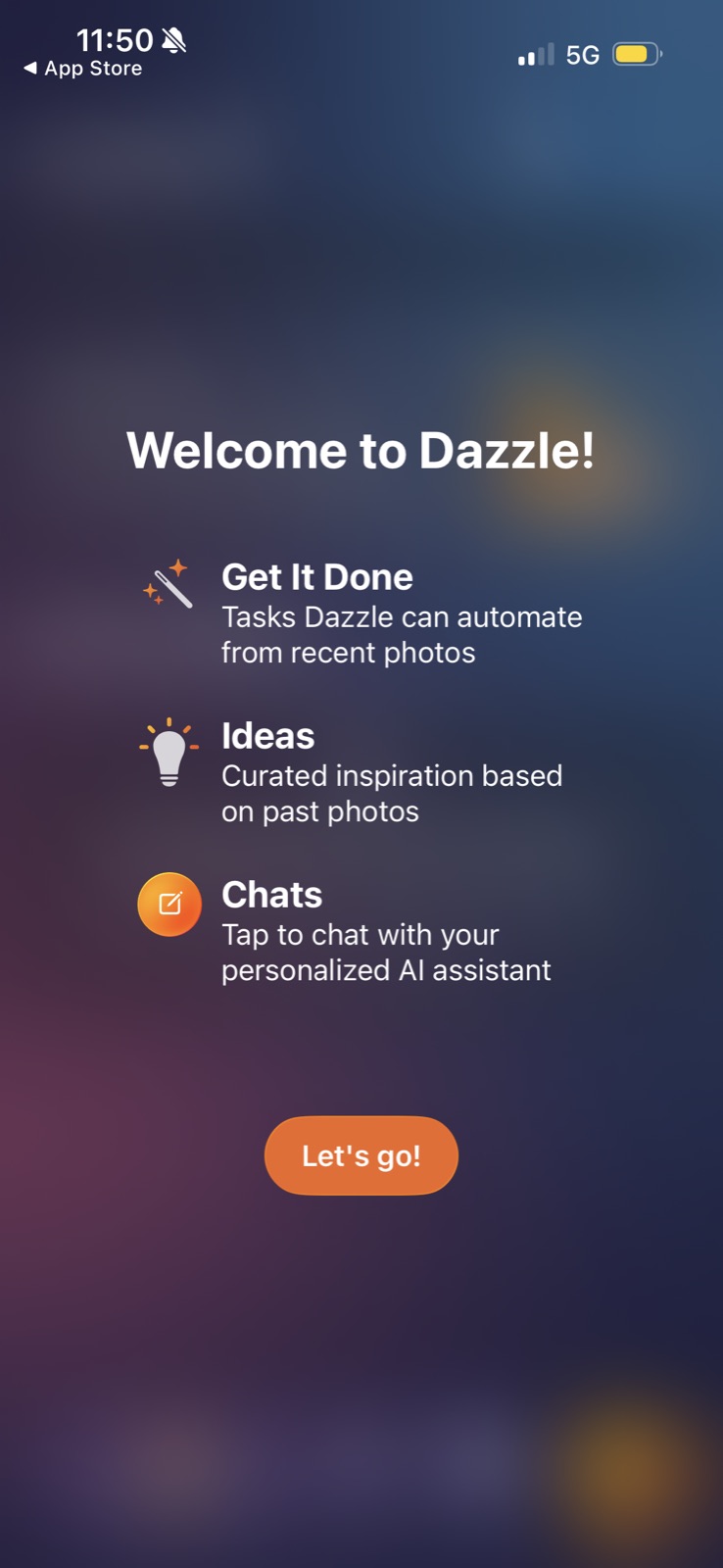
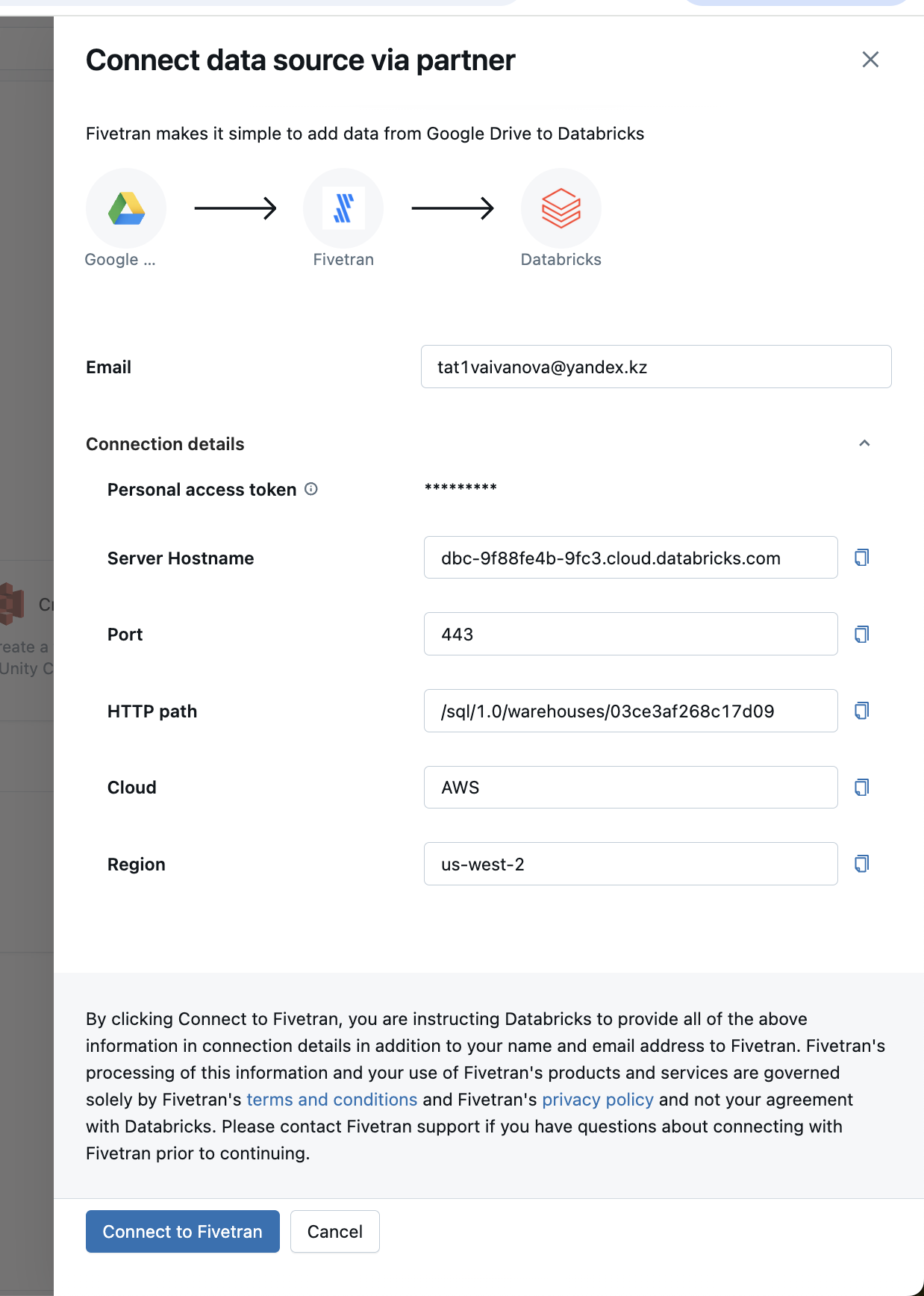
Dazzle AI: Icon matches the button Dazzle AI (working) Icon matches the button The orange compose icon next to Chats is the same floating button on the home screen. Databricks: One template for all partners Databricks (working) One template for all partners Token, hostname, port, HTTP path, cloud and region in the same layout as dbt, so the second connection feels familiar. Peliqan: Optional explained again Peliqan (working) Optional explained again The same DW Target helper as Postgres, so the pattern is learnable across connectors. Peliqan: Same optional pattern Peliqan (working) Same optional pattern The DW Target helper appears in the same place on every connector. Tinybird: Familiar drop zone Tinybird (working) Familiar drop zone "Drag and drop files or Browse". Count: Persistent trigger Count (working) Persistent trigger The same "?" button opens it from anywhere. Holistics: Dev mode stays on Holistics (working) Dev mode stays on The toggle from step 2 lives in the toolbar, with Deploy to production on the right. Peliqan: SSL off here, on for MS SQL Peliqan (not working) SSL off here, on for MS SQL "Enforce ssl" is off by default on Fabric but on for MS SQL Server in the same app. Upsolve AI: Plan that doesn't exist Upsolve AI (not working) Plan that doesn't exist Growth says "All features on the Launch Plan", but the first plan is called Startup. Julius: Run next step after the end Julius (not working) Run next step after the end "Run next step" still shows while the panel says "All steps completed". Julius: Mixed taxonomy Julius (not working) Mixed taxonomy "Bar Chart Maker" sits next to broad topics like Statistics, a keyword page posing as a category. Julius: Run counts don't match Julius (not working) Run counts don't match Quick Visualization shows "1307 runs" here and 44267 in the app. Supabase: Inbox 0, two alerts Supabase (not working) Inbox 0, two alerts The badge says 0 while two orange alerts are listed, so the count can't be trusted. Linear: Copy contradicts the list Linear (not working) Copy contradicts the list It says "there are currently no active issues" while 39 Up Next issues sit behind it. Lightdash: Old error still visible Lightdash (not working) Old error still visible "Your verification code has expired" remains right under the success modal. Peaka: Counts don't match Peaka (not working) Counts don't match Sidebar says 313, grid says "Showing 311 Connections". Peaka: Price differs from pricing page Peaka (not working) Price differs from pricing page Growth shows $229 here vs $199 on the pricing page, with no note on why.