One connection form template across seven databases
Peliqan uses the same form-plus-info-panel modal for every database, with per-connector defaults and an Invite button to hand the job to someone who has the credentials.
BigQuery
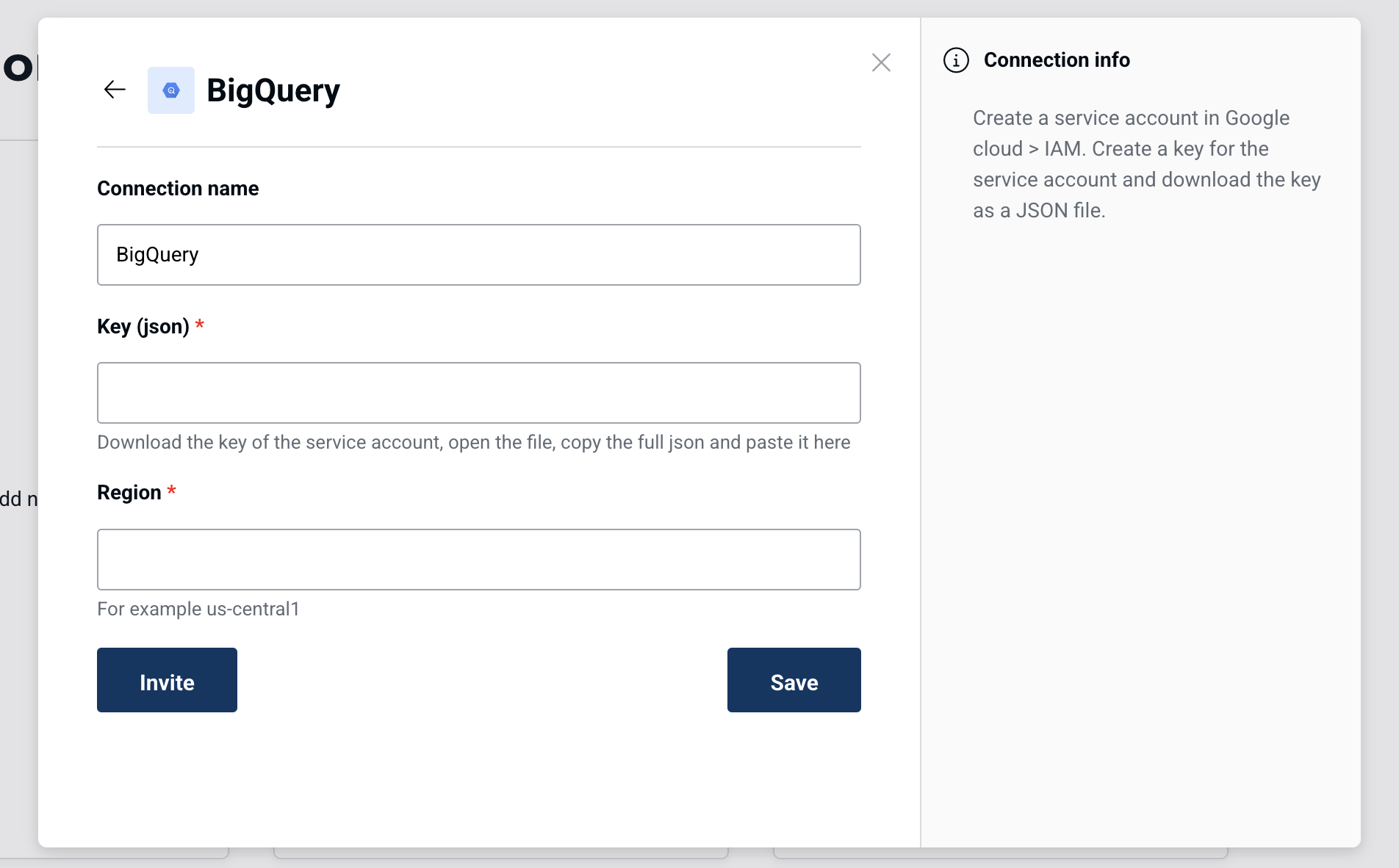
A service-account key, a region and a side panel that says where to get the key.
- 1
-
2
Where to get the key (working)
The info panel gives the Google Cloud IAM path to create and download a JSON key.
-
3
Paste JSON in a one-line box (not working)
"Open the file, copy the full json and paste it here" into a single-line input instead of offering a file upload.
-
4
Format example (working)
"For example us-central1" shows the expected value under the field.
-
5
Invite a colleague (working)
Whoever opens this form often doesn't hold the credentials; Invite lets them hand it to someone who does.
-
6
Save without a test (not working)
Save and Invite have the same weight, and there is no "Test connection" before saving.
Postgres
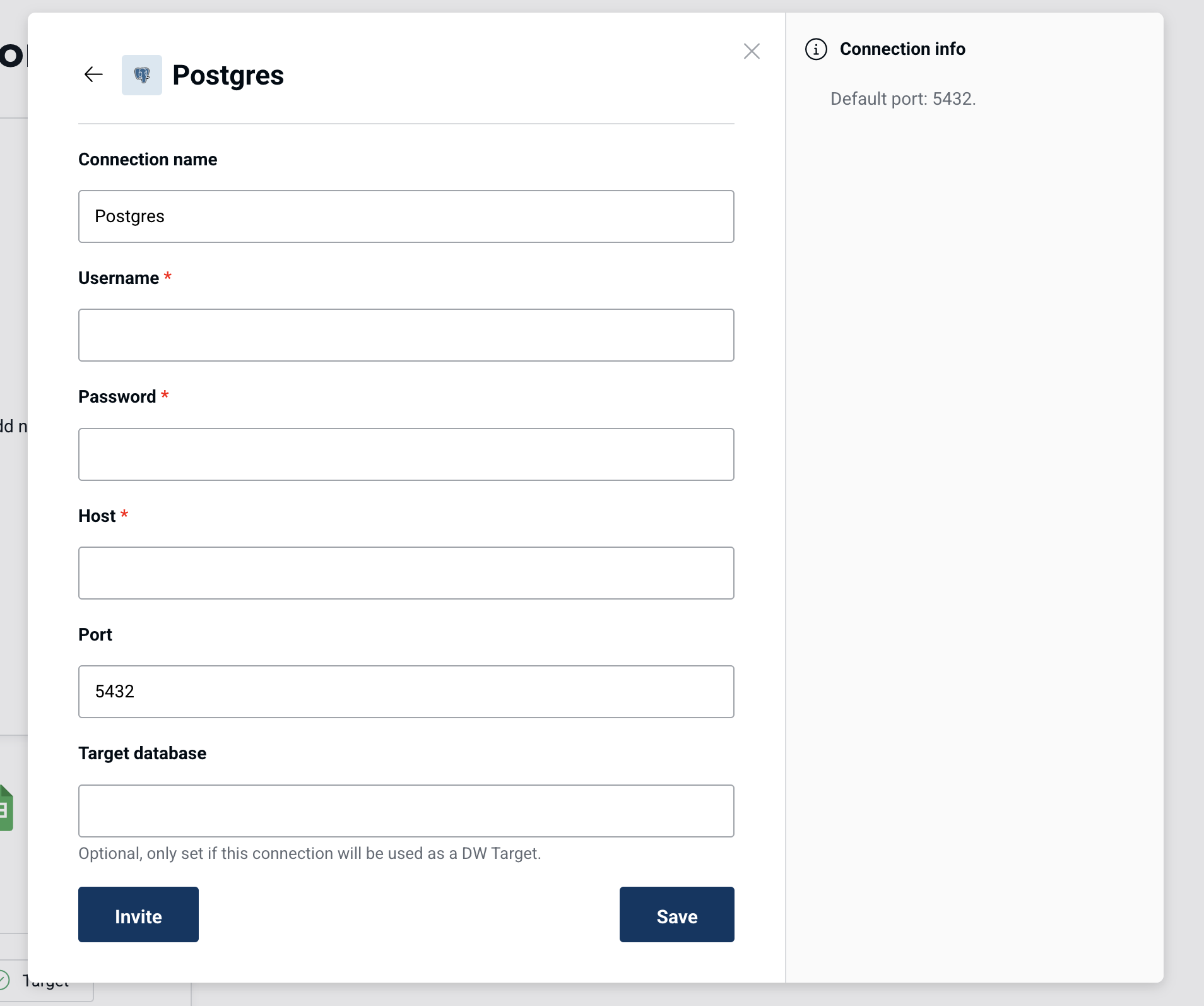
The same template with username, password, host, port and an optional target database.
- 7
-
8
Host with no hint (not working)
No example of the host format and nothing about IP allowlisting, the usual reason a Postgres connection fails.
-
9
Optional field explained (working)
"Optional, only set if this connection will be used as a DW Target" tells you when you can skip it.
-
10
Info panel repeats the field (not working)
"Default port: 5432." is all the side panel says, and the field already shows it.
Redshift
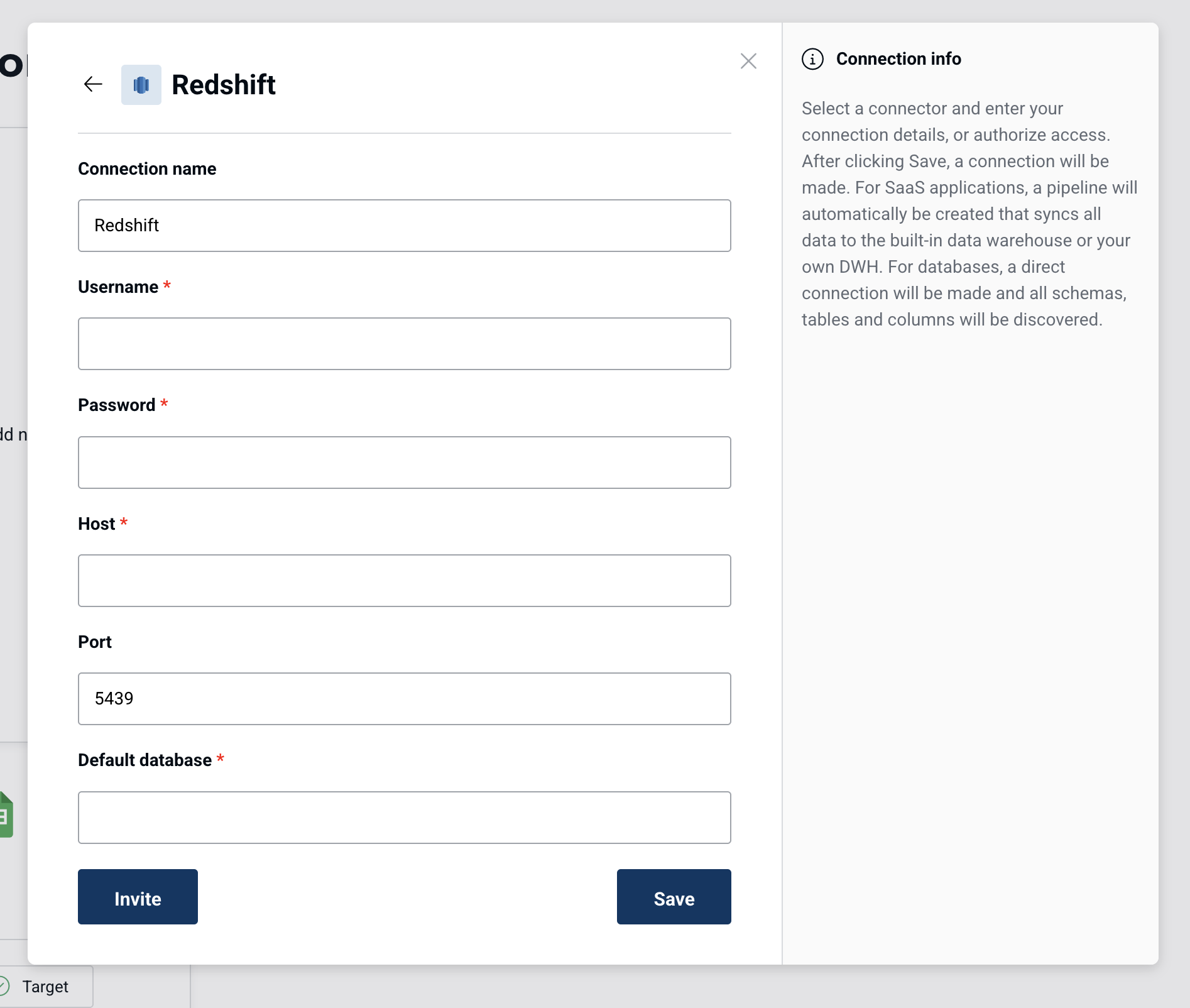
Redshift gets its own default port and a side panel that explains what happens after Save.
-
11
Connector-specific default (working)
Port is 5439 here, not the Postgres 5432, so the template adapts per database.
-
12
Generic first line (not working)
"Select a connector" when you've already picked Redshift shows the copy is shared, not written for this screen.
-
13
What Save will do (working)
"All schemas, tables and columns will be discovered" sets expectations for the next step.
Snowflake
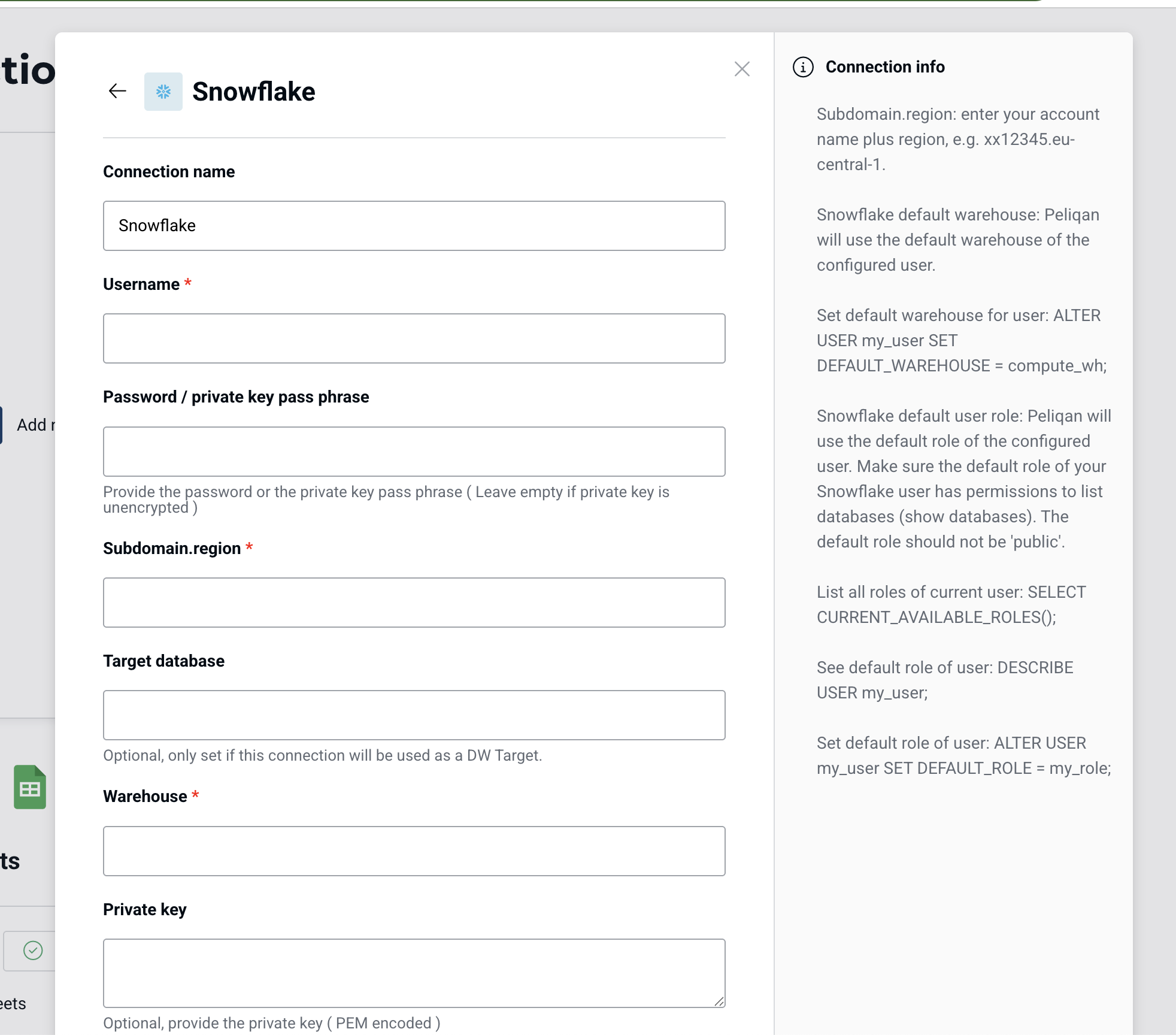
The longest form, with a side panel full of SQL commands for warehouse and role setup.
-
14
Explains the defaults (working)
The panel says Peliqan uses the user's default warehouse and gives the account-name format "xx12345.eu-central-1".
-
15
SQL as grey prose (not working)
ALTER USER and SELECT commands are set in body text with no code style or copy button, so they're hard to grab.
-
16
One field, two meanings (not working)
"Password / private key pass phrase" with a long hint; an auth-method choice would be clearer.
-
17
Optional explained again (working)
The same DW Target helper as Postgres, so the pattern is learnable across connectors.
Trino
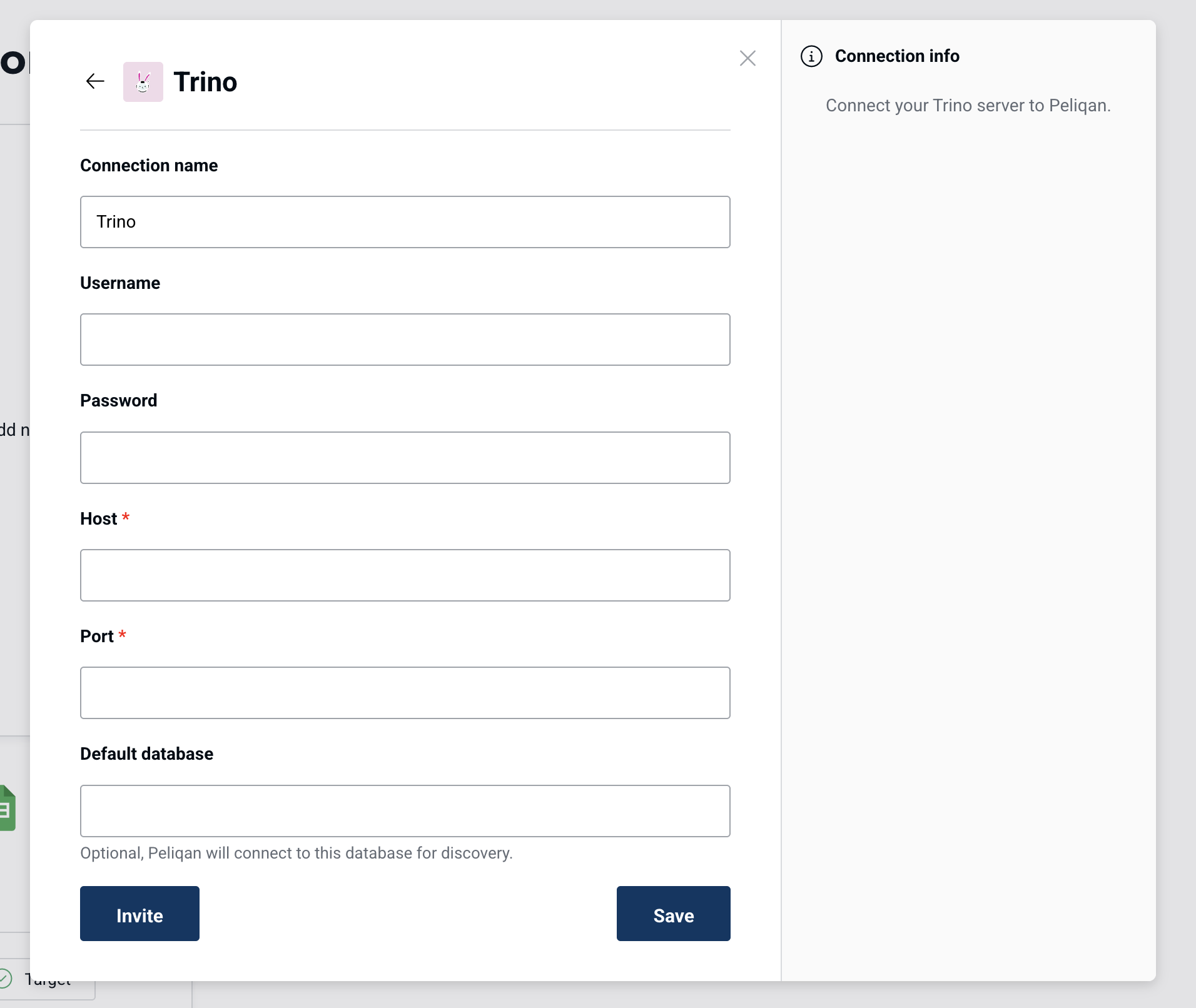
Trino's form drops the required marks on username and password but leaves the port empty.
-
18
Auth not forced (working)
Username and password have no asterisk here, so the form follows how this database works.
-
19
Required port, no default (not working)
Unlike Postgres and Redshift, Port is required and empty.
-
20
Says why the field exists (working)
"Peliqan will connect to this database for discovery" explains the optional field.
-
21
Info panel says nothing (not working)
"Connect your Trino server to Peliqan." repeats the title.
Microsoft Fabric DWH
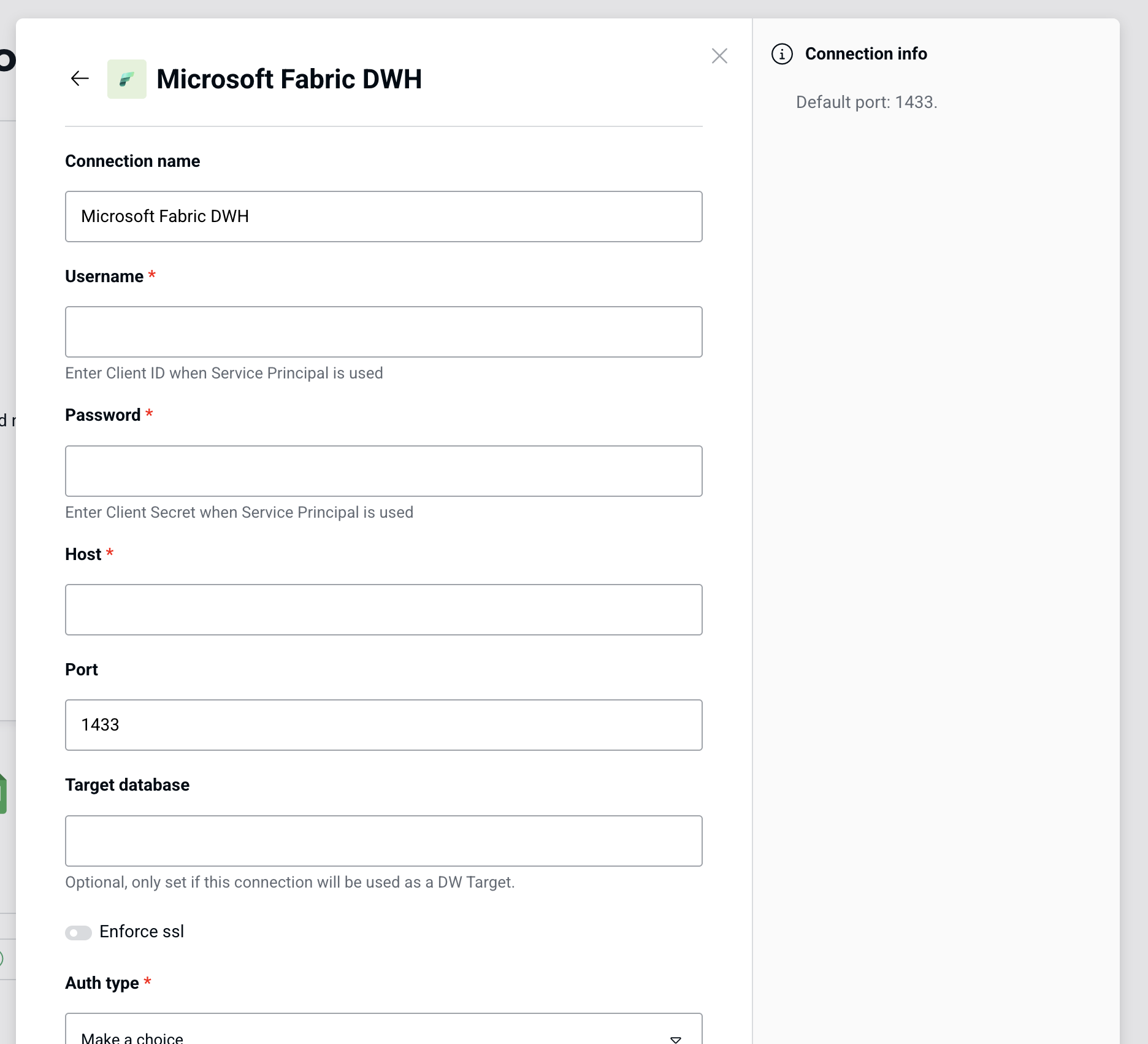
Fabric adds SSL and auth-type settings, with the auth choice placed after the fields it changes.
-
22
Hints depend on a later choice (not working)
"Enter Client ID when Service Principal is used" refers to Auth type, which you only pick at the bottom.
- 23
-
24
SSL off here, on for MS SQL (not working)
"Enforce ssl" is off by default on Fabric but on for MS SQL Server in the same app.
-
25
"Make a choice" last (not working)
Auth type is required but sits at the end with a placeholder that doesn't hint at the options.
MS SQL Server
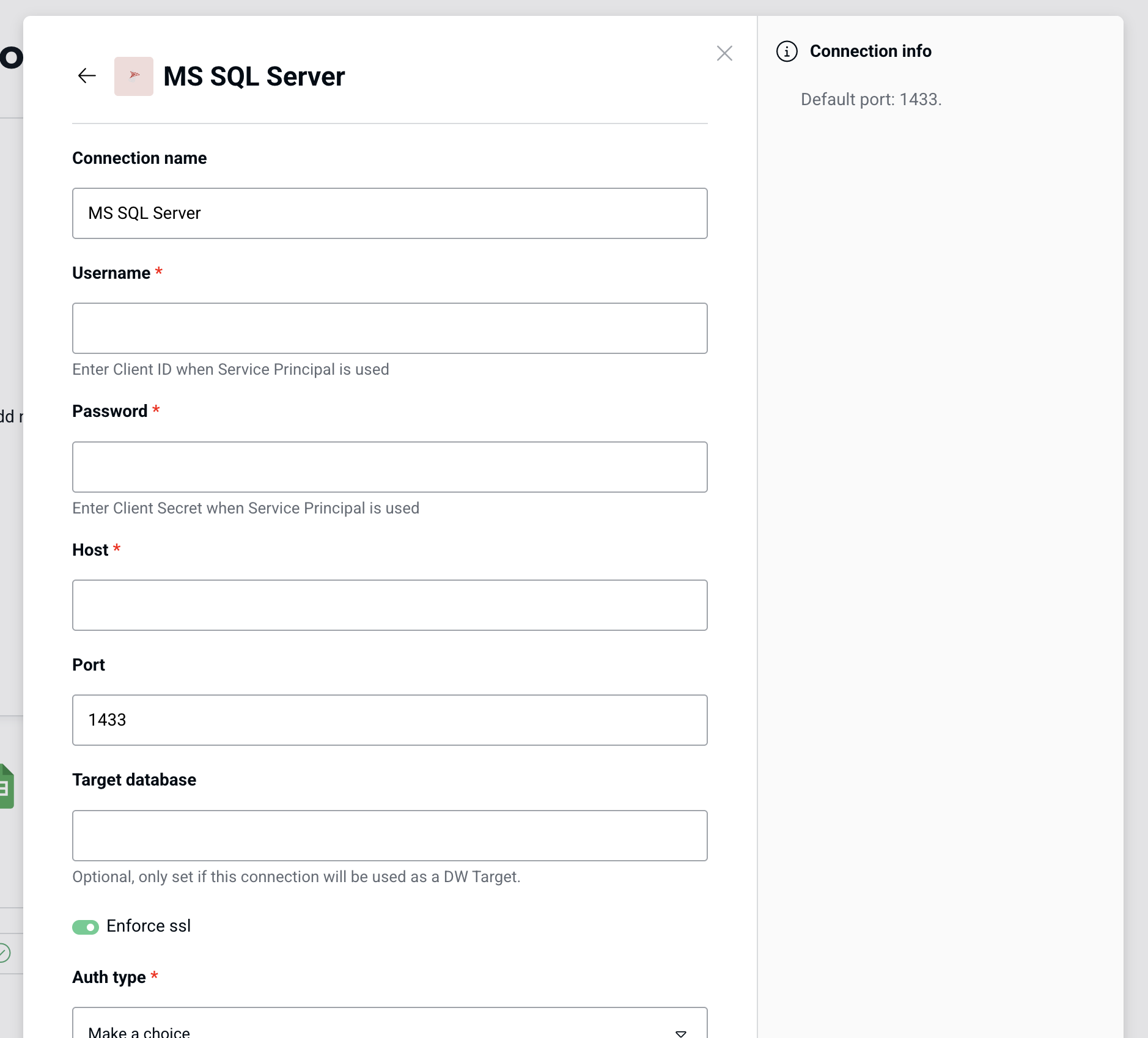
Same fields as Fabric, with SSL switched on by default.
-
26
Panel repeats the port (not working)
"Default port: 1433." again uses the help panel for something the field already shows.
-
27
Same optional pattern (working)
The DW Target helper appears in the same place on every connector.
- 28
Takeaways from Peliqan
- A shared form template with a help panel scales to many connectors, but write the panel per connector or it fills up with filler like "Default port".
- Put the choice that changes other fields (auth type) first, and prefill every known default, including ports.
- Offer an Invite path in credential forms: the person setting up often isn't the one holding the keys.