Four data asks before the first idea
Dazzle opens with a sharp photo-to-task demo, then asks for name, phone, the whole photo library, email and notifications before landing users on empty tabs.
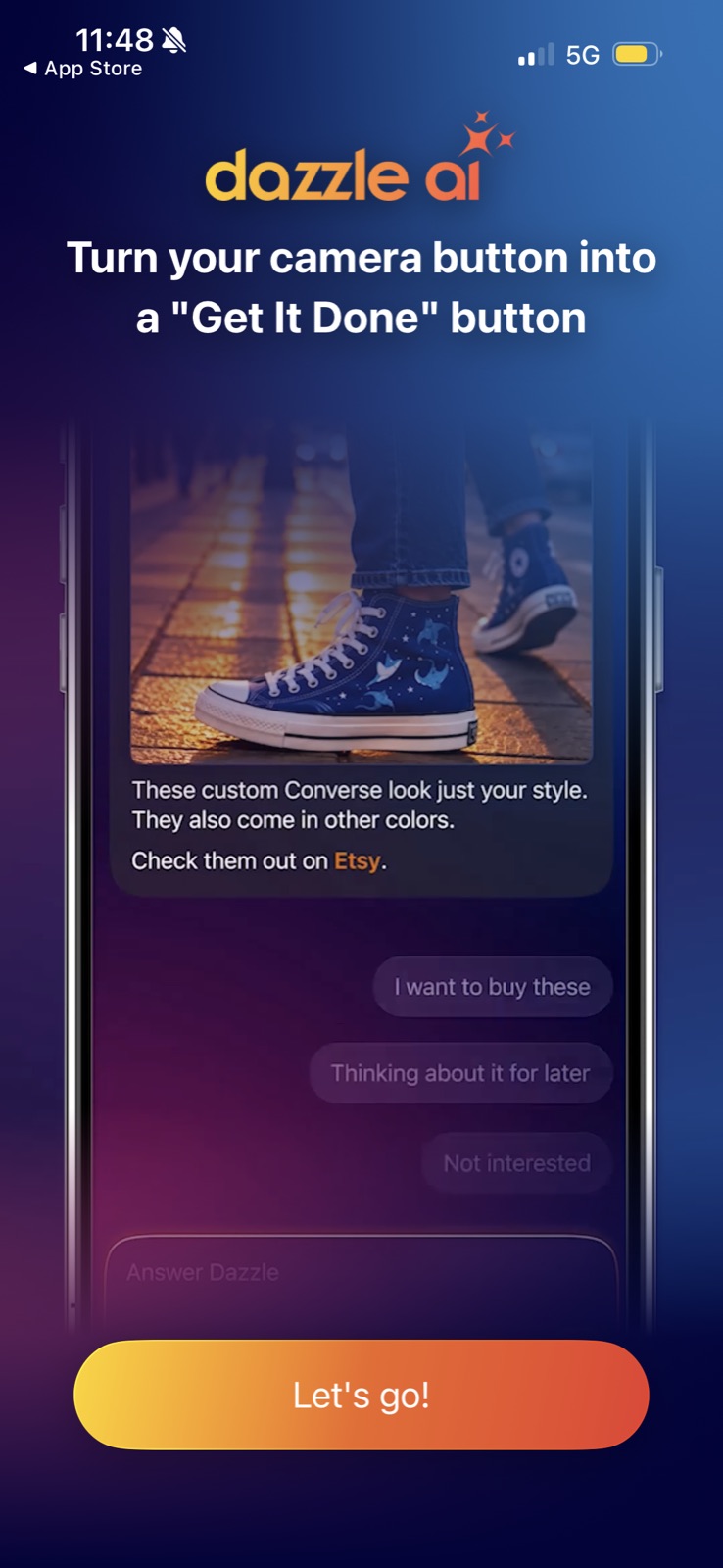
Turn your camera button into a "Get It Done" button
The welcome screen sells the idea with a mock chat: a photo comes in, Dazzle replies with a suggestion and offers quick answers.
-
1
Concrete promise (working)
"Turn your camera button into a Get It Done button" names the habit Dazzle wants to hook into.
-
2
Demo instead of features (working)
A real-looking photo-to-answer exchange shows the product before any explanation.
-
3
First example is shopping (not working)
The sample answer pushes an Etsy purchase, so the first impression is a shopping assistant, not a to-do helper.
-
4
Intent buckets as replies (working)
"I want to buy these / Thinking about it for later / Not interested" teaches the triage model in one glance.
-
5
"Let's go!" hides the cost (not working)
Nothing says the next four screens ask for name, phone, photos and email.
Hi! I'm Dazzle
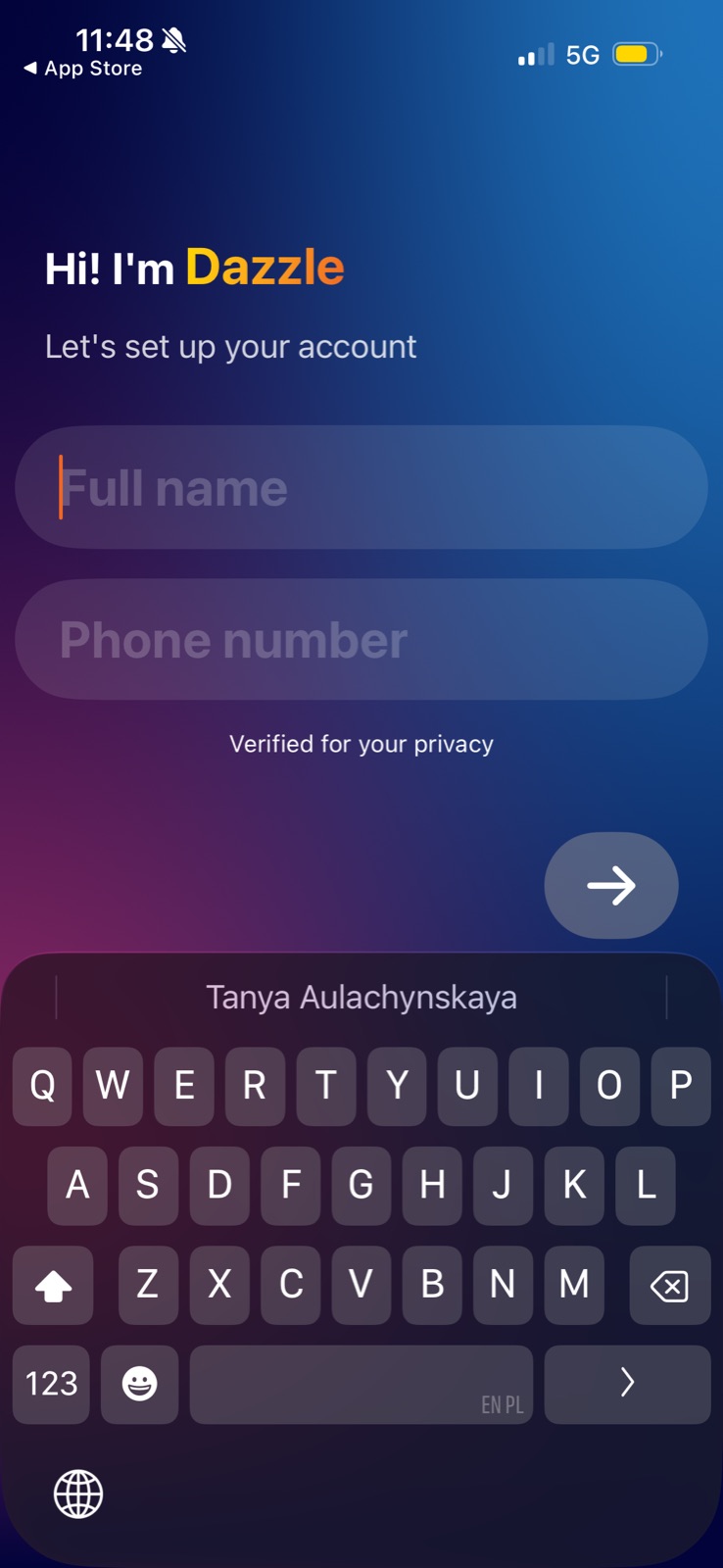
Account setup comes second, asking for full name and phone number before the user has seen anything work.
-
6
Assistant persona (working)
"Hi! I'm Dazzle" frames the form as an introduction rather than a registration.
-
7
Autofill-ready field (working)
The name field is typed correctly, so iOS offers the full name as a one-tap suggestion.
-
8
Phone number up front (not working)
A phone number on screen two, with no reason given, is a big ask for an app nobody has tried yet.
-
9
Vague privacy line (not working)
"Verified for your privacy" does not say what is verified or why a phone number protects anyone.
-
10
No Sign in with Apple (not working)
Only a manual form and an arrow, no one-tap account option.
Full access to your Photo Library
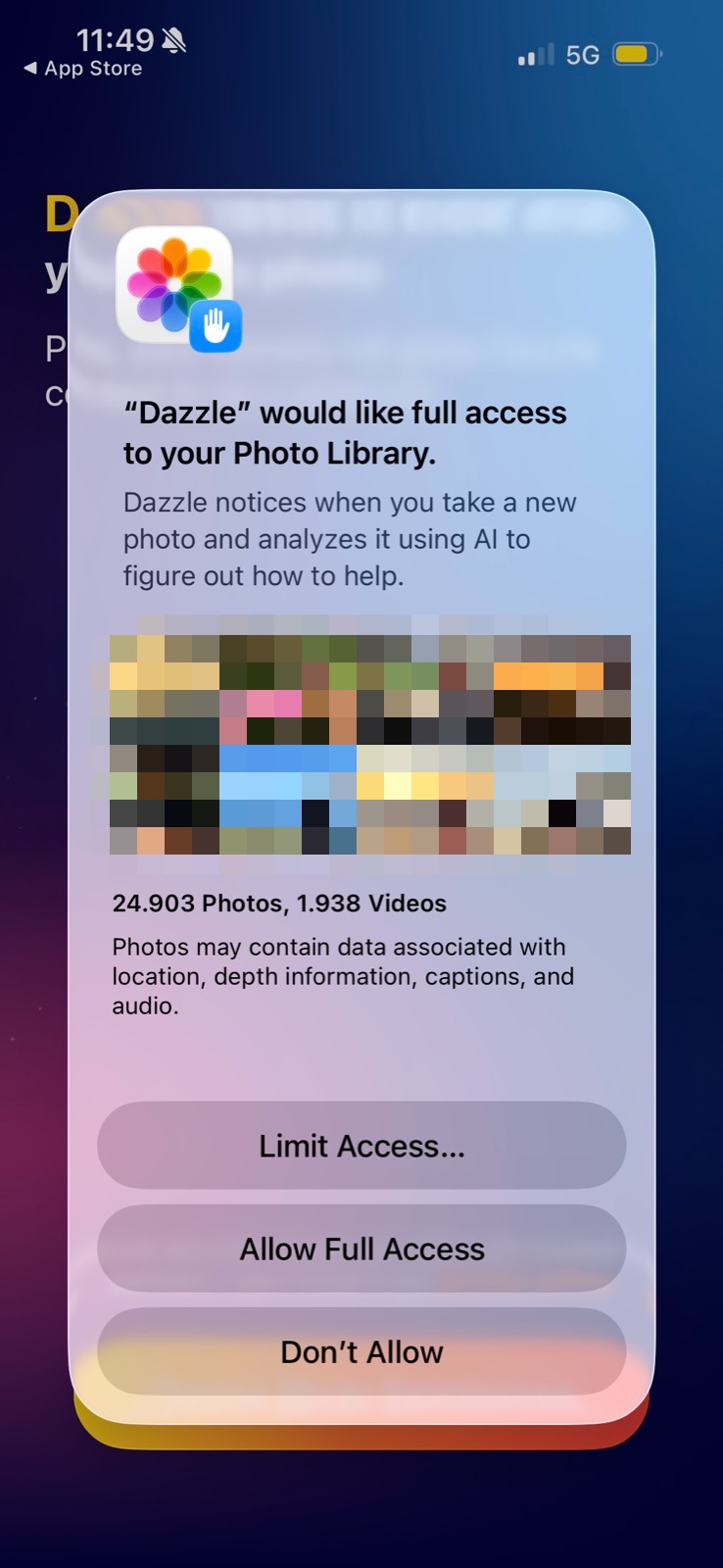
The iOS photo prompt asks for the whole library, with a clear purpose string.
-
11
Purpose string that explains (working)
"Dazzle notices when you take a new photo and analyzes it using AI" says exactly what the access is for.
-
12
Whole library for a new-photo job (not working)
iOS shows 24.903 photos of people and places, which makes a feature about new photos feel like a full-library scan.
What's your email?
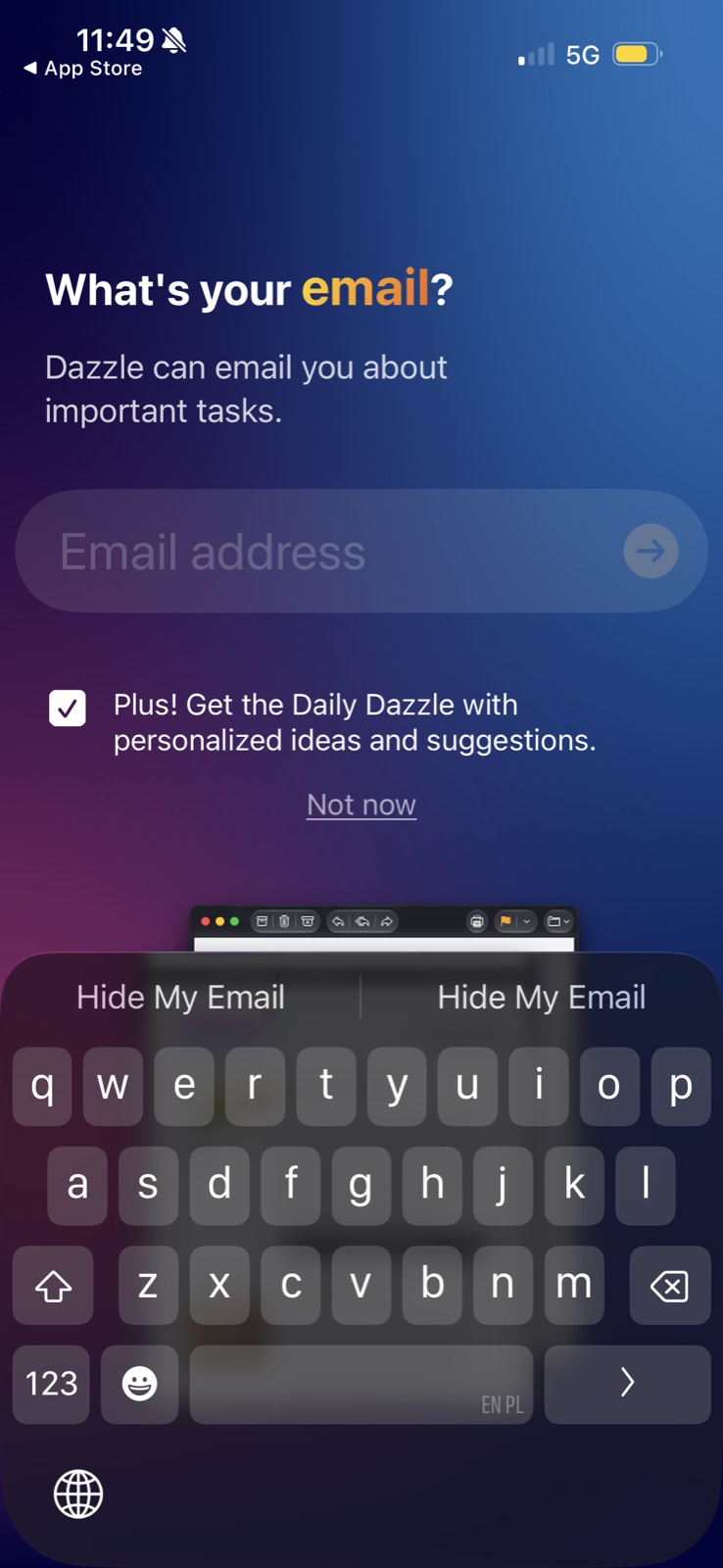
The third personal-data ask in a row, with a newsletter opt-in already ticked.
-
13
Reason in one line (working)
"Dazzle can email you about important tasks" gives a reason before asking.
-
14
Another data ask (not working)
Name, phone, photos and now email, all before the first suggestion.
-
15
Newsletter pre-ticked (not working)
The "Daily Dazzle" box is checked by default, so most people sign up without choosing to.
- 16
-
17
Hide My Email offered (working)
The field is typed as email, so iOS suggests a relay address, which lowers the trust barrier.
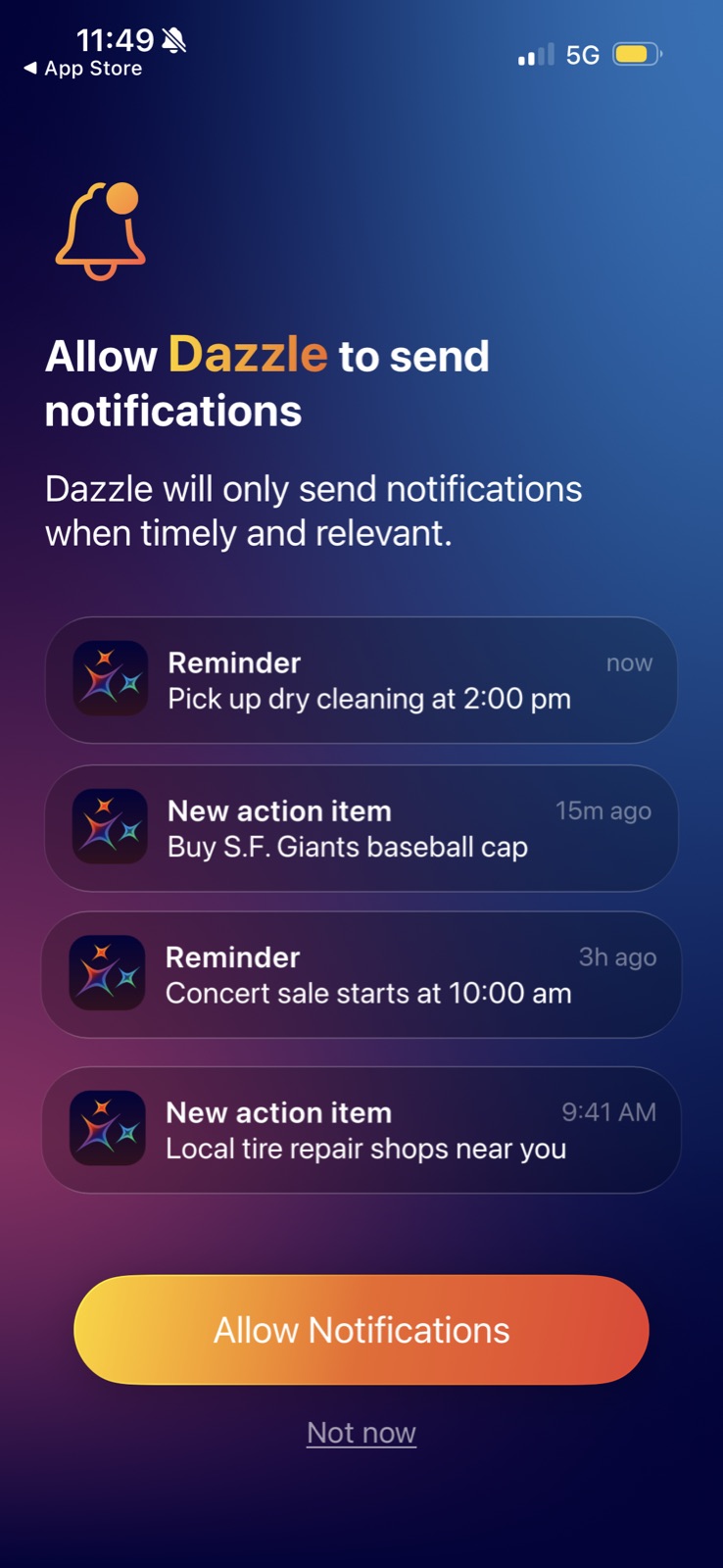
Allow Dazzle to send notifications
A custom primer shows sample notifications before the iOS prompt.
-
18
Relevance promise (working)
"Only send notifications when timely and relevant" answers the spam worry up front.
-
19
Preview of the payoff (working)
A reminder card shows what a notification will look like, so the value is concrete.
-
20
Stock examples, not yours (not working)
Dry cleaning, a Giants cap and tire shops are generic, even though Dazzle now has full photo access.
-
21
Soft ask before the system prompt (working)
Tapping the custom button first means a "no" does not burn the one-time iOS prompt.
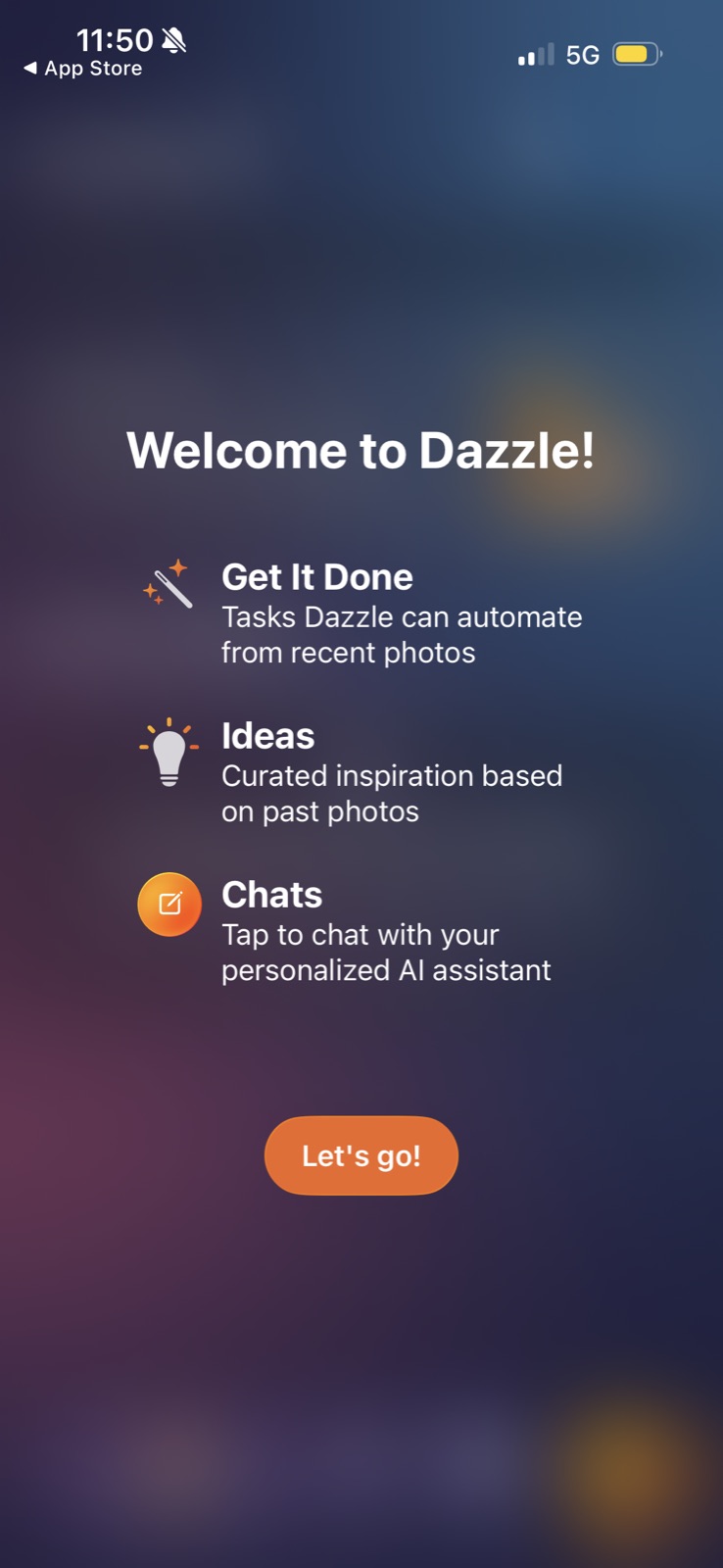
Welcome to Dazzle!
A three-line map of the app arrives only after every permission has been asked for.
-
22
Welcome after the paperwork (not working)
"Welcome to Dazzle!" comes after four data asks; this overview would have earned them if it came first.
-
23
Tabs explained in advance (working)
Get It Done and Ideas each get one plain line, matching the tab names users see next.
-
24
Icon matches the button (working)
The orange compose icon next to Chats is the same floating button on the home screen.
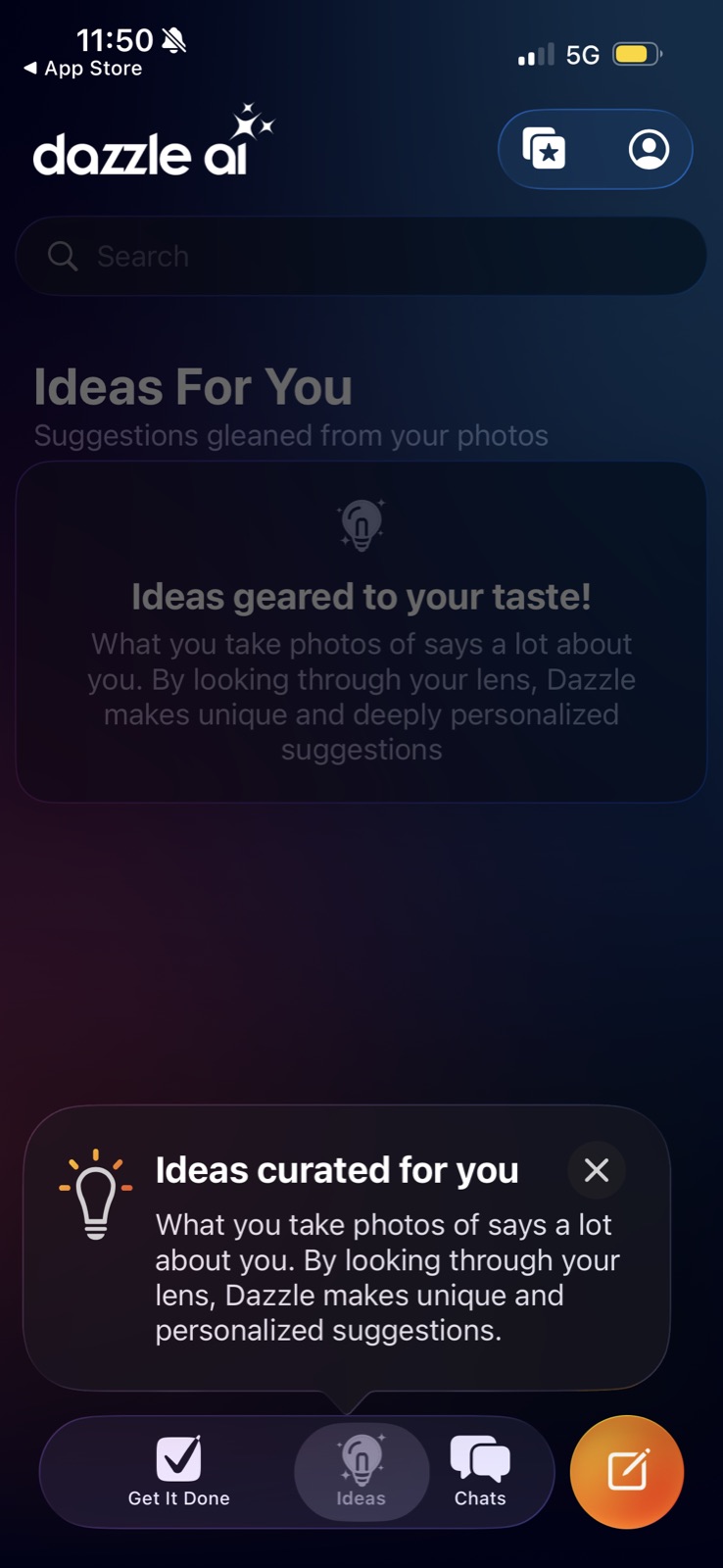
Ideas For You
The Ideas tab opens empty, with a coach mark that repeats the empty-state copy.
-
25
Unlabeled header icons (not working)
Two icons with no labels; it is unclear what the starred-photos one does.
-
26
Empty after full access (not working)
After handing over the whole library, the first feed shows no ideas, only a promise of them.
-
27
Same copy twice (not working)
The coach mark repeats "What you take photos of says a lot about you" from the card above it.
-
28
Tour inside the real UI (working)
The coach mark points at the Ideas tab, so the tour happens in context, not in a carousel.
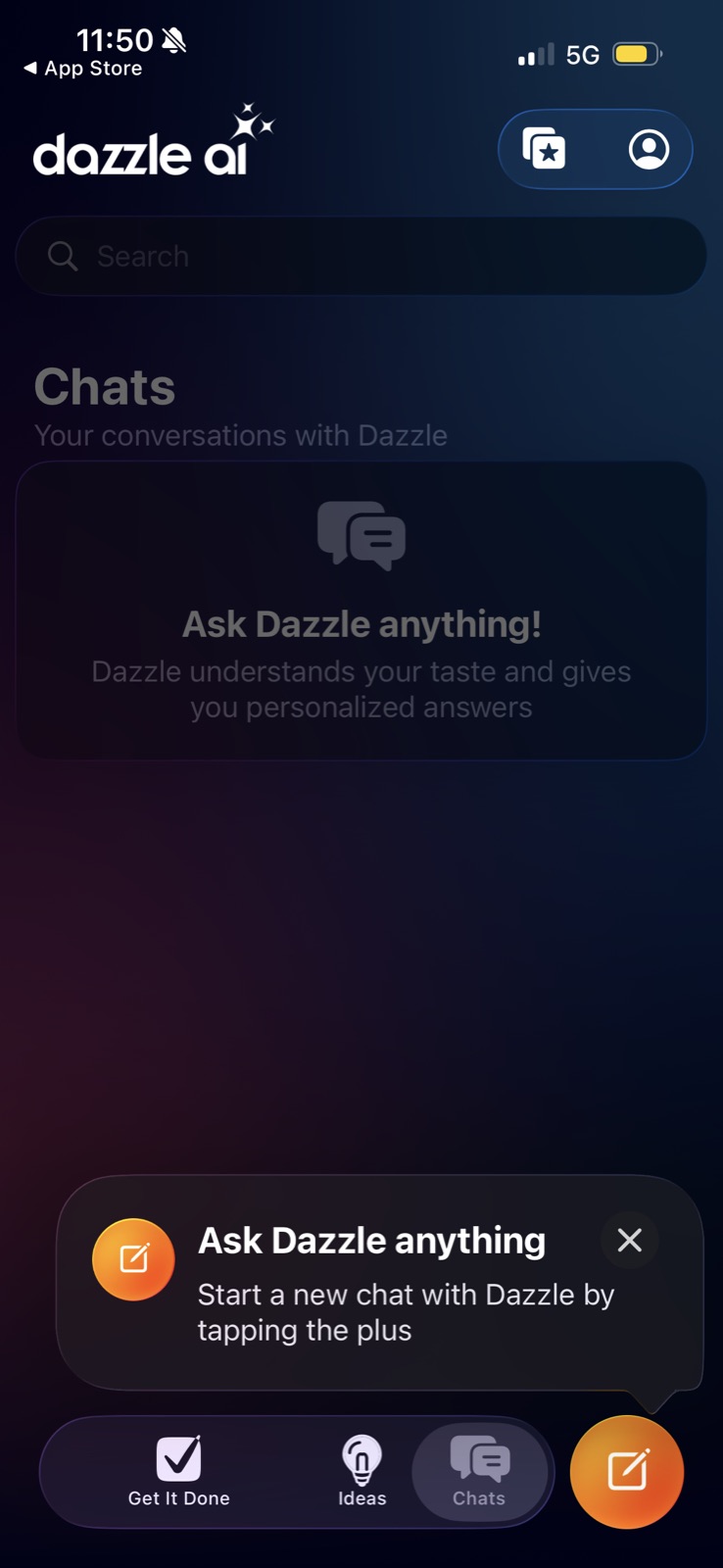
Chats
The Chats tab is also empty; the coach mark points to the compose button.
-
29
Blank chat, no starters (not working)
"Ask Dazzle anything!" with no example prompts leaves people to guess what it is good at.
-
30
"Plus" that is a pencil (not working)
The tip says "tapping the plus", but the button shows a compose pencil.
-
31
One persistent primary action (working)
The orange floating button stays in the same spot across tabs, so the main action is always one tap away.
Takeaways from Dazzle AI
- Show the product working on the user's own photos before asking for phone or email; the welcome map belongs before the asks, not after.
- If the core loop needs full photo access, say why Limit Access breaks it, and pay it off with a non-empty first screen.
- Never pre-tick a newsletter, and seed empty chats with starter prompts tied to the user's photos.