A guided 4-step setup from database to dataset
Holistics frames onboarding as a two-layer diagram (data team builds, business users explore), then walks the data team through connect, dev mode, models and dataset with a persistent stepper.
Welcome to Holistics
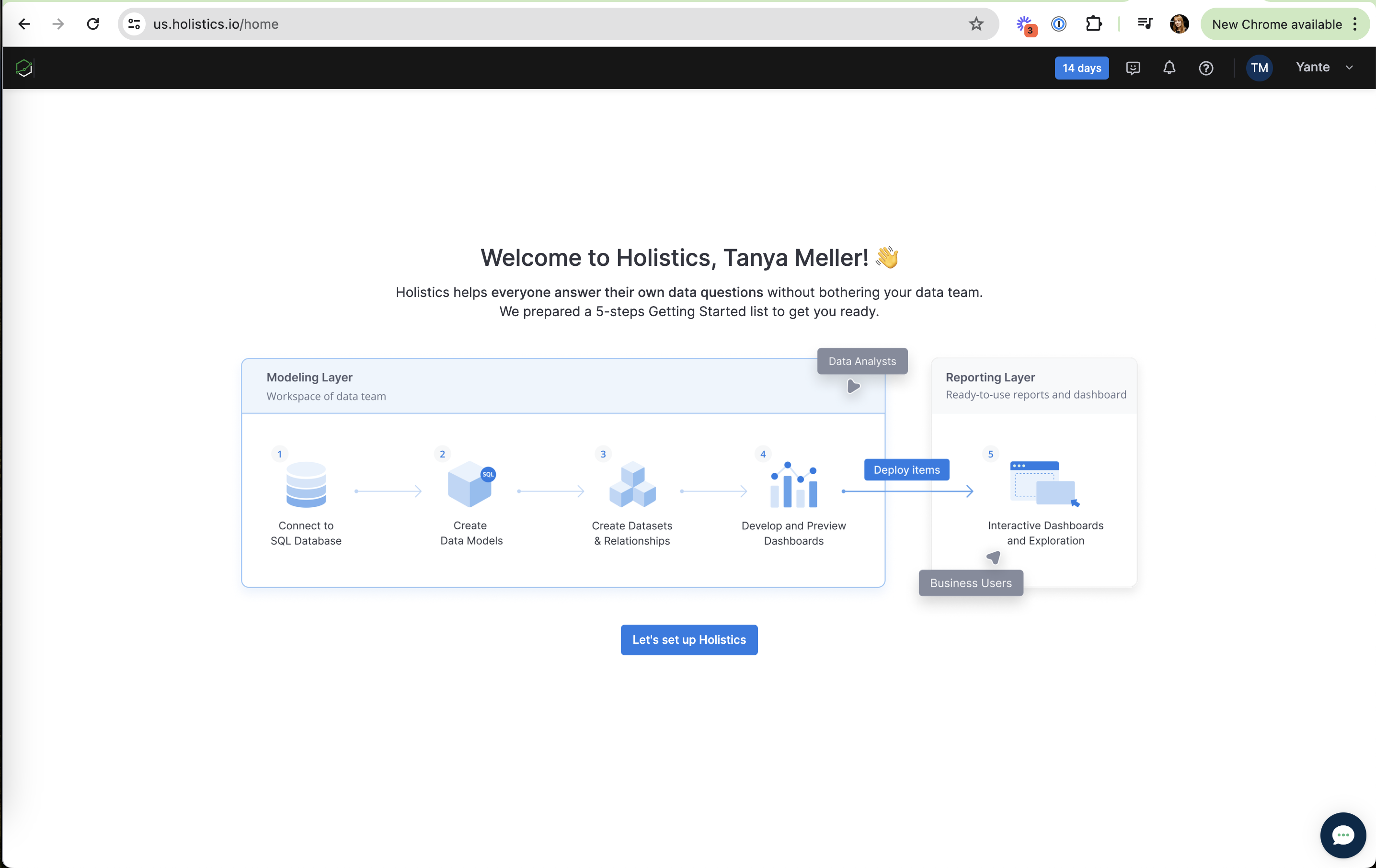
A welcome screen explains who does what before asking for anything.
-
1
Promise and plan in two lines (working)
"Everyone answer their own data questions" plus "a 5-steps Getting Started list" sets expectations.
-
2
Roles mapped on the diagram (working)
"Data Analysts" and "Business Users" tags show who owns which layer.
-
3
Four of five steps are data-team work (not working)
A business user who signs up has nothing to do until the modeling layer is built.
- 4
- 5
Connect your data warehouse
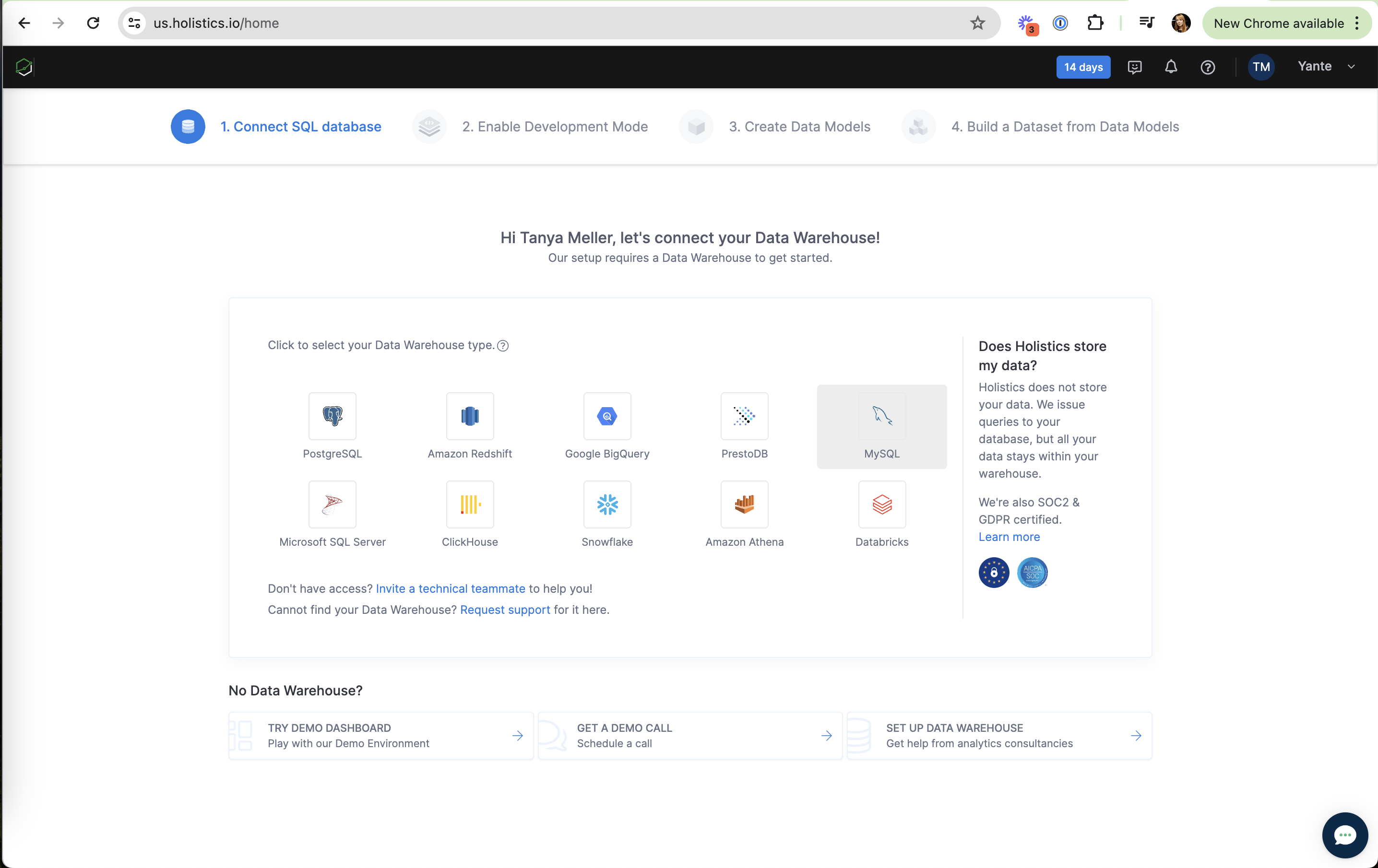
Step 1 of a 4-step stepper: pick a warehouse, with trust copy and fallbacks.
-
6
Persistent 4-step stepper (working)
Numbered steps across the top show exactly how far setup goes.
-
7
Logo grid of warehouses (working)
Ten recognisable logos make picking your stack one click.
-
8
Answers the security question (working)
"Does Holistics store my data?" plus SOC2 and GDPR badges, right next to the choice.
-
9
Invite a technical teammate (working)
"Don't have access?" turns a dead end into an invite.
-
10
Fallbacks are washed out (not working)
"No Data Warehouse?" options (demo, call, consultants) are pale and below the fold.
New Data Source form
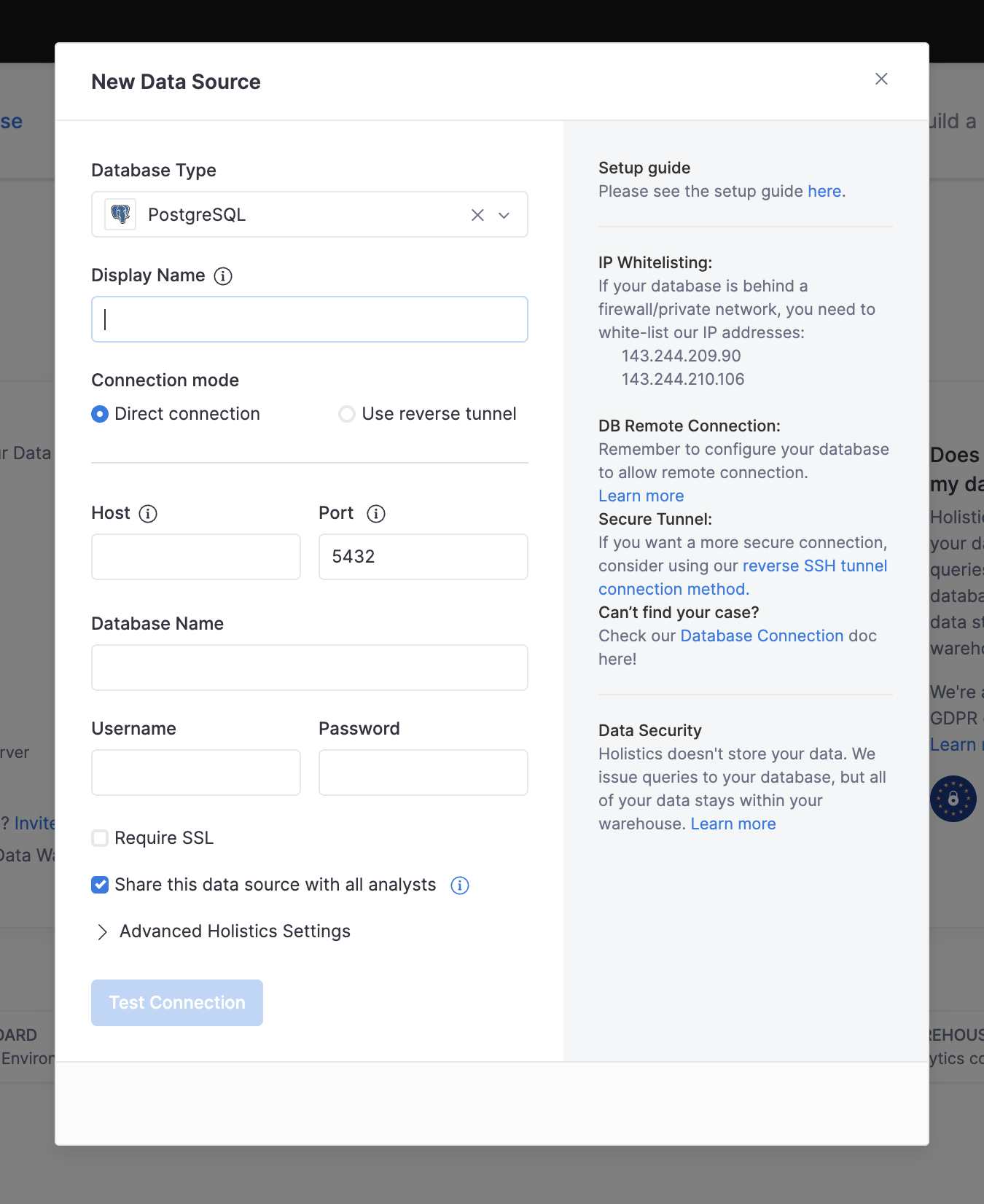
The connection form with a setup guide panel on the right.
-
11
Type and port pre-filled (working)
PostgreSQL carried over and port "5432" already set.
-
12
Empty fields, no examples (not working)
Host and Database Name have no placeholder or format hint.
-
13
Help where you need it (working)
IP addresses to whitelist are listed beside the form, not in a doc.
-
14
Data security repeated (working)
"Holistics doesn't store your data" again, at the moment you type a password.
-
15
Test before saving (working)
"Test Connection" is the only button, so errors surface before you move on.
Share with all analysts
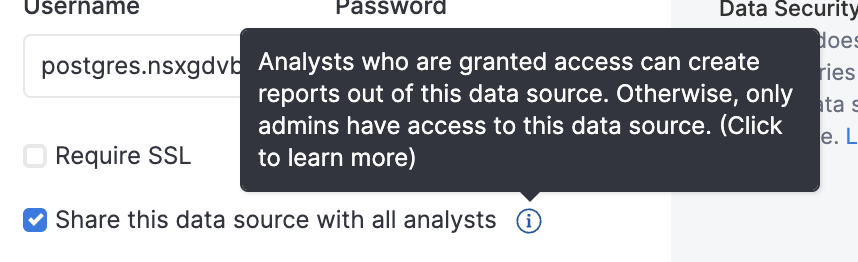
Sharing the data source is pre-checked, with a tooltip explaining the default.
-
16
Sharing on by default (working)
Pre-checked so analysts can build reports right away.
-
17
Tooltip explains the trade-off (working)
"Otherwise, only admins have access" says what unchecking costs.
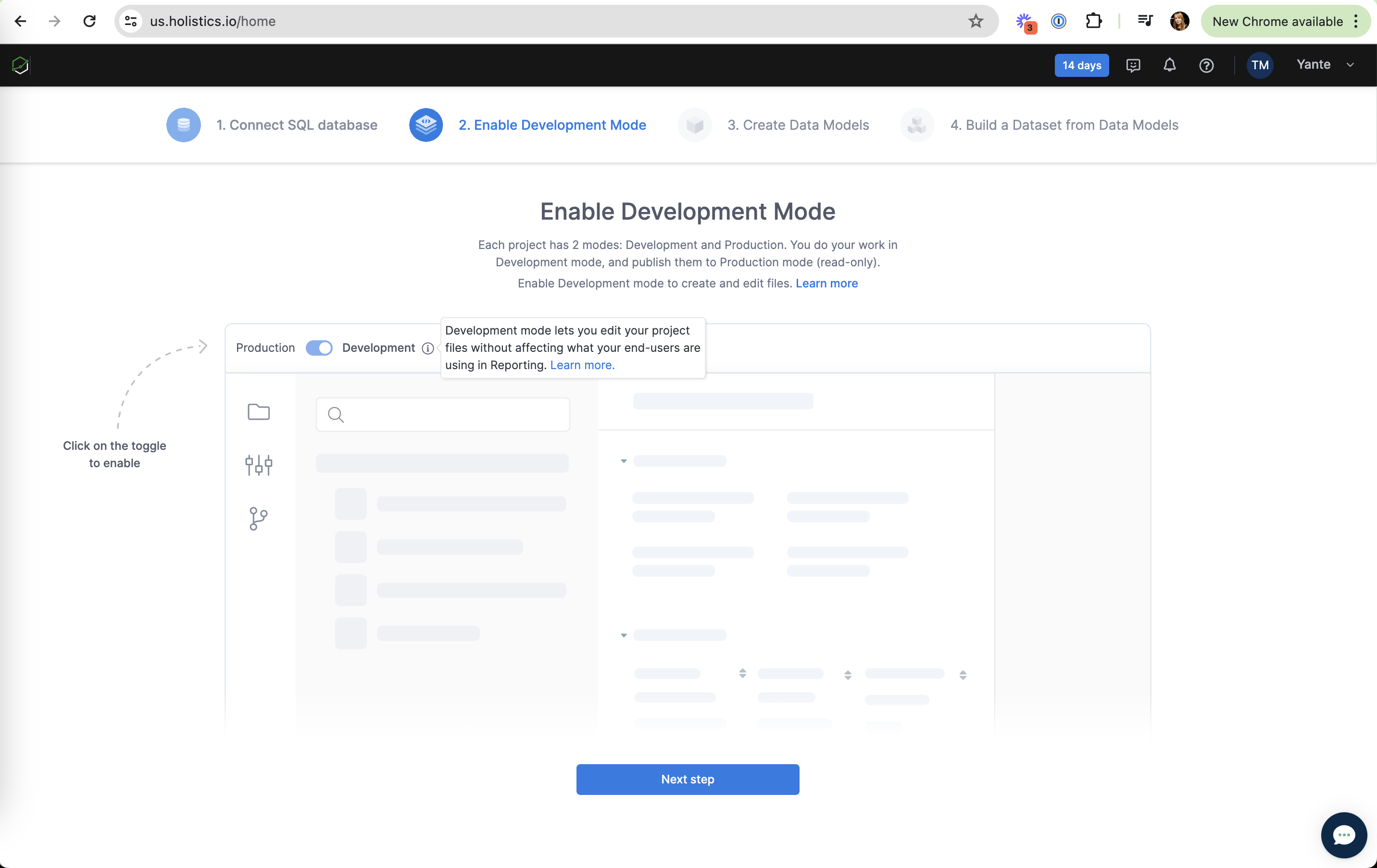
Enable Development Mode
Step 2 is a single toggle, with a drawn arrow pointing to it.
-
18
Hand-drawn hint (working)
"Click on the toggle to enable" with a dashed arrow points straight at the control.
-
19
Concept explained inline (working)
Tooltip: edit files "without affecting what your end-users are using".
-
20
A whole step for one toggle (not working)
Flipping a switch the user must enable anyway could be done for them.
-
21
Skeleton of the IDE (working)
A greyed preview of the workspace shows what you're about to unlock.
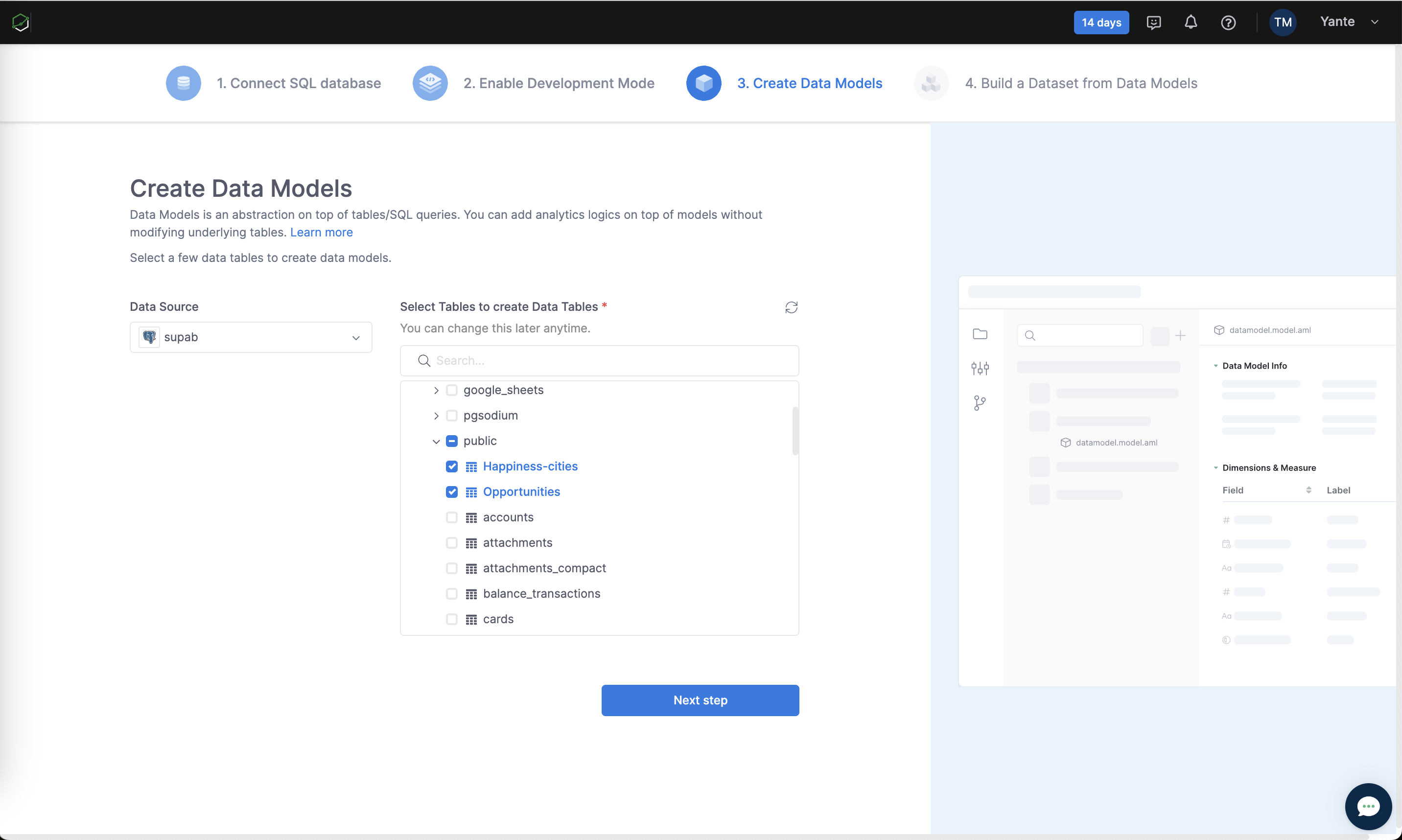
Create Data Models
Step 3: pick a few tables to turn into models.
-
22
Done steps don't look done (not working)
Steps 1 and 2 are faded like future steps, with no checkmark.
-
23
"You can change this later" (working)
Reassurance that the choice is reversible keeps the user moving.
-
24
Pick a few, not all (working)
Checkbox tree with only two tables ticked keeps the first model small.
-
25
Preview of the result (working)
The right panel shows the model file and fields you'll get.
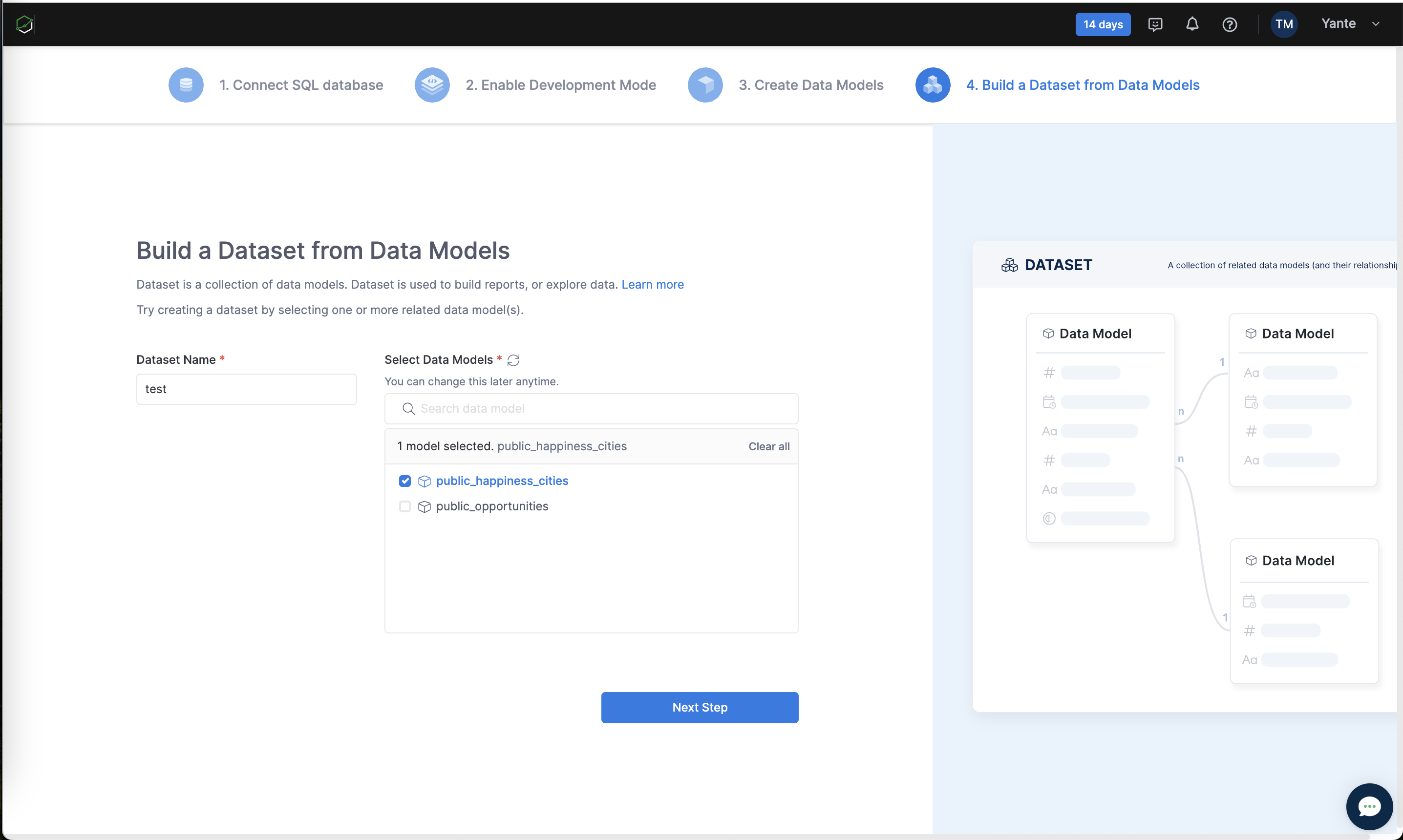
Build a Dataset
Step 4: combine models into a dataset, with a diagram of how models relate.
-
26
Definition first (working)
"Dataset is a collection of data models" explains the term before asking.
-
27
Selection summary (working)
"1 model selected" with Clear all keeps state visible.
-
28
Relationship diagram (working)
Linked model cards with 1-to-n lines show what a dataset does.
-
29
Third abstraction before a chart (not working)
Data source, model, dataset: the user still hasn't seen a single chart.
Trial menu after setup
Inside the product, the trial pill opens a small menu.

-
30
Trial pill stays in the nav (working)
"14 days" is always visible in the dark header.
-
31
No upgrade in the menu (not working)
The dropdown offers Contact Support and Send Feedback, but no way to buy.
-
32
Dev mode stays on (working)
The toggle from step 2 lives in the toolbar, with Deploy to production on the right.
Takeaways from Holistics
- Show the whole setup as a numbered stepper and mark finished steps as done.
- Automate steps that are a single toggle, and get users to a first chart sooner.
- Make the trial indicator clickable to plans, not only to support.