An eight-step onboarding that teaches the keyboard
Linear walks new users through the command menu, teams, GitHub, invites and updates in short dark screens, then drops them into the app with contextual tips.
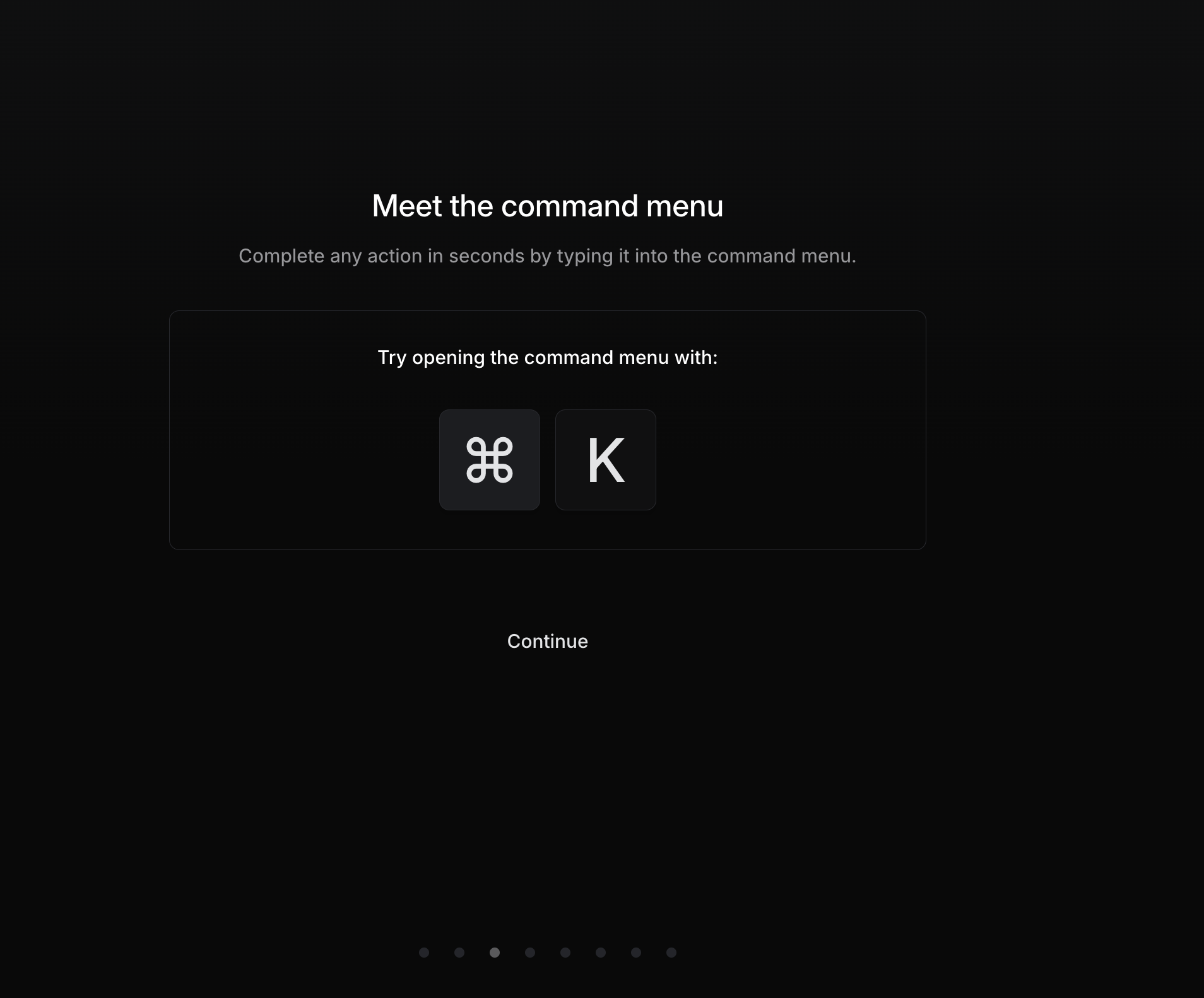
Meet the command menu
Step 3 of 8 asks you to press Cmd+K instead of just describing it.
-
1
Benefit in one line (working)
"Complete any action in seconds" sells the shortcut before teaching it.
-
2
Try it now (working)
Big keycaps invite you to press the shortcut, so you learn by doing.
-
3
Continue looks like text (not working)
The only way forward has no button styling, so it is easy to miss.
- 4
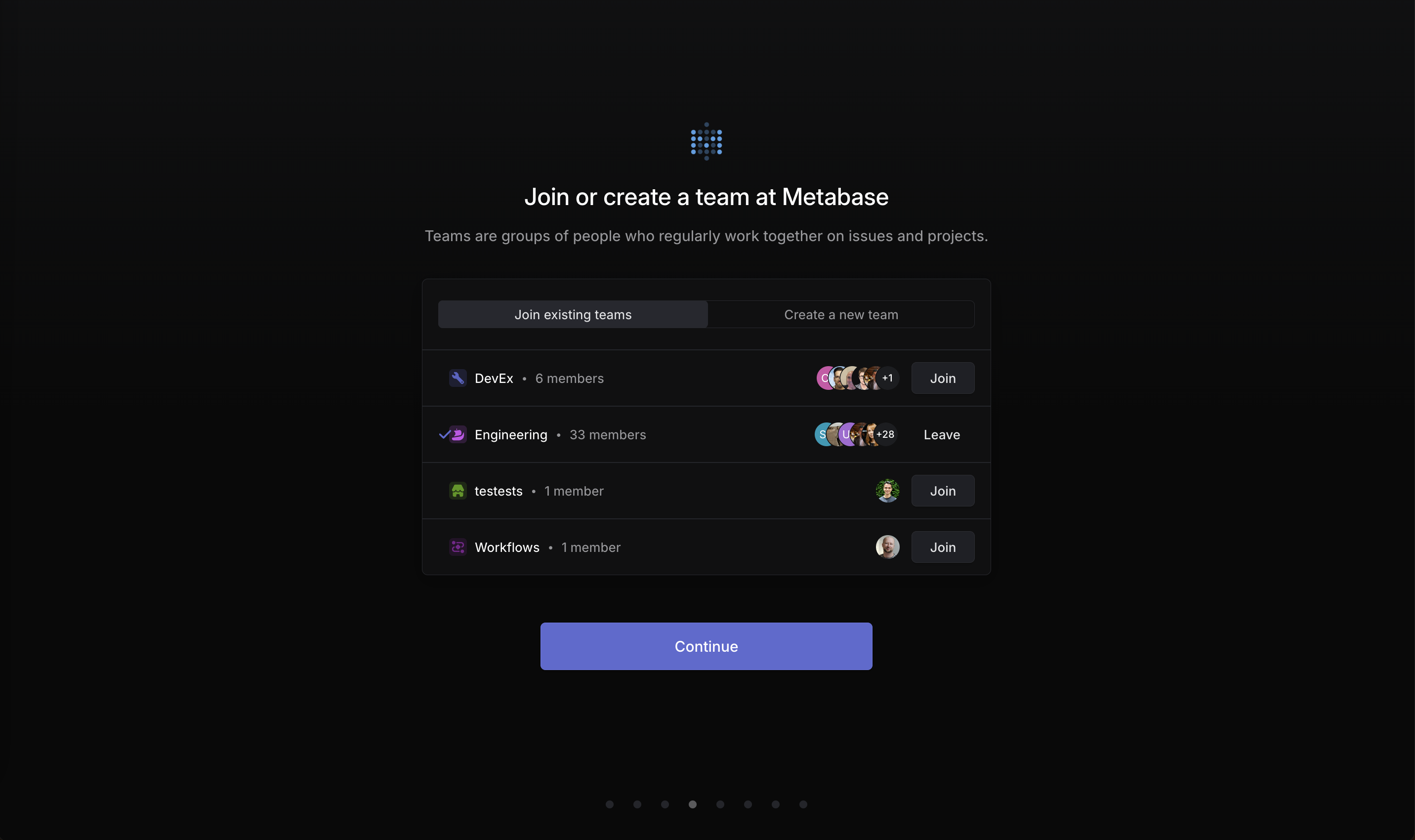
Join or create a team
Existing teams in your company are listed with members, so joining is one click.
-
5
Your company by name (working)
"Join or create a team at Metabase" shows the workspace was matched to your domain.
-
6
Join first, create second (working)
The default tab is joining existing teams, which avoids duplicates.
-
7
Already added to Engineering (working)
A check and "Leave" show you were placed in the biggest team for you.
-
8
Faces and member counts (working)
Avatars and "33 members" show where your colleagues already are.
- 9
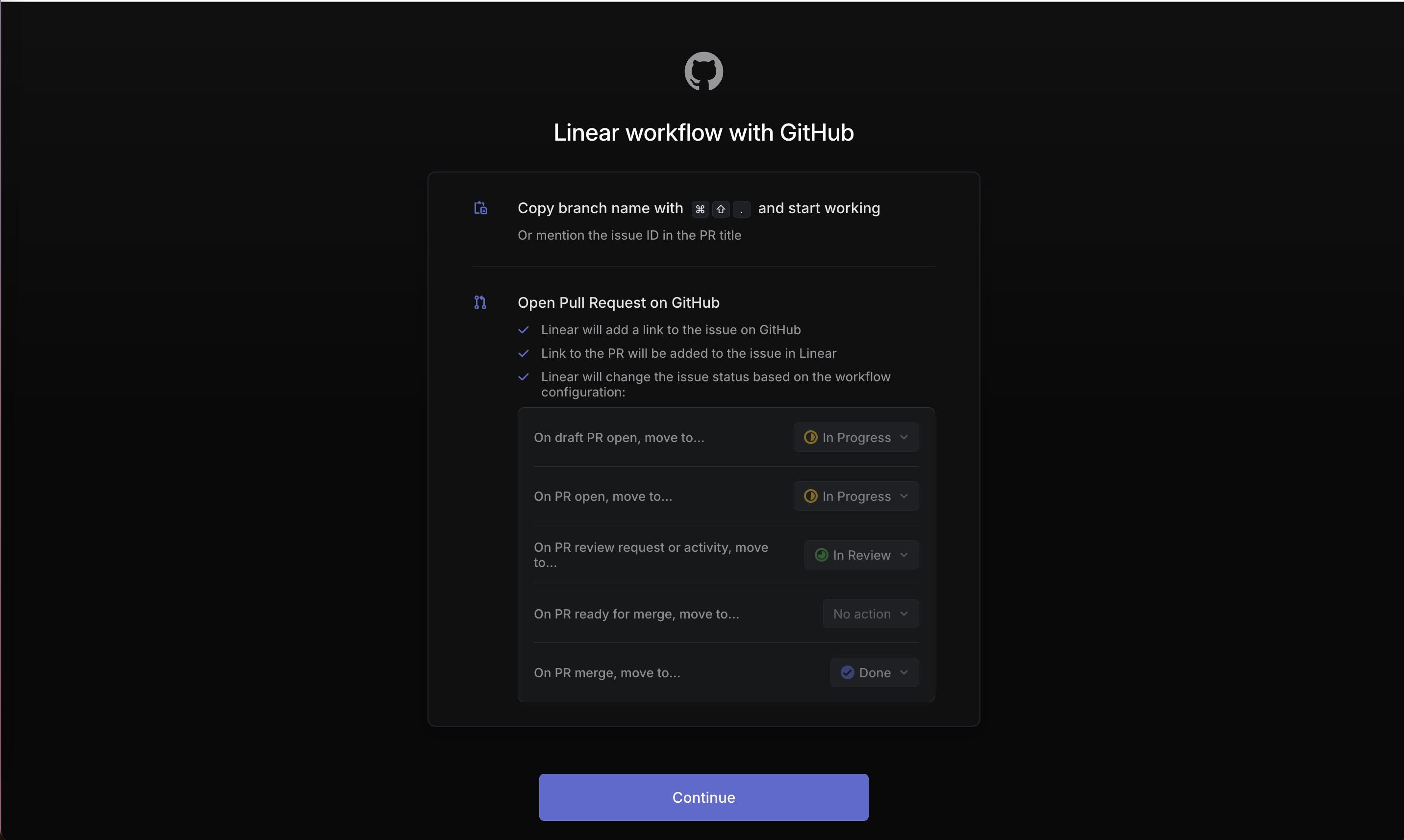
Linear workflow with GitHub
The GitHub step explains the branch-to-PR loop and pre-fills status automation.
-
10
Shortcut in context (working)
"Copy branch name with Cmd Shift ." teaches the habit that starts the loop.
-
11
What happens automatically (working)
Three checks spell out the links and status changes Linear will make.
-
12
Pre-filled status rules (working)
Each PR event already maps to In Progress, In Review or Done, so nothing needs configuring.
-
13
No connect button (not working)
The only action is Continue, so it is unclear whether GitHub is connected or just explained.
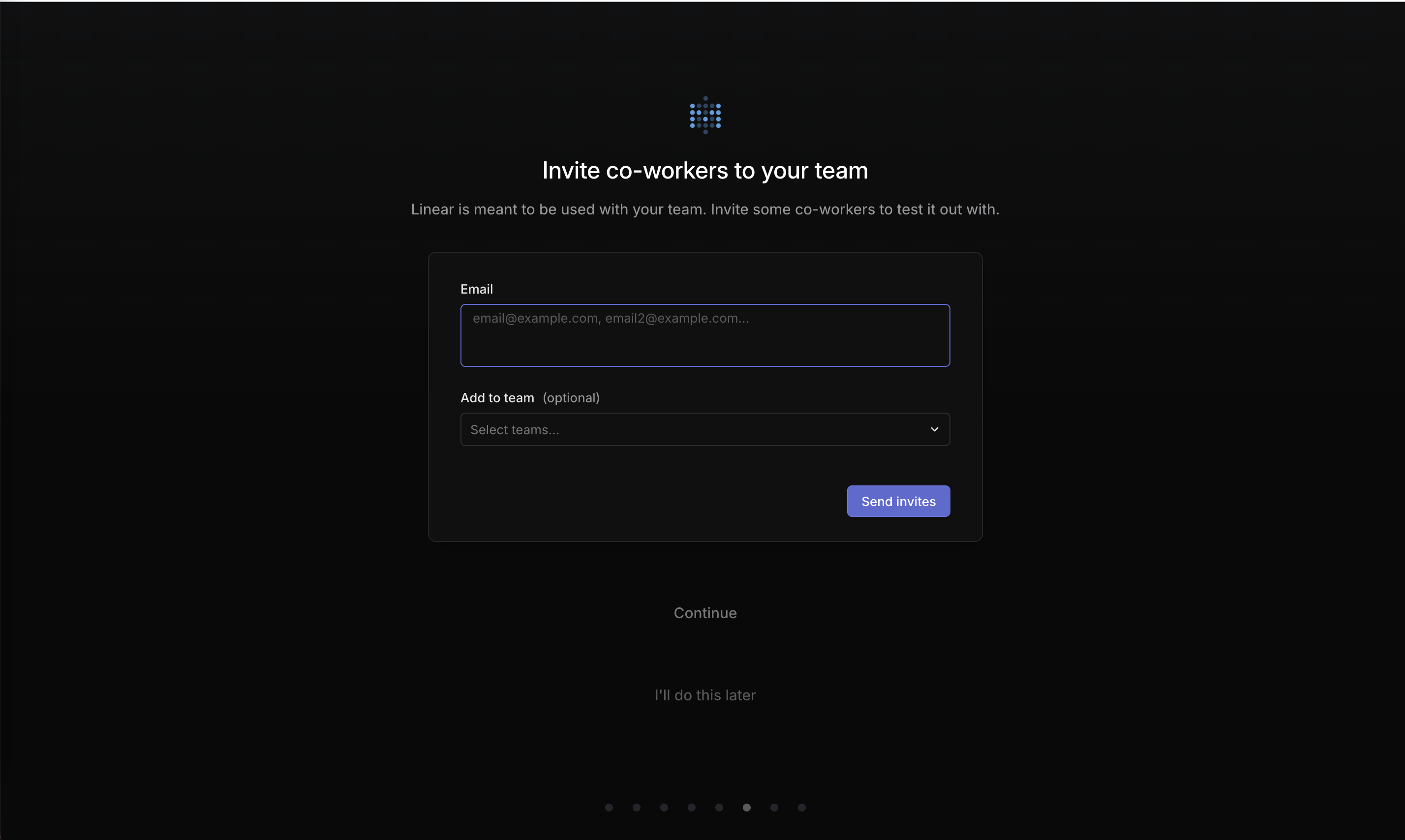
Invite co-workers
Inviting is framed as how Linear is meant to be used, with an optional team picker.
-
14
Reason to invite (working)
"Linear is meant to be used with your team" explains why before asking.
-
15
Paste many emails (working)
One field takes a comma-separated list, so bulk invites take seconds.
-
16
Team is optional (working)
"(optional)" removes a decision that could block the invite.
-
17
Two ways out (not working)
"Continue" and "I'll do this later" both skip, and it is unclear how they differ.
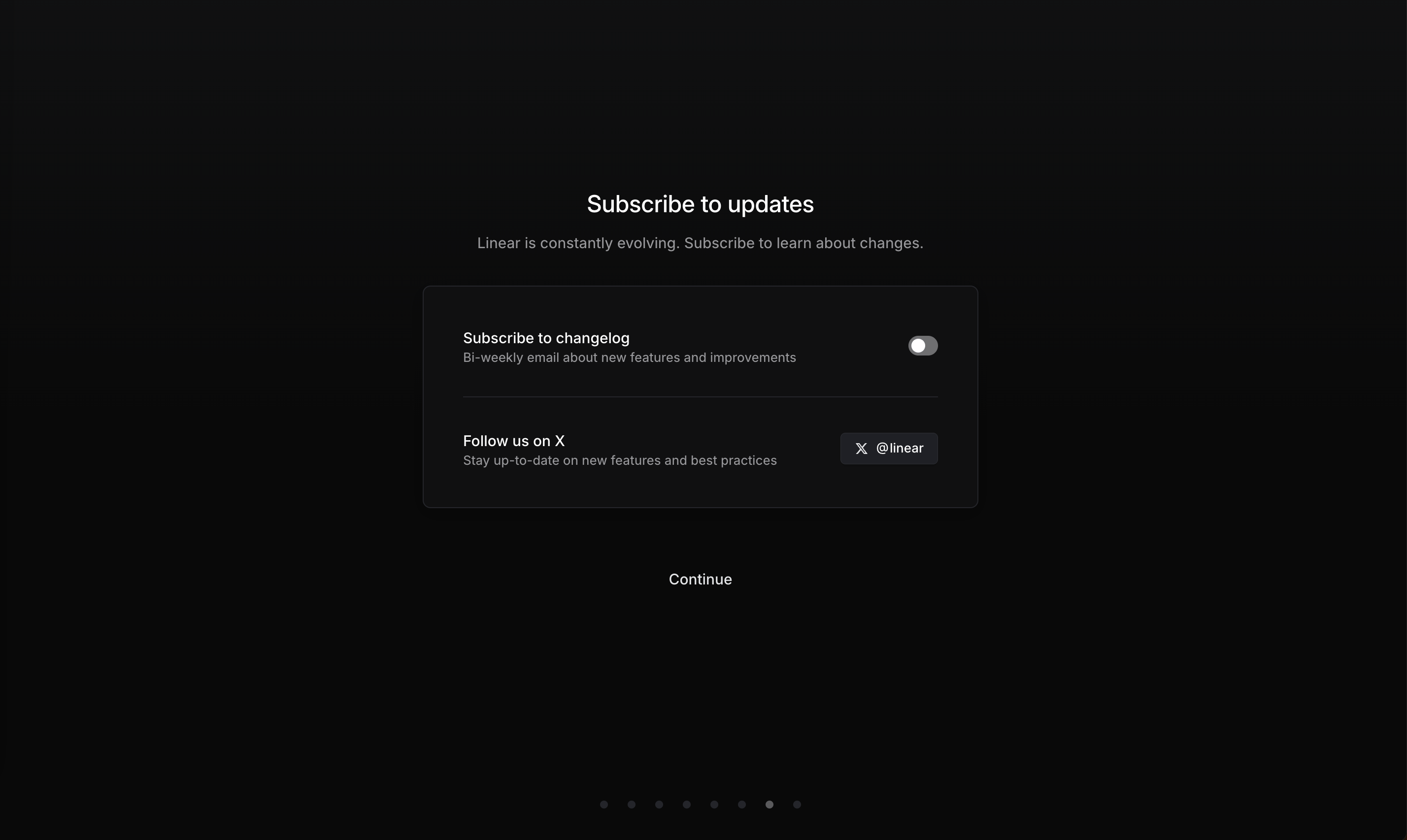
Subscribe to updates
Step 7 asks for a changelog opt-in and an X follow.
-
18
Why subscribe (working)
"Linear is constantly evolving" gives a reason to stay in touch.
-
19
Opt-in, not pre-checked (working)
The changelog toggle starts off and says how often you'll get it: bi-weekly.
-
20
Low-commitment channel (working)
Following @linear on X is offered for people who don't want email.
-
21
Marketing step in setup (not working)
A newsletter ask at step 7 of 8 adds length without helping you get started.
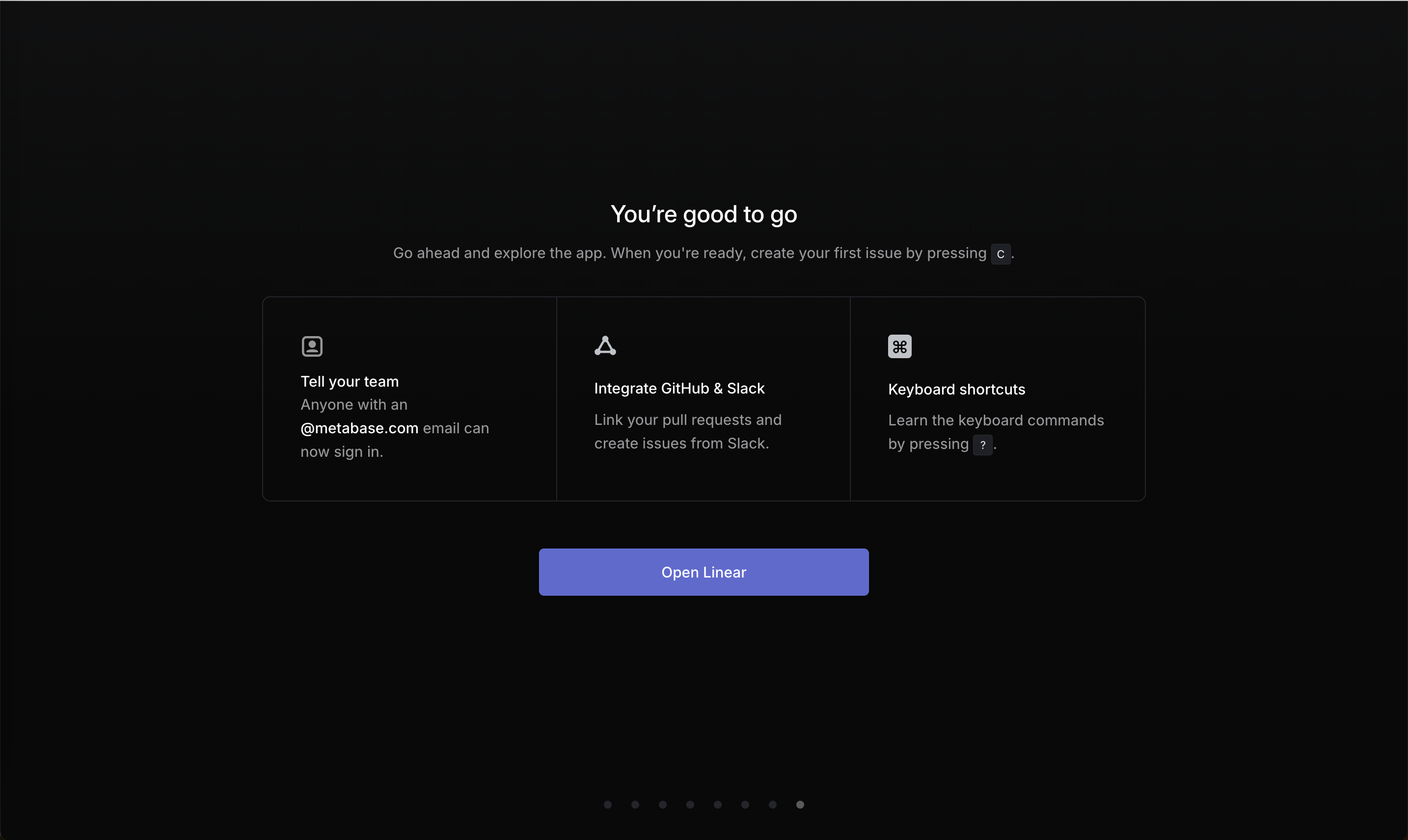
You're good to go
The last screen names the first action and lists three things to do next.
-
22
First action named (working)
"Create your first issue by pressing C" ends onboarding with one concrete step.
-
23
Domain sign-in (working)
"Anyone with an @metabase.com email can now sign in" tells you the team can join without invites.
-
24
Integration as a tip (not working)
"Integrate GitHub & Slack" has no button, so it reads as advice rather than an action.
-
25
One more shortcut (working)
"Learn the keyboard commands by pressing ?" keeps the keyboard-first teaching going.
- 26
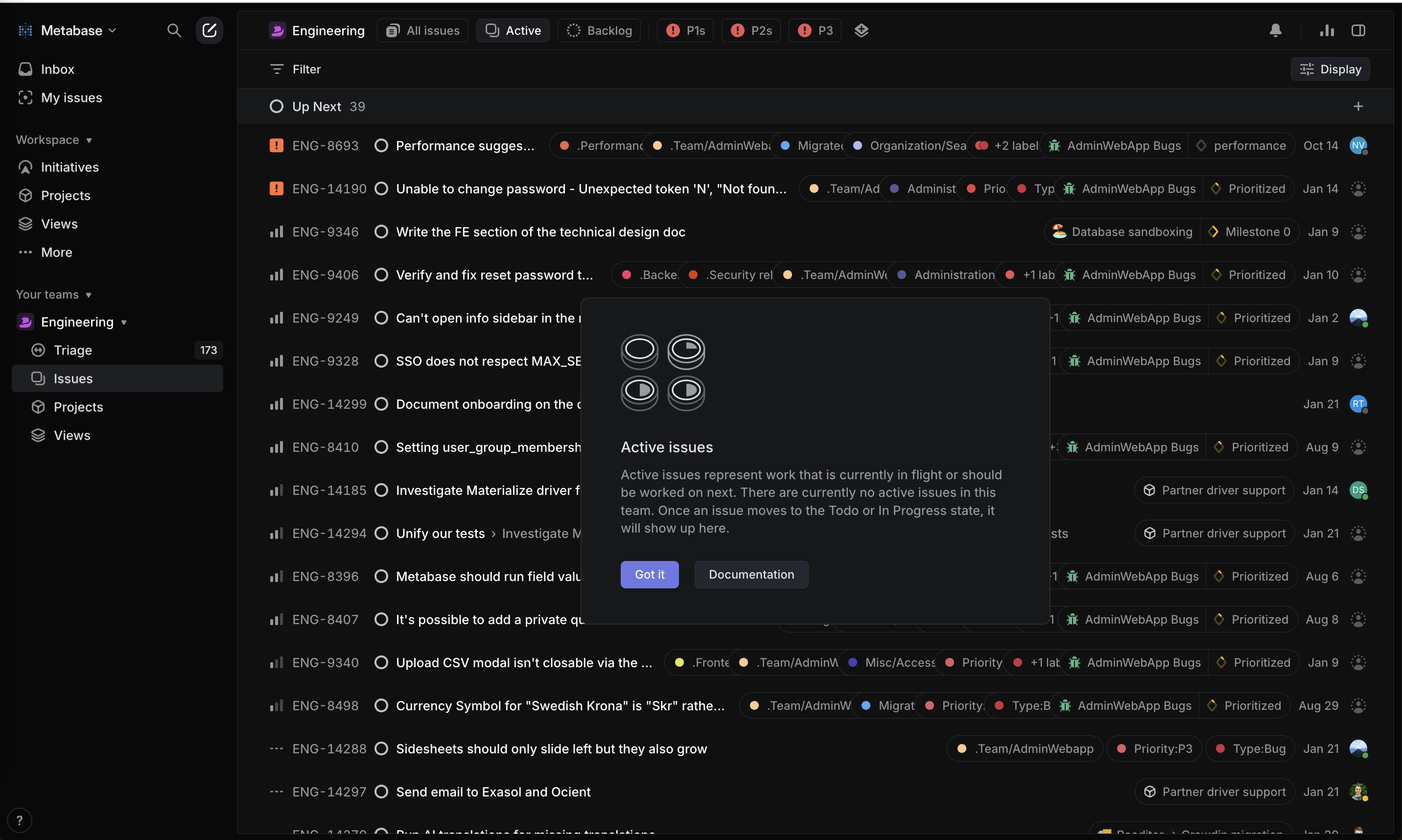
Active issues tip
Inside the app, opening a view for the first time shows a short explainer.
-
27
Tab you just opened (working)
The tip appears when you open "Active", so it explains the view in front of you.
-
28
Visual for the concept (working)
Status icons and a title show what "Active issues" means at a glance.
-
29
Copy contradicts the list (not working)
It says "there are currently no active issues" while 39 Up Next issues sit behind it.
-
30
Dismiss or go deeper (working)
"Got it" and "Documentation" let you close the tip or read more.
Takeaways from Linear
- Teach the one habit that makes your product fast (Linear's keyboard) by asking users to do it during onboarding.
- Default new users into the team where their colleagues already are, and show faces to prove it.
- Keep contextual tips in sync with real data, or they undermine trust.