Usage-based pricing with a spend limit instead of a hard wall
Cursor lets Pro users opt into on-demand usage with preset monthly budgets, and offers the same budget choice in the editor at the moment the limit is hit.
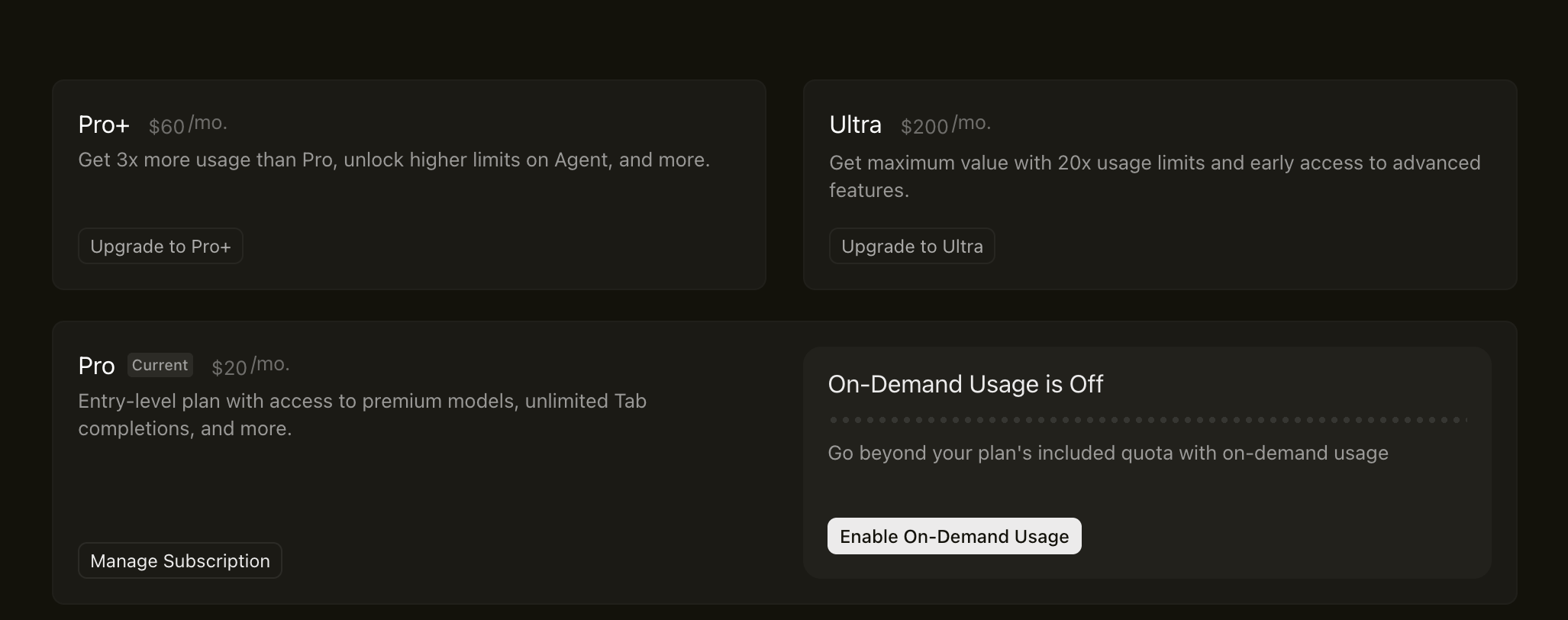
Plans with on-demand usage off
The billing page shows higher plans next to an opt-in for paying beyond the included quota.
-
1
Usage in multiples, not units (not working)
"3x more usage than Pro" only means something if you know what Pro includes.
-
2
$200 tier as the anchor (working)
Ultra's "20x usage limits" makes $60 Pro+ look like the modest step up.
-
3
Current plan labeled (working)
The "Current" tag on Pro shows where you stand before you compare.
-
4
Overage is opt-in (working)
"On-Demand Usage is Off" by default, so nobody is billed past the plan by surprise.
-
5
Brightest button is pay-as-you-go (working)
The only filled button is "Enable On-Demand Usage", not a plan upgrade.
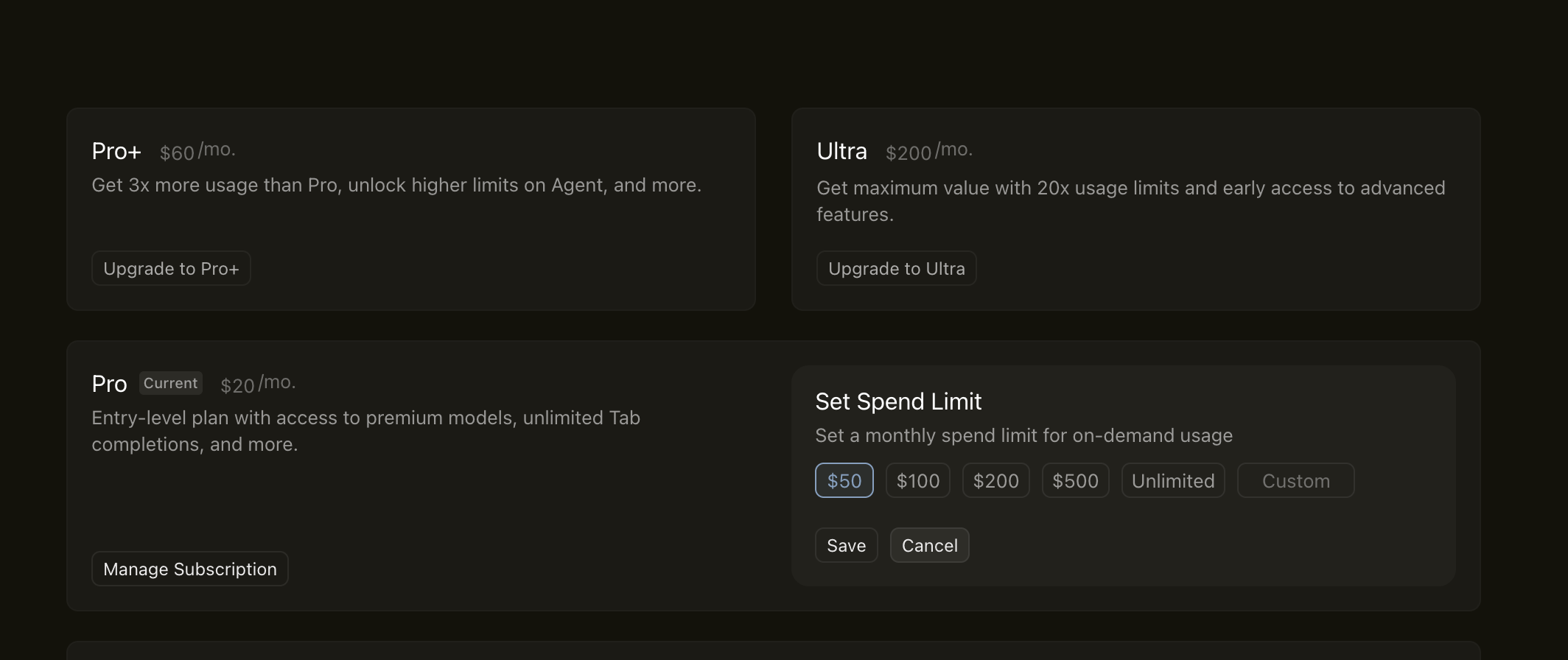
Set a monthly spend limit
Turning on on-demand usage opens a budget picker, so the first decision is how much you allow, not how much you buy.
-
6
Framed as a limit (working)
"Set Spend Limit" puts the user in control of the ceiling instead of selling credits.
-
7
Lowest preset selected (working)
$50 is preselected, the safest default for a first-time overage.
- 8
-
9
Custom amount (working)
Teams with their own budget can type it in.
-
10
Save and Cancel look the same (not working)
Both buttons share one style, so the committing action has no emphasis.
Usage limit hit in the editor
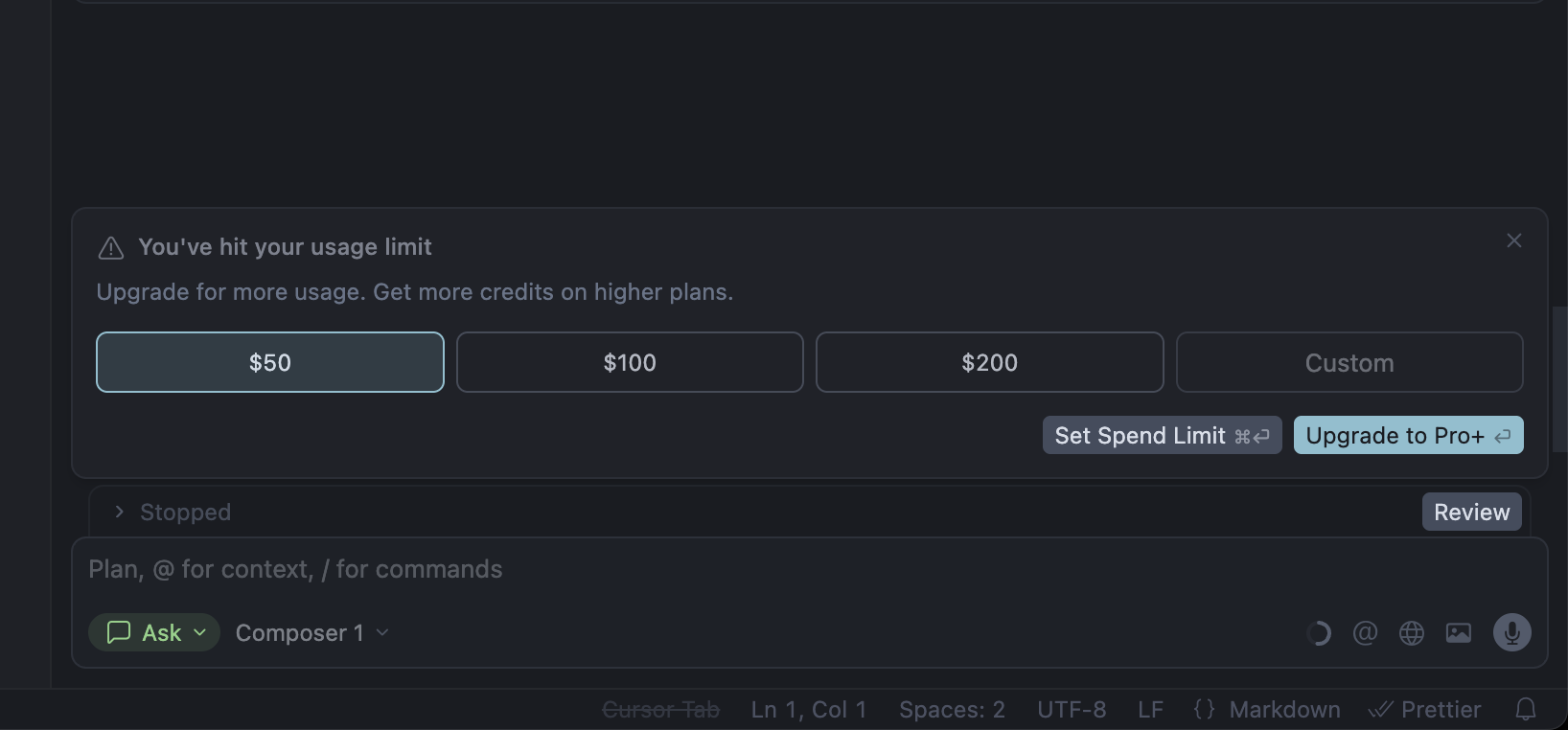
When the agent stops mid-task, the same budget presets appear inline next to an upgrade button.
-
11
At the moment of need (working)
"You've hit your usage limit" appears inside the chat, where the work just stopped.
-
12
Copy and options disagree (not working)
The text says "Upgrade for more usage", but the main controls are spend-limit amounts.
-
13
Budget in one click (working)
$50 to $200 presets mirror the settings page, so no trip to billing is needed.
-
14
Upgrade is the Enter key (working)
"Upgrade to Pro+" is highlighted with the Enter hint, while spend limit takes Cmd+Enter.
-
15
Stopped work as motivation (working)
The "Stopped" agent run just below makes the cost of not choosing clear.
Takeaways from Cursor
- Offer overage as an opt-in with a spend cap, so heavy users pay more without fearing a surprise bill.
- Put the budget choice inline where the limit is hit, with the same presets as in settings.
- Make sure the copy matches the controls: if the buttons set a budget, say so.