
The Best Apps to Organize Screenshots in 2026
People take screenshots to remember things — a film, a serum, a recipe, a café — and then lose them in a camera roll of thousands. A new wave of apps reads those screenshots and sorts them for you. They differ most in two ways: whether your screenshots are uploaded to a server, and whether the app files things for you or leaves the sorting to you. Here are the eight worth knowing in 2026, what each is best at, and one line on each you can take away.
By Tanya Aulachynskaya, maker of Nutstash · Updated . Ratings, prices and privacy labels checked against each app’s US App Store listing.
The short answer
Yes, there are apps that organize screenshots automatically. The best choice depends on what matters most to you:
- Best for privacy: Nutstash sorts screenshots into topics and to-try lists with on-device AI; nothing is uploaded. iPhone and Android.
- Best for saving reels, TikToks and links too: Albo, the most-rated app in the category (4.9 from 2,085 ratings).
- Best search: Pool, free, built around finding any screenshot fast.
- Best for turning screenshots into tasks: Captr, which makes a daily to-do list from them.
- Best for sorting by hand: Clutter, a one-off $2.99.
- Best without a new app: Apple Photos search on iPhone, or Google Photos if you back up to Google.
How we picked
We looked at every app on the US App Store that calls itself a screenshot organizer or a “save anything” app and kept the ones that do the job well and are actively updated. For each one we checked its App Store listing, its privacy label and its developer’s privacy policy on 25 November 2026, and compared four things: does it sort screenshots for you, can you search the text in them, where are your screenshots processed, and what does it cost. We left out apps that mainly delete photos or stitch screenshots together. We make Nutstash, so it comes first here; the verdicts on the others are as fair as we can make them, and the table lets you check.
Screenshot organizer apps compared
| App | Best for | Where your screenshots are processed | Price | App Store rating |
|---|---|---|---|---|
| Nutstash | Screenshots sorted into topics and to-try lists, privately | On your phone. Never uploaded | Free for your 20 newest. Pro $7.99/mo or $34.99/yr | 5.0 from 1 (new in November 2026) |
| Albo | Saving reels, TikToks and links as well as screenshots | Not stated in its privacy policy; App Store label lists photos linked to you | Free. Pro $4.99/mo; yearly plans $29.99–$49.99 | 4.9 from 2,085 |
| Pool | Finding any screenshot fast with AI search | Not stated in what we could read; label lists photos linked to you | Free; no in-app purchases listed | 4.7 from 41 |
| Captr | A daily to-do list built from your screenshots | Third-party AI and product-search providers | Free; no in-app purchases listed | 4.8 from 155 |
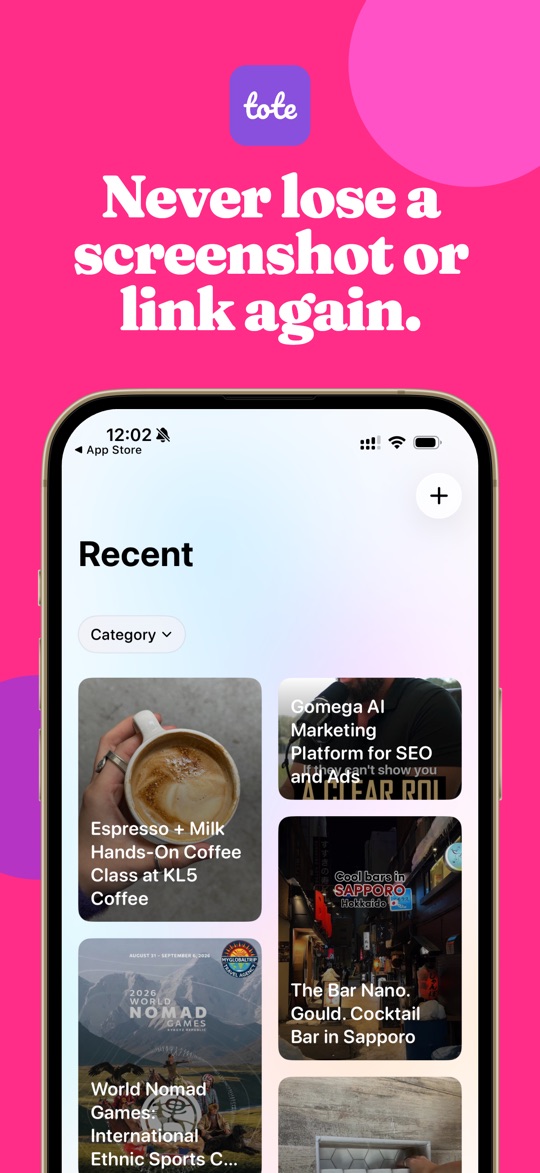
| Tote | Searchable cards with details pulled out of each save | Its servers and AI vendors | Free. Tote Annual $29.99 | 4.7 from 179 |
| Clutter | Tidying screenshots by hand into folders | On your phone, says the listing | Free. Pro $2.99 once | 4.8 from 108 |
| Apple Photos | Finding a screenshot by its text, no new app | On your phone (iCloud if you use it) | Built in | — |
| Google Photos | Backing up and auto-sorting a whole library | Google’s cloud, once backed up | Free up to 15 GB | 4.8 from 1.69 million |
1. Nutstash: best for keeping screenshots private
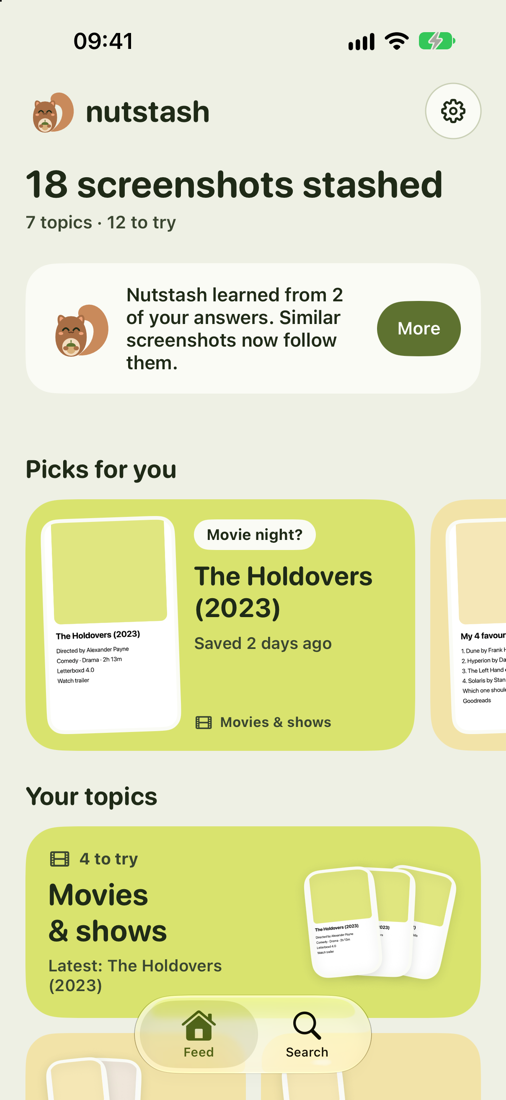
Nutstash reads only your Screenshots album and sorts it into topics — films and shows, books, recipes, places, skincare, outfits and more — then turns each topic into a to-try list you swipe through. A “Top 10 shows” screenshot becomes ten separate things to watch, and a few saves come back each day as picks. All of it runs on the phone. We make Nutstash, so read this entry with that in mind.
Good
- Your screenshots never leave your phone. Reading, sorting and searching run on the device: Apple’s text recognition and Apple Intelligence on iPhone, Google’s on-device text recognition and Gemini Nano on Android. No account, no ads.
- It opens only your screenshots, never the rest of your photo library.
- A “Top 10 shows” screenshot becomes ten separate things to watch, and you swipe through each topic to tick off what you’ve watched, read, cooked or visited.
- Every word on every screenshot is searchable, in English, Polish, Russian and more.
Not so good
- Brand new. It launched in November 2026 and has a single App Store rating so far.
- Needs iOS 26, and sorts best on iPhones with Apple Intelligence (iPhone 15 Pro and newer); other phones fall back to simpler keyword sorting.
- Free covers your 20 newest screenshots. Everything older needs Pro at $7.99 a month or $34.99 a year, after a 3-day trial.
Verdict: Nutstash is the screenshot organizer to pick if you don’t want your screenshots uploaded anywhere: it sorts them into topics and to-try lists with on-device AI, on iPhone and Android.
2. Albo: best for saving reels, TikToks and links as well
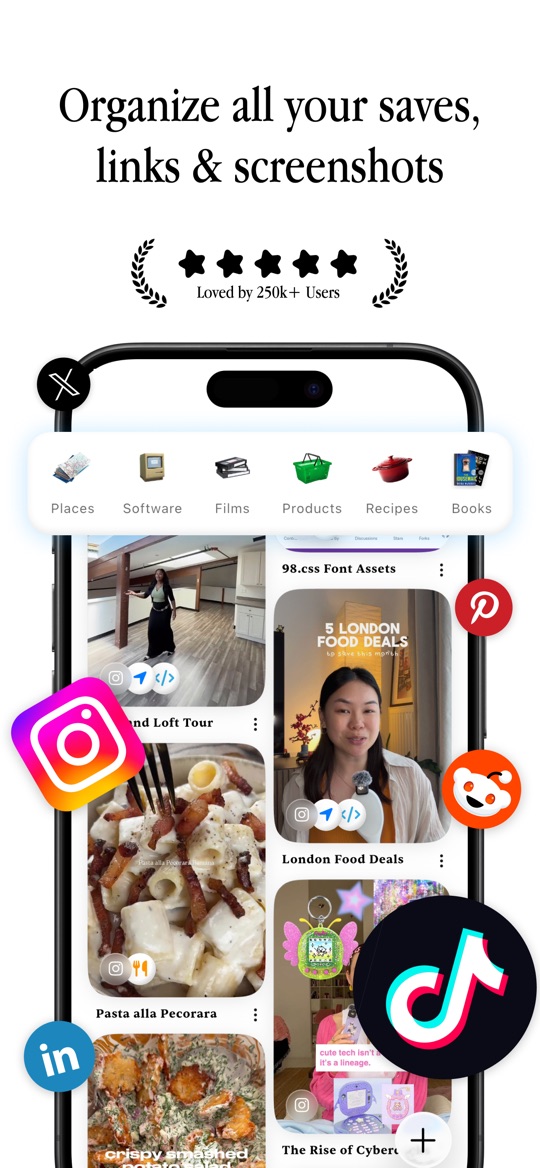
Albo is the most popular app for things you save online. Share a reel, a TikTok, a link or a screenshot and it works out what is in it and files it as a place, recipe, film, book or product. It goes further than filing: recipes pulled out of videos, a weekly meal plan and shopping list, trip itineraries and a map of saved places.
WebsiteApp StorePrivacy policy
Good
- The strongest track record in the category: 4.9 stars from 2,085 ratings.
- Turns saves into plans: meals, trips, a map.
- Works with links and videos, not just screenshots.
Not so good
- Built around sharing things in one by one; the screenshots already in your camera roll stay where they are.
- Its privacy policy does not say where your saves are processed, and its App Store label lists identifiers and usage data as used to track you.
- Pro is $4.99 a month, with yearly plans listed from $29.99 to $49.99.
Verdict: Albo is the best-established “save anything” app, ideal if most of what you save is reels, TikToks and links rather than screenshots.
3. Pool: best for finding a screenshot fast
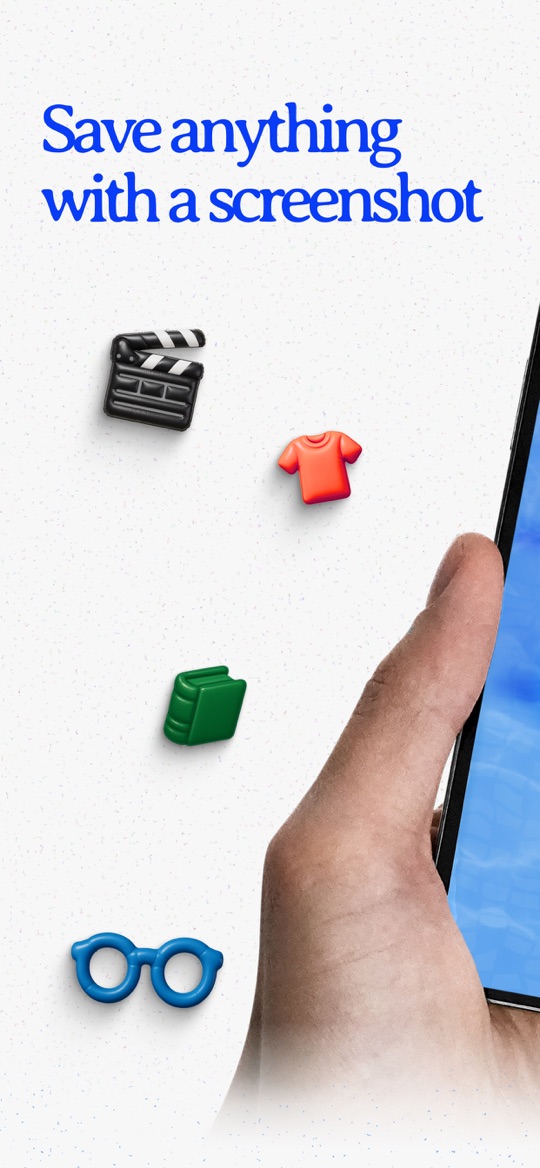
Pool, from Random Access Memories, is built for people who take far too many screenshots and can never find the one they want. Its focus is search that works even when you barely remember what was on the screen, plus “Pools” in place of albums and smart actions that find the original link behind a screenshot.
WebsiteApp StorePrivacy policy
Good
- Free, with no in-app purchases listed on the App Store.
- Search is the centre of the app, not an extra.
- Its release notes say you can start without an account.
Not so good
- The same notes say you sign in with Apple to turn on its AI features, and its App Store label lists photos, name and phone number as data linked to you.
- Its privacy policy did not load for us, so we can’t say where screenshots are processed.
- iPhone only, and young: 4.7 stars from 41 ratings.
Verdict: Pool is the free pick for people whose main problem is finding one screenshot again, rather than sorting all of them into lists.
4. Captr: best for turning screenshots into a to-do list
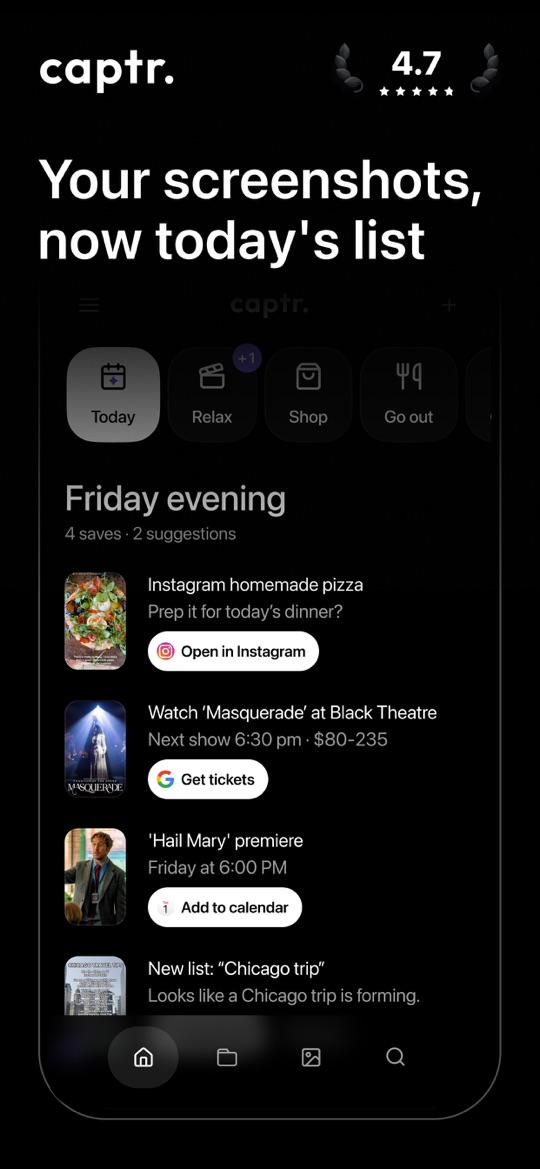
Captr treats every screenshot as a task you have not done yet. It reads each new one, works out whether it is a product, place, recipe, article or event, and each morning shows them as today’s list — the jacket ready to buy, the restaurant ready to navigate to, the event ready to add to your calendar.
WebsiteApp StorePrivacy policy
Good
- One-tap actions for calendar, reminders, directions and shopping.
- A daily list that comes to you, so screenshots don’t sit forgotten.
- Free, with no in-app purchases listed on the App Store.
Not so good
- Its privacy policy says its AI features run on third-party AI providers and that images are sent to product-search providers.
- You sign in with Google or Apple; its label lists contact info and usage data as used to track you.
- English only; 155 ratings.
Verdict: Captr is the best screenshot app for people who want to act on what they saved today, as long as they are fine with cloud AI.
5. Tote: best for details pulled out of each save
Tote turns each screenshot, reel or link into a card with the useful details extracted — a recipe’s ingredients and cook time, a restaurant’s hours, an event’s date and venue — filed by type and searchable by any of them. It recognises more than 20 kinds of content and can be triggered from the Action Button.
WebsiteApp StorePrivacy policy
Good
- Cards with the details already pulled out.
- Search by name, place, ingredient or date.
- One simple plan: Tote Annual, $29.99 a year.
Not so good
- Its privacy policy says it works with cloud hosting and AI providers that process your data.
- You sign in with Apple or Google, and it needs iOS 26.
- Young, with 179 ratings.
Verdict: Tote is the neatest “second brain” for saves if you want every screenshot turned into a searchable card and don’t mind it being processed in the cloud.
6. Clutter: best for sorting by hand and paying once
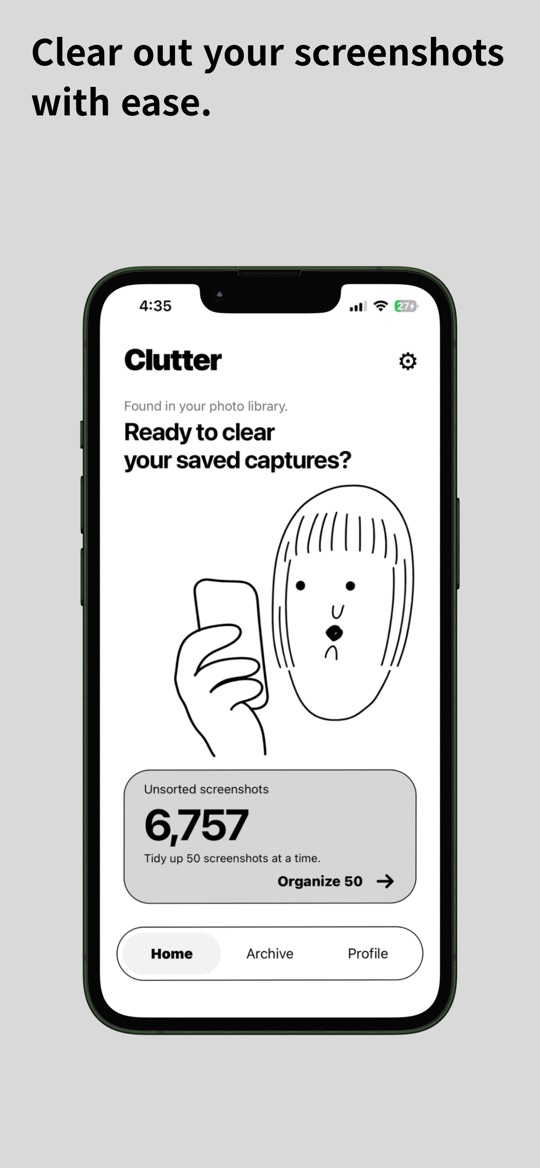
Clutter skips the AI. You go through screenshots a few at a time and delete them, keep them for later, or move them into folders such as shopping, travel or ideas, with tags and notes. Its App Store listing says your photos are processed on the device and not uploaded.
Good
- On-device, according to its listing.
- Pro is a one-off $2.99, the cheapest paid option here.
- Good for clearing out thousands of old screenshots.
Not so good
- Nothing is sorted for you; every folder is your own work.
- Its App Store label lists purchases, identifiers and usage data as used to track you, and data used for third-party advertising.
- A small one-person app with 108 ratings.
Verdict: Clutter is the cheapest way to tidy screenshots if you would rather decide every folder yourself than let an AI do it.
7. Apple Photos: best if you don’t want another app
Your iPhone already keeps screenshots together under Collections → Media Types → Screenshots, and Photos search reads the text in your pictures, so a word that was on a screenshot usually finds it. Live Text turns dates, addresses and phone numbers on a screenshot into taps. Our guide on how to organize screenshots walks through it.
Good
- Free, built in, and the search runs on your iPhone.
- With Apple Intelligence, describe a picture in plain words to find it.
Not so good
- No topics or lists: screenshots stay one long mixed album.
- Nothing reminds you of what you saved; you have to go looking.
Verdict: Apple Photos is good enough if you only ever need to find a screenshot by a word on it; it won’t organize them for you.
8. Google Photos: best if you already back up to Google
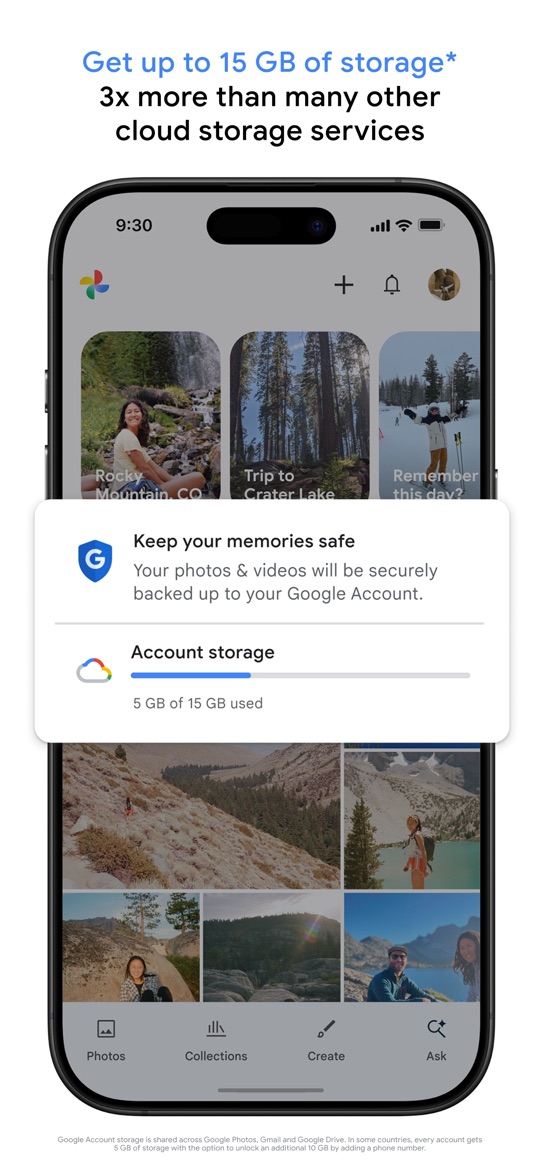
Google Photos sorts backed-up screenshots and documents into albums such as receipts, IDs and event information, can archive screenshots out of your main grid, and has very good AI search. It works on iPhone, Android and the web and is by far the most-rated app here, with about 1.69 million ratings.
Good
- Free up to 15 GB, on every platform.
- Screenshots and documents sorted into albums automatically.
Not so good
- Your library is stored and processed in Google’s cloud.
- Albums, not to-try lists: it files screenshots but doesn’t bring them back.
Verdict: Google Photos is the default for Android users who back up everything to Google, but it treats screenshots as photos to file, not saves to act on.
Apps we left out
- Dazzle, Marissa Mayer’s AI assistant, reads your whole camera roll rather than just screenshots and acts on it for you. It is an assistant more than an organizer; see our Dazzle alternatives.
- Photo cleaners such as Slidebox help you delete photos in bulk, screenshots included, but don’t sort what you keep by topic.
- Newer “save anything” apps such as Sorti, Fofo and Stasht are close to Albo and Tote but have far fewer ratings so far. We’ll look again in the next update.
How to choose
- You want screenshots sorted for you and nothing uploaded: Nutstash.
- Most of what you save is reels, TikToks and links: Albo, or Tote for detail cards.
- You mostly need to find one screenshot again: Pool, or Apple Photos search.
- You want a daily to-do list from your screenshots: Captr.
- You want to sort by hand and pay once: Clutter.
- You’re on Android: Nutstash or Google Photos.
Comparing two apps head to head? See Albo alternatives, Tote alternatives, Captr alternatives and Dazzle alternatives.
Ratings, prices and privacy labels are from each app’s US App Store listing, checked on 2026-11-25. What happens to your screenshots is quoted from each developer’s own privacy policy; where a policy does not say, we say so rather than guess. Screenshots are each app’s own App Store images and belong to their publishers. Nutstash is our app, so weigh our verdicts accordingly.
Try Nutstash on your own screenshots
Nutstash sorts your screenshots into topics and to-try lists on your phone: films to watch, books to read, places and recipes. Nothing is uploaded, and your 20 newest screenshots are sorted for free.


Questions
What is the best app to organize screenshots?
It depends on what you care about. For automatic sorting with nothing uploaded, Nutstash sorts screenshots into topics and to-try lists with on-device AI on iPhone and Android. Albo has the most ratings and also saves reels and links. Pool is a free option focused on search, and Captr turns screenshots into a daily to-do list.
Is there an app that organizes screenshots automatically?
Yes. Nutstash, Albo, Tote and Captr all read what is in a screenshot and file it for you: Nutstash into topics such as films, books, recipes and places; Albo and Tote by type such as place, recipe or product; Captr into a daily list of things to do. Google Photos also puts backed-up screenshots and documents into albums automatically.
Which screenshot organizer keeps my screenshots private?
Nutstash does its reading, sorting and search on the phone (Apple Intelligence on iPhone, Gemini Nano on supported Android phones) and never uploads your screenshots. Clutter’s listing also says photos are processed on the device, but there you sort by hand. Captr’s and Tote’s privacy policies say they use third-party AI or cloud providers.
Is there a free screenshot organizer app?
Pool and Captr list no in-app purchases on the US App Store. Nutstash sorts your 20 newest screenshots free, with Pro at $7.99 a month or $34.99 a year. Albo and Tote have free tiers with paid plans. Apple Photos search and Google Photos (up to 15 GB) are free.
What is the best screenshot organizer for Android?
Nutstash runs on Android 10 or later with 8 GB of memory, and sorts best on phones with Gemini Nano, such as Pixel 9 and newer. Google Photos is the built-in alternative: it sorts backed-up screenshots into albums and can archive them out of your main photo grid.
How do I organize screenshots on iPhone without an app?
Open Photos, go to Collections → Media Types → Screenshots to see them all in one place, and use search to find text that was on a screenshot. You can add screenshots to albums by hand. Our guide on how to organize screenshots covers ten ways, with and without apps.