
How to Organize Screenshots: 10 Ways to Sort and Declutter Them
Most of us screenshot things to remember them — a film, a recipe, a jacket, a café — and then never see them again. A few hundred screenshots later, the camera roll is a junk drawer. Here are ten ways to get it under control, from the free tools already on your phone to apps that sort screenshots for you. Pick two or three; nobody needs all ten.
By Tanya Aulachynskaya, maker of Nutstash · Updated 2026-11-19. Steps follow Apple’s and Google’s own help pages; menu names can differ slightly between software versions.
The short answer
- To sort them automatically: use a screenshot organizer such as Nutstash, which files them into topics and to-try lists on your phone.
- To see them all in one place: on iPhone, open Photos → Collections → Media Types → Screenshots; on Android, open the Screenshots folder in your gallery or Google Photos.
- To delete lots at once: open that Screenshots view, tap Select, drag across the grid, delete, then empty Recently Deleted.
- To find one screenshot: search Photos for a word that was on it.
1. Let an AI sort them into lists, on your phone
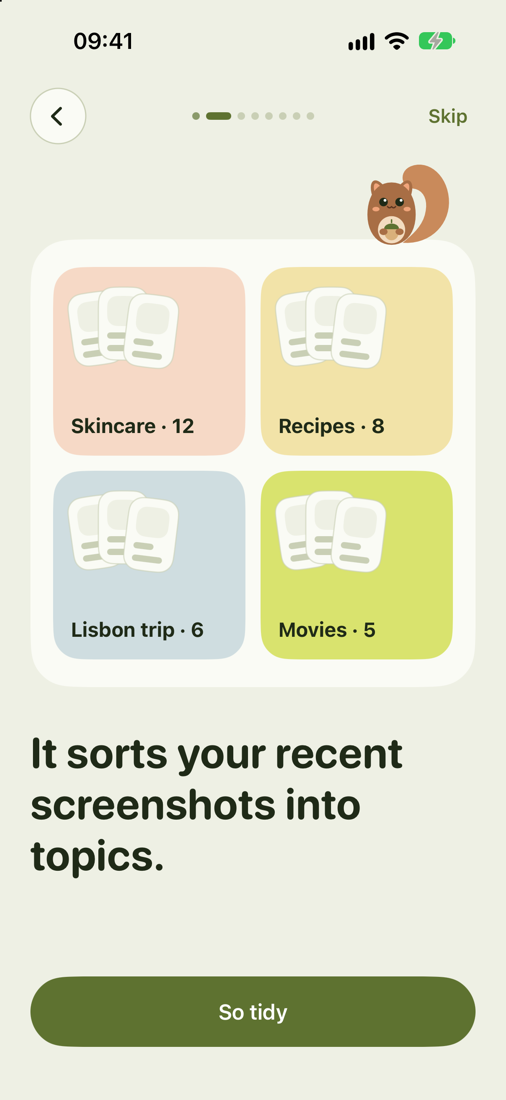
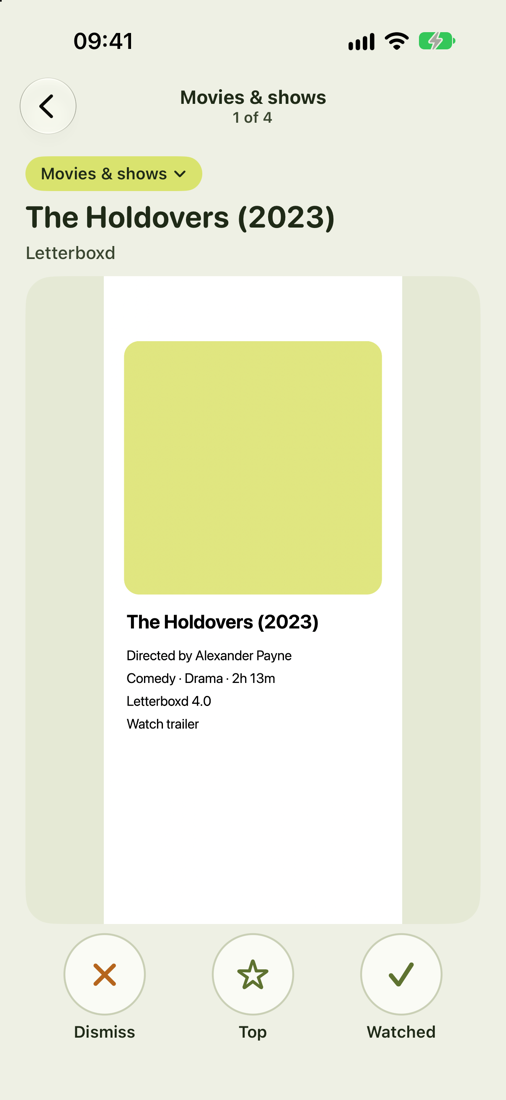
The fastest way to organize hundreds of screenshots is to not do it yourself. Nutstash (that’s our app) reads every screenshot on your phone and files it into topics — movies and shows, books, skincare, outfits, recipes, restaurants, places, kids — then turns each topic into a to-try list. A “Top 10 shows” screenshot becomes ten separate things to watch, and you swipe through a topic to tick off what you’ve watched, read, cooked or visited.
- Install Nutstash from the App Store or Google Play.
- Allow photo access. Nutstash then opens only your screenshots, never your other photos.
- Give it a few minutes to read and sort them.
- Open a topic and swipe: tick off, dismiss, or star what you want to do first.
Why it’s different: the reading, sorting and searching all happen on the phone — Apple Intelligence on iPhone, Gemini Nano on supported Android phones — so your screenshots are never uploaded and there’s no account. Your 20 newest screenshots are sorted free; sorting all of them is $7.99 a month or $34.99 a year after a 3-day trial. It needs iOS 26, or Android 10 with 8 GB of memory.


2. Find all your screenshots in one place
Before you sort anything, separate screenshots from real photos. Both phones already keep them apart.
- iPhone: open Photos, tap Collections, scroll to Media Types and tap Screenshots. You can also type “screenshots” in the Photos search field, which filters by media type.
- Android: open Google Photos or your phone’s gallery and look for the Screenshots folder among the device folders. On the phone itself they usually live in Pictures/Screenshots; some phones, Samsung among them, use DCIM/Screenshots.
- Tip: pin the Screenshots collection in Photos so it’s one tap away next time.
3. Delete screenshots in bulk
Most screenshots are disposable: a boarding pass from last year, a meme you already sent, a map you no longer need. Clearing them in bulk is the quickest win.
- Open the Screenshots view from step 2.
- Tap Select, then drag your finger across the grid to select whole rows at once instead of tapping each one.
- Tap the trash icon and confirm.
- Deleted screenshots go to Recently Deleted (Collections → Utilities on iPhone; Trash in Google Photos) and are removed for good after about 30 days. Empty it if you need the space now.
On Android, Google Photos works the same way: long-press one screenshot, drag to select more, and tap Delete or Move to trash. If your screenshots are backed up, deleting in Google Photos removes them from the backup too.
4. Search screenshots by the words on them
You don’t have to organize a screenshot to find it again. Both Photos apps read the text in your pictures.
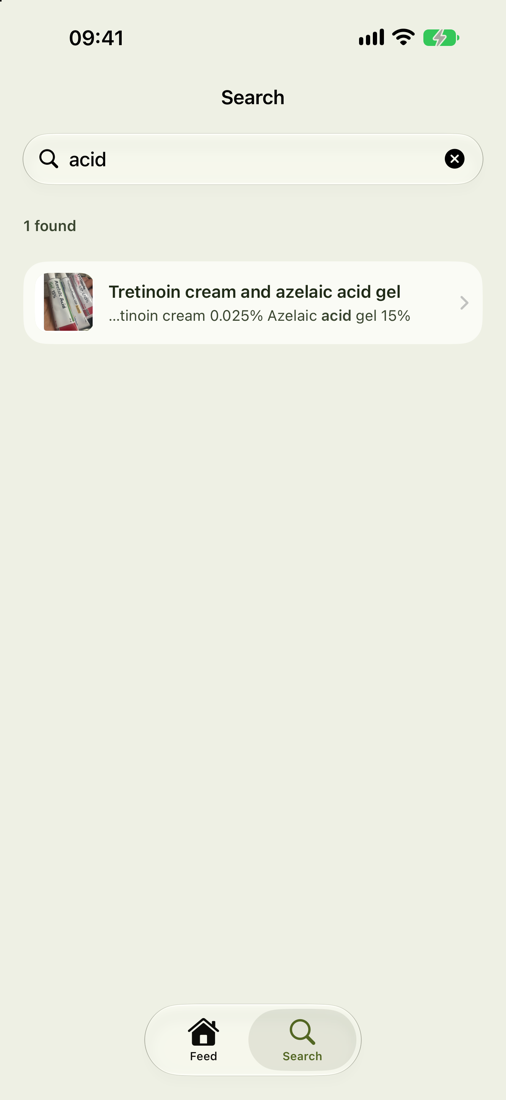
- iPhone: in Photos, tap Search and type a word that was on the screenshot: a café’s name, a phone number, a product. With Apple Intelligence on, you can also describe the picture in plain words.
- Google Photos: search works the same way across your backed-up library, including words on screenshots.
- Nutstash: searches every word on every screenshot, in English, Polish, Russian and more, and keeps the search on the phone.
The catch: search only helps when you remember a word that was on it. For the “I know I saved a book recommendation somewhere” moments, topics work better than search.
5. Copy the text out, then delete the image
Plenty of screenshots exist only for a few words: an address, a confirmation code, a quote, a recipe’s ingredient list. Move the words where they’ll be useful and let the picture go.
- Open the screenshot and press and hold on the text (Live Text on iPhone; on Android, tap Lens or “Copy text” in Google Photos).
- Copy it into Notes, Reminders or your calendar — or tap an address, date or phone number to act on it directly.
- Delete the screenshot.
6. Make albums for the screenshots you keep
If you’d rather sort by hand, a handful of albums beats dozens. Start with the ones you actually come back to: To watch, To read, To cook, Places, To buy.
- Select the screenshots that belong together.
- Tap Share (iPhone) or the three-dot menu (Google Photos) and choose Add to Album.
- Pick an existing album or make a new one.
Albums are only as good as your discipline: new screenshots don’t file themselves. That’s the gap automatic sorting (step 1) or Google Photos’ own albums (step 7) fill.
7. Let Google Photos sort and archive them
If you already back up to Google Photos, it does a fair amount of screenshot housekeeping on its own, on Android and iPhone. Its AI sorts screenshots and documents into albums such as ID, receipts and event information; a screenshot of a ticket or invitation gets a Set Reminder button that adds it to your calendar; and you can have screenshots archived automatically after 30 days, so they leave your main grid but stay in their albums.
- Open Google Photos and go to Collections (Library on older versions) to see the screenshot and document albums.
- Turn on automatic archiving for screenshots when Google Photos offers it, or archive them by hand.
- Android only: in the Photos view settings, choose “Hide clutter” for apps like screenshots, GIFs and memes so backed-up screenshots stay out of your main view.
The trade-off: it works on your backed-up library, so your screenshots live in Google’s cloud, and the albums are receipts and IDs rather than lists of things to watch or try.
8. Swipe through the backlog with a cleaner app
For a camera roll with thousands of screenshots, a swipe-to-keep-or-delete app makes clearing out feel like a game. A few popular ones on the US App Store:
- Clutter is built for screenshots: review them one by one, delete, keep for later or move them into folders. 4.8 stars from 109 ratings; Pro is $2.99 once.
- Slidebox swipes through your whole library, photos included. 4.8 stars from about 16,700 ratings.
- Swipewipe does the same with a more playful twist. 4.7 stars from about 103,000 ratings.
Cleaners help you delete; they don’t organize what’s left. Pair one with albums, Google Photos or Nutstash for the screenshots worth keeping.
9. Stop the pile at the source
The easiest screenshot to organize is the one that never lands in your camera roll.
- Only need it for a minute? On iPhone, tap the screenshot preview, then Done, and choose Copy and Delete or Delete Screenshot instead of saving it to Photos.
- Saving a link, post or product? Share it instead of screenshotting it — to Notes, to Nutstash on iPhone, or to a save-for-later app like Albo or Tote (we compare them in our Albo alternatives and Tote alternatives guides).
- Messages you save to yourself on Telegram? Nutstash on iPhone can bring in your Telegram Saved Messages and sort them alongside your screenshots.
10. Make it a ten-minute weekly habit
Screenshots pile up a few a day, so a few minutes a week keeps them under control far better than a heroic clear-out twice a year.
- Pick a fixed slot — Sunday evening works for a lot of people.
- Delete the week’s disposable screenshots (step 3).
- Act on two or three of the rest: watch the film, book the restaurant, order the thing.
- Let the rest wait in their album or topic for next time.
If you use Nutstash, the weekly pass is swiping through each topic and ticking things off, and each day it brings back a few picks — a film for movie night, a book to read next — so the screenshots you saved for a reason actually get used.
Which way is right for you?
- You have hundreds of screenshots and want them sorted without lifting a finger: Nutstash (step 1).
- You just want fewer screenshots: bulk delete (step 3), then a cleaner app (step 8).
- You only ever need to find one: search Photos by a word on it (step 4).
- You back up to Google anyway: let Google Photos sort and archive them (step 7).
- You want it to stay sorted: stop the pile at the source (step 9) and keep the weekly habit (step 10).
App ratings are from the US App Store, checked on 2026-11-19. Nutstash is our app; everything else on this page we have no connection with. Phone menus move between software versions, so if a button isn’t where we say, search your phone’s settings or help for the feature name.
Try Nutstash on your own screenshots
Nutstash sorts your screenshots into topics and to-try lists on your phone: films to watch, books to read, places and recipes. Nothing is uploaded, and your 20 newest screenshots are sorted for free.
Questions
How do I delete all screenshots on my iPhone at once?
Open Photos, tap Collections, then Media Types and Screenshots. Tap Select, drag your finger across the grid to select whole rows at once, then tap the trash icon. The screenshots go to Recently Deleted under Utilities, where they stay for about 30 days; delete them from there too if you need the space straight away.
Where are screenshots saved on iPhone and Android?
On iPhone, screenshots are saved to the Photos app and grouped in the Screenshots collection under Media Types. On Android they are usually saved to Pictures/Screenshots on the phone, or DCIM/Screenshots on some phones such as Samsung, and appear as a Screenshots folder in Google Photos or your gallery app.
How do I search my screenshots?
In the iPhone Photos app, tap Search and type a word that was on the screenshot, such as a name or phone number; Photos reads the text in your pictures. Google Photos does the same for backed-up screenshots. Nutstash searches every word on your screenshots on the phone, in several languages.
Is there an app that organizes screenshots automatically?
Yes. Nutstash sorts screenshots into topics such as movies, books, recipes and places, and turns them into to-try lists, entirely on your phone. Captr and Tote also sort what you save with AI, but their privacy policies say third-party AI or cloud providers process it, and Albo’s policy doesn’t say where. Google Photos sorts backed-up screenshots into albums like receipts and IDs.
Why do I have so many screenshots?
Because a screenshot is the fastest way to remember something: it takes a second, works in every app, and needs no decision about where to put it. The decision just gets postponed. That is why sorting them automatically, or sharing things to a list instead of screenshotting them, works better than promising yourself to tidy up later.
How do I clean up screenshots in Google Photos?
Open Collections (Library on older versions) to find the Screenshots folder and Google’s automatic albums such as receipts and IDs, select the ones you don’t need and move them to the trash. You can also have Google Photos archive screenshots automatically after 30 days, and on Android hide screenshots from your main Photos view with the “Hide clutter” setting.